Maps
Maps Screen
Screen Overview
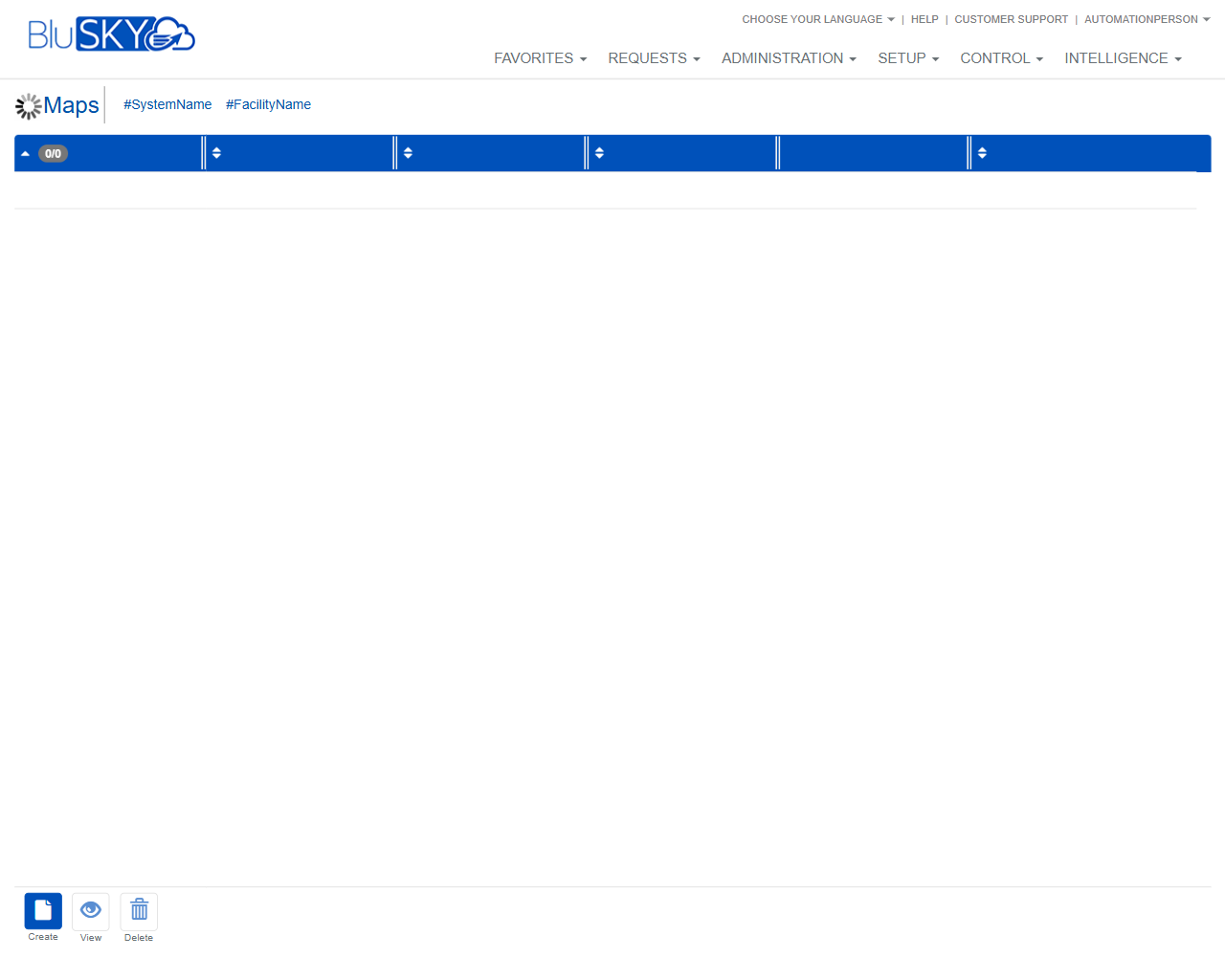
The Maps screen lets users search for, view, and manage map records associated with a selected System and Facility. It provides filters for narrowing results and action buttons to create, view, or delete map entries.
Field Definitions
| Field Label | Definition | Notes |
|---|---|---|
| System | Limits the search to one or more Systems. | Multi-select. Includes a clear (x) and a refresh icon to reload available Systems. |
| Facility | Limits the search to one or more Facilities within the selected System(s). | Multi-select. Includes a clear (x) and a refresh icon to reload available Facilities. |
| Search Text | Free-text filter for map name search. | Help (?) icon may show search guidance. Clear (x) removes entered text. |
| Results Grid | Displays the list of maps matching the submitted filters. | Empty state shows 0/0 when no results are returned. Rows must be selected for View/Delete actions. |
Screen Actions and Functions
- Submit – Executes the search using the current filters and populates the results grid.
- Reset – Clears all filters and results to the default state.
- Create – Opens a form to add a new map record.
- View – Opens details for the selected map record.
- Delete – Removes the selected map record(s) after confirmation.
- Refresh (next to System/Facility) – Reloads the available values for that picklist without changing other filter values.
- Clear (x) – Clears the current value(s) for the associated filter field.
Usage Instructions & Examples
How to find maps for a specific facility
- In System, select the relevant System.
- In Facility, select the target Facility.
- Optionally enter a map name in Search Text.
- Click Submit to load results.
- Select a row to enable View or Delete.
How to clear filters and start over
- Click Reset.
- Confirm the filters are blank.
- Re-enter filters and click Submit.
How to create a new map
- Click Create.
- Complete the required fields in the map form as prompted.
- Save. The new map will appear in the results after you click Submit with appropriate filters.
How to refresh picklists if a new System/Facility was recently added
- Click the Refresh icon next to System or Facility.
- Re-open the picklist and make your selection.
- Click Submit to update the results.
System Behaviors and Edge Cases
- Facility options are scoped by the selected System(s); if no System is chosen, Facility may show none or all facilities the user can access.
- Results remain unchanged until Submit is clicked; adjusting filters alone does not re-run the search.
- View and Delete remain disabled until a single row is selected.
- Delete prompts a confirmation dialog to prevent accidental removal.
- Reset clears filters and the grid state; use Submit again to repopulate results.
- Refresh icons reload picklist values without clearing current selections.
- If no records match the filters, the grid shows an empty state (e.g., 0/0).
- Users without sufficient permissions may not see Create or Delete.
Permissions
- Accessible to Global Administrators and Tenant Administrators.
- Create requires a Maps Create permission (e.g., CreateMaps).
- Delete requires a Maps Delete permission (e.g., DeleteMaps).
- Users with view-only permissions can search and View but cannot Create or Delete.
Linked Workflows
- Systems and Facilities configuration should be completed before creating maps.
- After creating a map, administrators typically proceed to map detail/edit screens to add placements or associations (e.g., devices, doors, or points) if enabled in the environment.
- Maps may be referenced by operational monitoring views where events or devices are shown on floor plans.
Reference Image Links