Customer Support Beta
Support Screen
Screen Overview
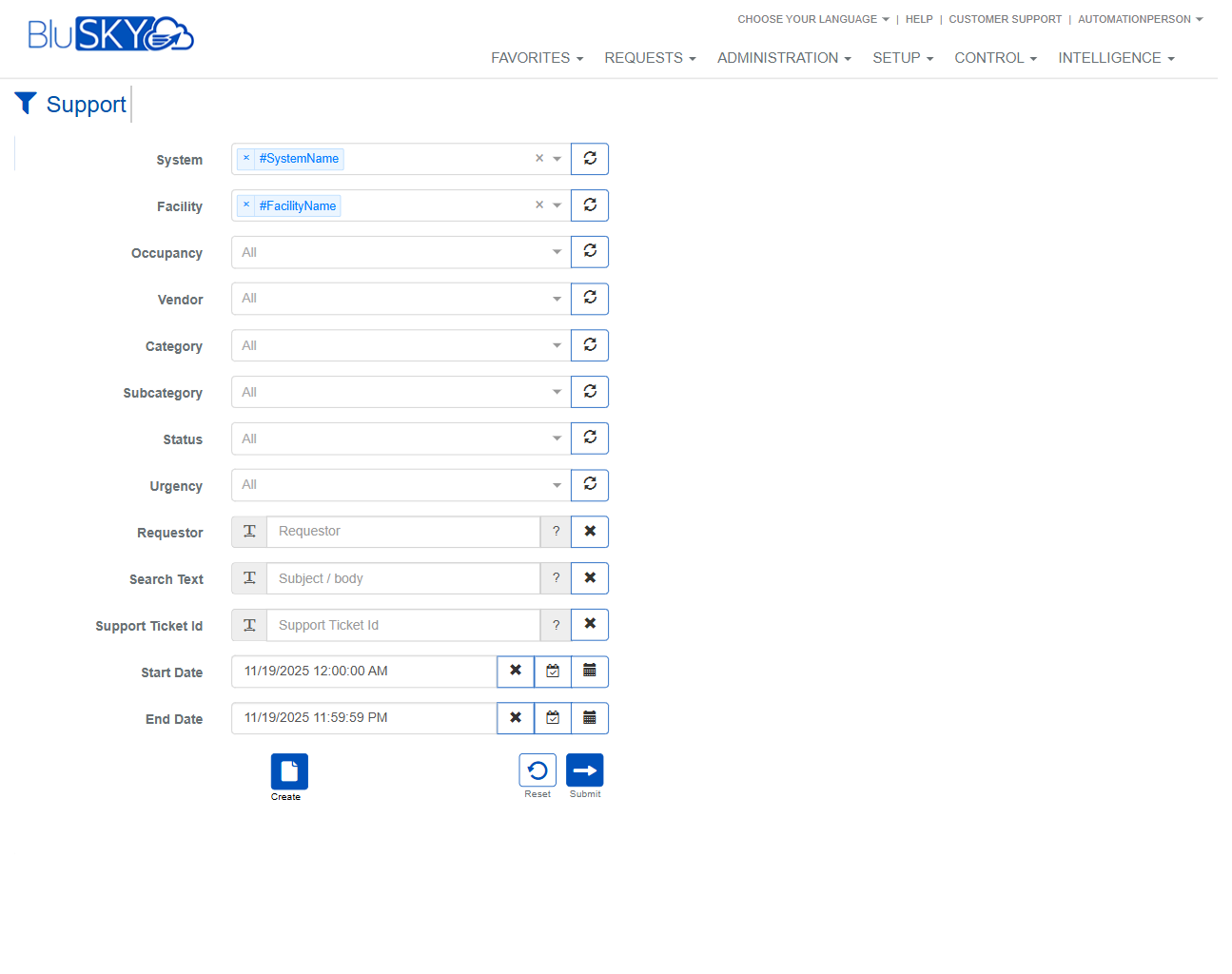
The Support screen enables users to search, review, and manage BluSKY support tickets across systems and facilities. It provides a comprehensive filter panel to narrow results by organization, classification, status, urgency, requester, keyword text, ticket ID, and date range. Action buttons allow creating new tickets, editing existing ones, exporting results, updating status, and handling escalation.
Field Definitions
| Field Label | Definition | Notes |
|---|---|---|
| System | One or more BluSKY systems to include in the search. | Multi-select. Tokenized chips show selected systems. Refresh icon reloads available options based on user permissions. |
| Facility | One or more facilities within the selected systems. | Multi-select. Options are constrained by the chosen System. Refresh icon updates the list. |
| Occupancy | Filters tickets by the tenant/space (occupancy) associated with the issue. | Optional. Available values depend on Facility. |
| Vendor | Filters by the vendor or service provider assigned to the ticket. | Optional. Useful when coordinating third-party work. |
| Category | High-level classification of the ticket (e.g., Hardware, Software). | Drives available Subcategory choices. |
| Subcategory | More specific classification within the selected Category. | Dynamically filtered by Category. |
| Status | Current lifecycle state of the ticket (e.g., New, In Progress, Resolved, Closed). | Controls availability of some actions (e.g., Escalate/Deescalate). |
| Urgency | Priority indicator for the ticket (e.g., Low, Medium, High). | May influence SLA targets and escalation rules. |
| Requestor | Person who submitted or is requesting support. | Type-ahead search. Clear (X) removes the selection. |
| Search Text | Keyword search across the ticket subject and body. | Case-insensitive. Use to find tickets by description text. |
| Support Ticket Id | Search for a specific ticket by its unique ID. | Exact match. Typically supersedes other filters. |
| Start Date | Beginning of the date/time window for ticket creation or activity. | Defaults to the start of the current day. Includes a calendar/time picker. |
| End Date | End of the date/time window for ticket creation or activity. | Defaults to the end of the current day. Must be later than Start Date. |
| Create (filter panel) | Shortcut to open the new ticket form from the filter page. | Same behavior as Create in the results view. |
| Reset | Clears all filter inputs to their defaults. | Use to quickly remove previously applied filters. |
| Submit | Executes the search with the current filter values. | Populates the results grid. |
Screen Actions and Functions
- Create – Opens the new Support Ticket form.
- Edit – Opens the selected ticket for modification.
- Export – Exports the current result set (based on applied filters) to a file format such as CSV/Excel.
- Delete – Removes the selected ticket from active use; typically retained for audit history.
- Update Status – Changes the lifecycle state of the selected ticket.
- Escalate – Elevates the selected ticket to a higher support tier or vendor.
- Deescalate – Reverses an existing escalation on the selected ticket.
- Reset – Clears the current filter criteria (available on the filter panel).
- Submit – Runs the search using the specified filters (available on the filter panel).
- Refresh lookup icons – Reload the available values for adjacent fields (System, Facility, etc.).
- Clear (X) – Removes the current selection from the adjacent field.
Usage Instructions & Examples
How to Find Tickets for a Specific Facility and Timeframe
- Open the Support screen and click into the filter panel.
- Select the appropriate System, then choose the Facility.
- Set Start Date and End Date for the desired period.
- Optionally set Status = In Progress and Urgency = High.
- Click Submit. Review the results and select a ticket to view or edit.
How to Create a New Support Ticket
- Click Create (from the filter panel or results toolbar).
- Enter subject, description, and choose Category/Subcategory.
- Select Facility/Occupancy and set Urgency.
- Save. The ticket will appear in the results list and notifications may be sent based on configuration.
How to Update Status and Escalate
- In the results grid, select a ticket.
- Click Update Status and choose the new state (e.g., In Progress → Resolved). Save.
- If additional attention is needed, click Escalate and confirm. The ticket will be marked as escalated and routed per escalation rules.
How to Locate a Ticket by ID
- In the filter panel, enter the numeric value in Support Ticket Id.
- Click Submit. The system returns the exact ticket if accessible.
System Behaviors and Edge Cases
- Default date range initializes to the current day (00:00:00 to 23:59:59) if not changed.
- Start Date must be earlier than End Date; otherwise submission is blocked with a validation message.
- Selecting a System filters the Facility, Occupancy, and potentially Vendor lists; use the refresh icon to reload dependent options.
- Search Text is case-insensitive and searches both subject and body.
- Searching by Support Ticket Id typically overrides other filters and returns a single record if accessible.
- Edit, Delete, Update Status, Escalate, and Deescalate are disabled until exactly one ticket is selected.
- Escalate is only available for tickets in eligible statuses; Deescalate appears only on already escalated tickets.
- Export includes only the records visible in the current result set and respects user scope/permissions.
- All dates/times reflect the user’s time zone settings.
- Clearing a field with the X icon immediately removes its value; click Submit to re-run the search with updated filters.
Permissions
- Screen access: Global Administrators, Tenant Administrators, and Support Managers with visibility to the selected System/Facility.
- Create/Edit/Delete tickets: Requires SupportTicketEdit or equivalent role.
- Update Status: Requires SupportTicketEdit or SupportTicketUpdateStatus permission.
- Escalate/Deescalate: Requires SupportTicketEscalate permission.
- Export: Requires ExportSupportTickets permission.
- Users without edit privileges can search and view tickets but cannot modify or escalate them.
Linked Workflows
- From a ticket, add comments and attachments to collaborate with vendors and internal teams.
- Link tickets to devices, doors, or alarms for faster root-cause tracking.
- Escalation may notify vendor contacts and internal escalation groups per configuration.
- After resolution, follow post-incident review workflows or generate reports from the Intelligence module.
Reference Image Links