Badges
Edit Person
Screen Overview
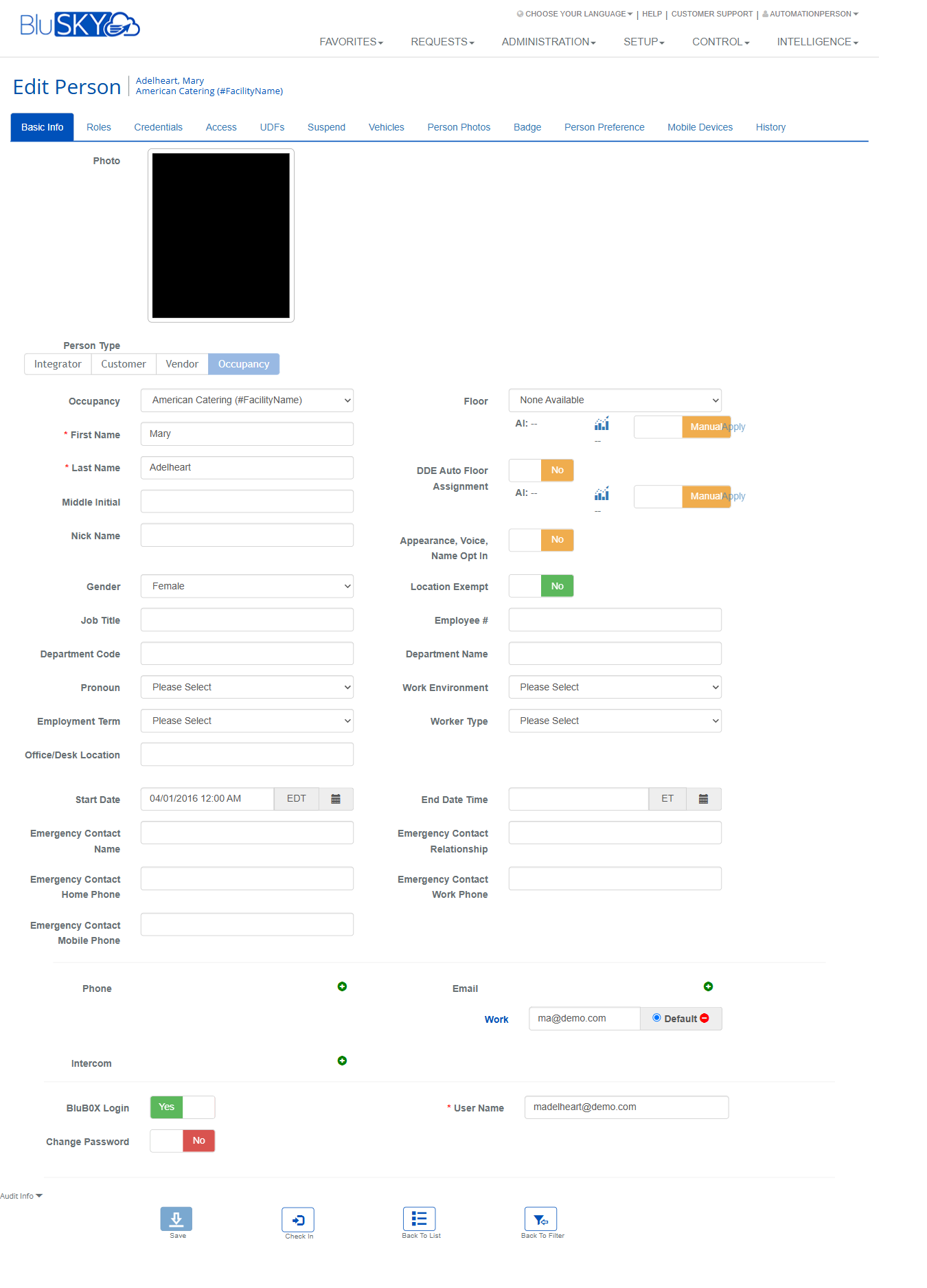
The Edit Person screen is the central workspace for creating and maintaining a person’s record in BluSKY. It consolidates identity details, roles, physical and mobile credentials, access assignments, photos and badge printing, preferences, temporary suspension, vehicles, mobile devices registered to the user, and a complete audit history.
Field Definitions
| Field Label | Definition | Notes |
|---|---|---|
| Photo | Displays the person’s profile image. | Read-only preview on Basic Info; images are managed on Person Photos. |
| Person Type | Classification of the person record. | Options include Integrator, Customer, Vendor, Occupancy. Determines available scope fields. |
| Occupancy | The company/tenant the person belongs to. | Required for most access operations. |
| Floor | Primary floor association for the person. | AI/Manual controls allow automatic or manual assignment. |
| First Name | Person’s given name. | Required. |
| Last Name | Person’s family name. | Required. |
| Middle Initial | Middle initial of the person. | Optional. |
| Nick Name | Preferred name. | Optional; may print on badge depending on template. |
| Gender | Gender selection. | Optional, for reporting/badge rules if configured. |
| Job Title | Person’s job title. | Optional. |
| Department Code | Code value representing department. | Optional; often used for imports. |
| Pronoun | Preferred pronouns. | Optional. |
| Employment Term | Employment type/term. | Optional. |
| Office/Desk Location | Office or desk location text. | Optional; can print on badge. |
| Start Date | Employment/activation start date. | Date/time picker; time zone control shown as ET by default. |
| End Date Time | Planned end date for the person’s affiliation. | If set, access may auto-expire on this date. |
| Appearance, Voice, Name Opt In | Controls whether the person consents to appearance, voice, and name use in the system. | Also appears under Person Preference; values stay synchronized. |
| DDE Auto Floor Assignment | Enables destination dispatch elevator auto floor assignment. | AI/Manual controls with Apply action. |
| Location Exempt | Excludes the person from location-based rules. | Optional; used by analytics/policy. |
| Employee # | Internal employee identifier. | Optional; searchable. |
| Department Name | Human-readable department name. | Optional. |
| Work Environment | Work environment classification. | Optional. |
| Worker Type | Worker category (e.g., Full-time, Contractor). | Optional. |
| Emergency Contact Name | Emergency contact person. | Optional. |
| Emergency Contact Relationship | Relationship to the person. | Optional. |
| Emergency Contact Home Phone | Home phone of emergency contact. | Optional. |
| Emergency Contact Work Phone | Work phone of emergency contact. | Optional. |
| Emergency Contact Mobile Phone | Mobile phone of emergency contact. | Optional. |
| Phone | Primary telephone for the person. | Optional; indicator icon shows validation status. |
| Primary email address. | Required if BluB0X Login is enabled; can be marked as Default. | |
| Intercom | Intercom address/extension. | Optional. |
| BluB0X Login | Enables/disables website login for the person. | When Yes, User Name and a valid Email are required. |
| Change Password | Triggers password reset/change for the user. | Visible when BluB0X Login is Yes. |
| User Name | Unique username for site login. | Required when BluB0X Login is Yes. |
| Role | Role(s) assigned to the person. | Shown on Roles tab; each role defines capabilities. |
| Role Scope | Scope that limits role visibility/authority. | Example: Occupancy. |
| View (Credentials) | Filter for which credentials to display. | Example: Assigned. |
| Allow BluID | Enables assignment/use of BluID mobile credentials. | Toggle Yes/No. |
| Allow HIDMobile | Enables HID Mobile ID support. | Toggle Yes/No. |
| Allow Apple Wallet | Enables Apple Wallet credentials. | Toggle Yes/No; tenant licensing applies. |
| Allow Google Wallet | Enables Google Wallet credentials. | Toggle Yes/No; tenant licensing applies. |
| Credential Type | Technology of the credential (e.g., Proximity). | Drives available card formats. |
| Card Type | Specific card format. | Example: Standard 26 bit, with facility code. |
| Issue Code | Issue/slot code for the card. | Numeric; optional based on format. |
| External Card Number | Printed/physical number on the card. | Typically user-facing number. Must be unique. |
| Internal Card Number | System number used by controllers. | “Copy External” button can populate this value. Must be unique. |
| Facility Code | Site or facility code for the card. | Required for some formats. |
| Serial Number | Card serial number. | Optional; may be required by format. |
| PIN # | Personal Identification Number. | Optional; used on readers requiring PIN. |
| User Flag | Flags that describe the credential. | Example: Active Cardholder Record. |
| Start Date Time (Credential) | When the credential becomes valid. | Date/time with time zone selector. |
| End Date Time (Credential) | When the credential expires. | Leave blank for no expiry. |
| Number Of Card Uses | Maximum allowed uses for the card. | Leave blank for unlimited. |
| Public Notes | Free-text notes for the credential. | Optional. |
| Allow Access To Locked Door | Allows override to locked doors with this credential. | Security-sensitive setting. |
| View (Access) | Filter for access rows (e.g., Assigned). | Access tab. |
| Access Point Use Immunity Level (days) | Window that suppresses duplicate access events/uses for the same point. | Applied per person on the Access tab. |
| Include/Remove | Row action to include or remove an assignment. | Red icon indicates removable assignment. |
| BluREMOTE | Toggles BluREMOTE privilege for the assignment. | Buttons: Default, All, None; OFF for reader rows. |
| Access Type | Type of access row. | Example: Access Level, Reader. |
| Name | Name of the access level or reader. | Read-only in list. |
| Schedule Name | Schedule applied to the access row. | Read-only; set within the assignment. |
| Access Rights Granted Start | Effective start for the access row. | Editable inline. |
| Access Rights Granted End | Effective end for the access row. | Editable inline. |
| Inserted By | User who created the access row. | Read-only audit column. |
| Date Inserted | Timestamp of creation. | Read-only. |
| Start Date Time (Suspend Access Rights) | Start of temporary suspension of access rights. | On Suspend tab. |
| End Date Time (Suspend Access Rights) | End of temporary suspension of access rights. | On Suspend tab. |
| Start Date Time (Suspend Website Access) | Start of suspension for BluB0X website login. | On Suspend tab. |
| End Date Time (Suspend Website Access) | End of suspension for BluB0X website login. | On Suspend tab. |
| Upload Via File | Photo upload method by selecting a file. | Radio button on Person Photos. |
| Upload Via Camera | Photo capture using an attached camera. | Radio button on Person Photos. |
| File | File selector for uploading a photo. | Required when Upload Via File is chosen. |
| Auto ID | Displays associated Auto ID for photo capture. | Read-only; None if not set. |
| MFA ID | Displays associated multifactor ID for photo capture. | Read-only; None if not set. |
| Badge Design | Badge template to use for printing. | Dropdown on Badge tab. |
| History Entry Type | Filter to limit history results. | Dropdown on History tab. |
| Device Model | Model of the registered mobile device. | Column on Mobile Devices. |
| Bluetooth MAC Address | Bluetooth MAC address for the device. | Read-only; used for mobile credentialing. |
| Bluetooth Version | Supported Bluetooth version. | Read-only. |
| Mobile OS | Operating system of the device. | Read-only. |
| OS Version | OS version on the device. | Read-only. |
| Date Inserted (Device) | When the device record was added. | Read-only. |
| Date Updated (Device) | When the device was last updated. | Read-only. |
Screen Actions and Functions
- Save – Commits changes on the active tab.
- Cancel – Reverts unsaved changes on the active tab.
- Back To List – Returns to the previous person list.
- Back To Filter – Returns to the prior filter/search page.
- Check In – Initiates a check-in for the person from Basic Info.
- Add Role – Opens a selector to add a new role on the Roles tab.
- Remove Role – Deletes the selected role from the person.
- Add (Credential) – Adds a new credential block on the Credentials tab.
- Remove From Database (Credential) – Deletes the displayed credential.
- Copy External – Copies External Card Number to Internal Card Number.
- Toggle Allow BluID/HIDMobile/Apple Wallet/Google Wallet – Enables specific mobile credential ecosystems.
- Add Access Level(s) – Assigns one or more Access Levels to the person.
- Add Access Level Group(s) – Assigns groupings of access levels.
- Include/Remove (Access Row) – Adds or removes an access assignment.
- Set Access Rights Granted Start/End – Defines effective dates for access rows.
- Set BluREMOTE (Default/All/None/OFF) – Controls BluREMOTE use per access row.
- Save Suspension – Applies suspend windows for access or website login on the Suspend tab.
- Add Vehicle – Creates a vehicle record on the Vehicles tab.
- Upload (Photo) – Uploads or captures a new person photo.
- Send To Printer – Prints a badge for the person using the selected Badge Design.
- Set Badge Template – Saves the chosen badge design as the person’s template.
- Apply (DDE Floor Assignment) – Applies the AI/Manual floor assignment choice.
- Delete Device – Removes a mobile device from the Mobile Devices tab.
- Filter History – Uses History Entry Type to refine the audit list.
Usage Instructions & Examples
How to enable a person for BluSKY login
- Open the person and go to Basic Info.
- Set BluB0X Login to Yes.
- Enter a unique User Name and a valid Email; optionally toggle Change Password to initiate a password update.
- Save.
How to add a proximity card
- Open the Credentials tab and click Add (if no card block exists).
- Select Credential Type = Proximity and choose the appropriate Card Type.
- Enter External Card Number and, if needed, click Copy External to populate Internal Card Number.
- Complete Facility Code, Issue Code, and PIN # if required.
- Set Start Date Time (and End Date Time if the card should expire).
- Ensure User Flag includes Active Cardholder Record and Save.
How to assign access to an access level and a specific reader
- Go to the Access tab.
- Click Add Access Level(s) and select the desired level; Save.
- Click Add Access Level Group(s) if you also need grouped levels; Save.
- For a specific Reader row, edit Access Rights Granted Start/End as needed and set BluREMOTE to the desired state (Default/OFF).
- Save.
How to upload a photo and print a badge
- Open Person Photos, choose Upload Via File or Upload Via Camera, select File (if uploading), and click Upload.
- Switch to the Badge tab, choose a Badge Design, and click Set Badge Template.
- Review the preview and click Send To Printer.
How to temporarily suspend a person’s access
- Open the Suspend tab.
- Under Suspend Access Rights, set Start Date Time and End Date Time for the suspension window.
- Optionally, also set Suspend BluB0X Website Access to prevent portal logins.
- Click Save.
How to review who changed what on the record
- Open the History tab.
- Optionally filter by History Entry Type.
- Review Action, Description, Action Performed By Person, and Date columns.
System Behaviors and Edge Cases
- Unique constraints: Email, User Name, External Card Number, and Internal Card Number must be unique where required; the system blocks duplicates.
- Effective dates: End Date Time cannot be earlier than Start Date/Start Date Time on Basic Info, Credentials, or Access rows; validation errors appear if violated.
- Credential copying: Copy External instantly mirrors the External Card Number into Internal Card Number; review before saving.
- Access precedence: Suspension windows override any granted access until the suspension end passes.
- Badge printing: A photo is recommended; some badge templates may fail validation if Image Exists = No. Single-person prints are available on the Badge tab; batch printing is available from the Badges screen.
- Preferences synchronization: Appearance, Voice, Name Opt In is shown on both Basic Info and Person Preference and updates the same setting.
- Time zone handling: Date/time pickers respect the displayed time zone toggle (e.g., ET); the system stores times in a standard format.
- Mobile device removal: Deleting a device immediately revokes associated mobile credential access on that device.
- Access Point Use Immunity Level (days): Prevents duplicate event/use counting at the same point within the specified interval.
- History/audit: All adds/edits/deletes made on the person record are logged with actor and timestamp; entries are read-only.
Permissions
- Users need People:Edit permission to modify Basic Info.
- Roles:Manage is required to add/remove roles.
- Credentials:Manage is required to add or delete cards and mobile wallet options.
- Access:Manage is required to assign access levels or readers.
- Suspend:Manage is required to add suspension windows.
- Vehicles:Manage is required to add vehicle records.
- Photos:Manage is required to upload or capture images.
- Badge:Print is required to print badges or set templates.
- Preferences:Manage is required to change Person Preference settings.
- MobileDevices:Manage is required to delete registered devices.
- History:View is required to see the History tab.
- Some actions may be restricted further by Role Scope (e.g., Occupancy-level admins only within their tenant).
Linked Workflows
- Badges list: Filter, select, and batch print badges for multiple people.
- Badge Filters: Limit badge print sets by System, Facility, Occupancy, Role, Image Exists, Badge Printed, and search criteria.
- Access Levels management: Create or edit Access Levels and Access Level Groups used on the Access tab.
- Mobile credential provisioning: Enable BluID/HID Mobile/Apple or Google Wallet, then issue credentials via the Credentials tab.
- Destination Dispatch Elevator (DDE) configuration: Configure AI/Manual floor rules used by DDE Auto Floor Assignment.
- Audit and reporting: Use History and Intelligence modules to review changes and access activity.
Reference Image Links