Locations
Global Navigation Header
Screen Overview
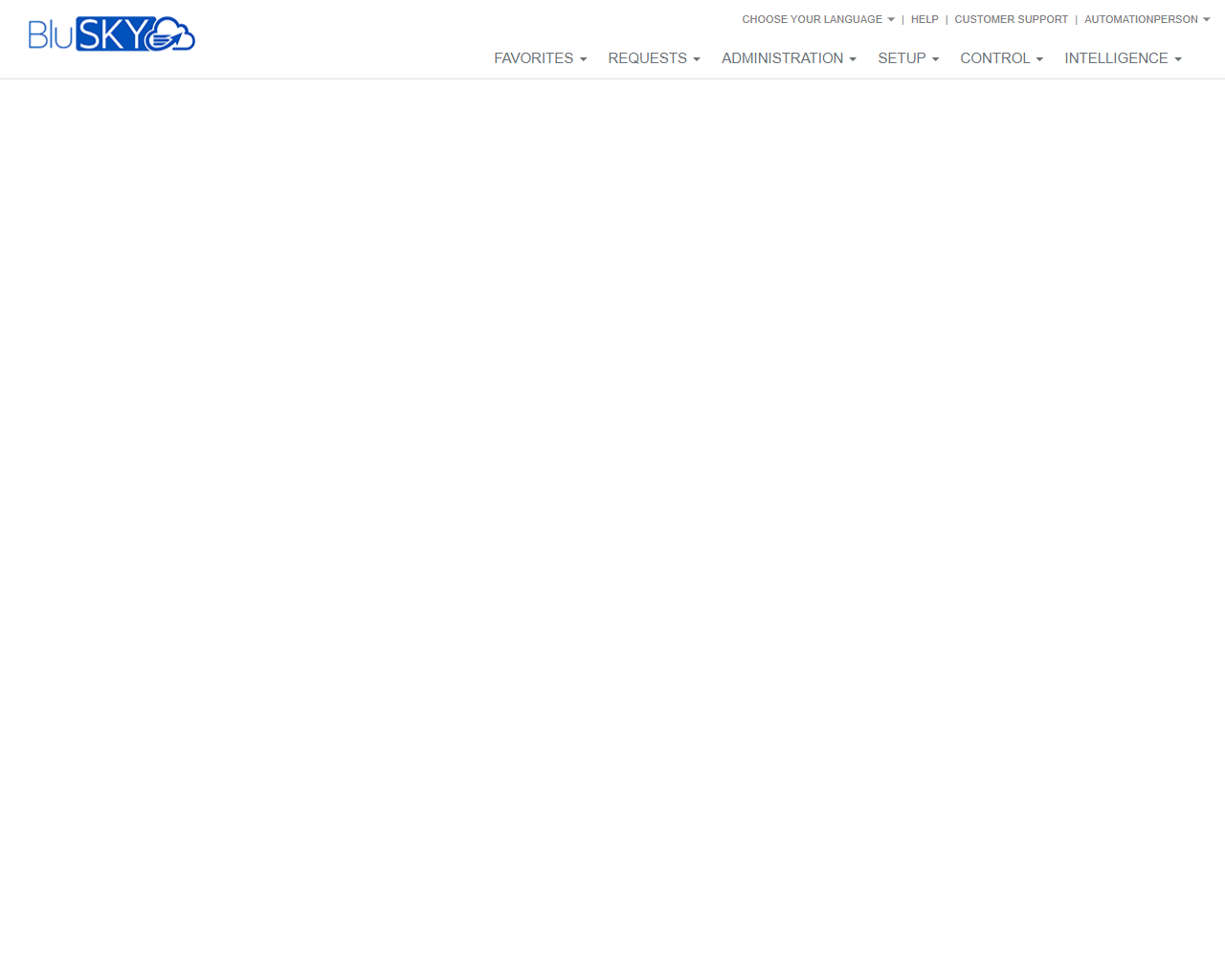
The Global Navigation Header provides universal, always‑visible access to BluSKY modules and account utilities. From this header, users can open functional areas (Requests, Administration, Setup, Control, Intelligence), access their Favorites, change language, open help resources, contact support, and manage their user session.
Field Definitions
| Field Label | Definition | Notes |
|---|---|---|
| BluSKY Logo | Clickable application logo that returns the user to the primary landing page. | Read-only element; navigational shortcut to “home.” |
| Favorites | Dropdown list of user-saved shortcuts to frequently used BluSKY pages. | Content varies per user. If no items are saved, the list may be empty. |
| Requests | Dropdown navigation to request-driven workflows (e.g., visitor, access, or service requests). | Items shown depend on tenant configuration and permissions. |
| Administration | Dropdown navigation to identity, credential, and policy administration areas. | Typical destinations include People, Cards/Credentials, Companies, Roles. |
| Setup | Dropdown navigation to system configuration objects (sites, devices, schedules, access levels). | Intended for system/tenant setup and onboarding activities. |
| Control | Dropdown navigation to operational/real-time controls (monitoring, commands, manual overrides). | Availability may be limited to operator roles. |
| Intelligence | Dropdown navigation to reports, analytics, and dashboards. | May include exports and scheduled reporting links. |
| Choose Your Language | Language selector for the BluSKY user interface. | Selection persists per user profile where supported. |
| Help | Link to product help and knowledge resources. | Typically opens in a new browser tab/window. |
| Customer Support | Link to support options (contact, ticketing, portal). | Content depends on customer support plan. |
| User Menu (Username) | Account menu containing profile settings and session actions (e.g., sign out). | Options vary by role and tenant configuration. |
Screen Actions and Functions
- Open any module dropdown (Requests, Administration, Setup, Control, Intelligence) and navigate to a destination page.
- Open Favorites and select a saved shortcut to navigate directly.
- Change the interface language using Choose Your Language.
- Open Help to view product documentation.
- Open Customer Support to reach support resources or submit a ticket.
- Open the User Menu to view profile options or Sign Out.
Usage Instructions & Examples
-
Navigate to a module page
- Hover over or click Administration.
- Select People (or another target page) from the dropdown.
- The selected page opens in the main workspace.
-
Use Favorites for quicker access
- Navigate to a page you frequently use.
- Add it to Favorites using the page’s Add to Favorites control or the Favorites menu (if available).
- Later, open Favorites from the header and click the saved item to navigate instantly.
-
Change the interface language
- Click Choose Your Language.
- Select your preferred language.
- The UI refreshes in the selected language; continue working without leaving the current context.
-
Get help or contact support
- Click Help to open the online knowledge base in a new tab.
- Click Customer Support to open support options and follow on-screen instructions to submit a ticket or contact support.
-
End your session
- Click the User Menu (your username).
- Select Sign Out to securely end your session.
System Behaviors and Edge Cases
- Menu visibility is role-based; users only see modules and destinations they are permitted to access.
- Favorites are user-specific; a new user may see an empty Favorites list until items are added.
- Choose Your Language applies immediately; the selection typically persists for future sessions.
- Help and Customer Support links may open in a new tab; pop-up blockers can prevent new windows from opening.
- If the session expires, selecting any menu option redirects to the login page.
- The Global Navigation Header remains visible across BluSKY pages for consistent access.
Permissions
- All authenticated users see the Global Navigation Header.
- Access to items under:
- Requests: requires corresponding request permissions.
- Administration: requires administrative permissions (e.g., People, Credentials, Roles).
- Setup: requires configuration permissions for sites/devices/policies.
- Control: requires operator/control permissions.
- Intelligence: requires reporting/analytics permissions.
- Ability to add or manage Favorites may require profile customization permissions.
- Help is generally available to all users; Customer Support access may depend on tenant support entitlements.
Linked Workflows
- Open People from Administration to manage identities and credentials.
- Open Access Levels or Schedules from Setup to configure policies used throughout the system.
- Open Control to execute real-time commands (e.g., door actions) during operations.
- Open Intelligence to run audit, activity, and compliance reports.
- Use Requests to initiate visitor pre-registration or access change requests.
Reference Image Links