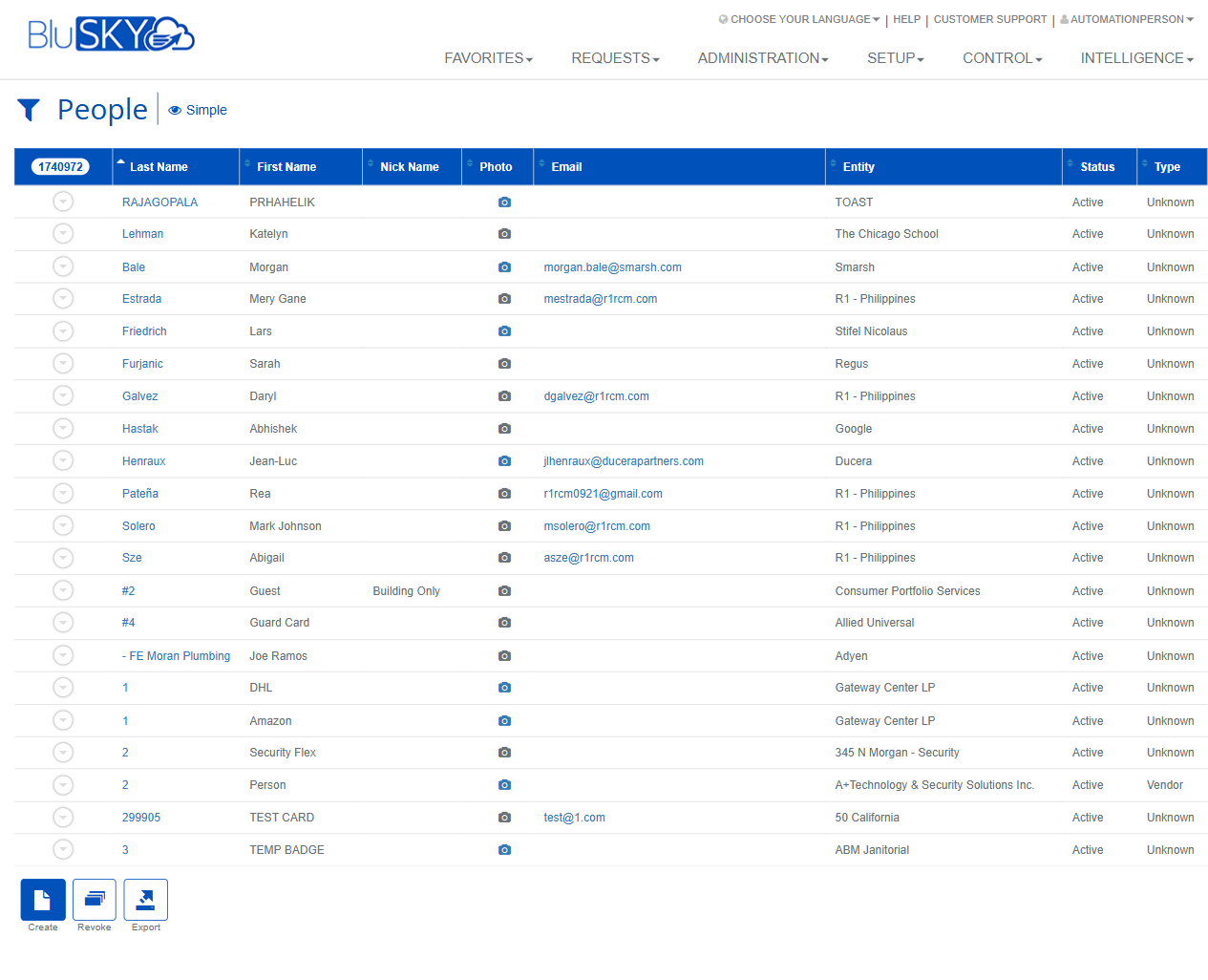
People
People Screen
Screen Overview
The People screen enables administrators to search, review, and manage all person records in BluSKY (employees, visitors, vendors, contractors, and other identities). It provides powerful filtering, a results grid, and toolbar actions to create people, manage access, issue temporary passes, and export data.
Field Definitions
| Field Label | Definition | Notes |
|---|---|---|
| Facility | Limits results to a specific facility. | Dropdown. Default is -- All --. |
| Entity | Filters by the company/tenant the person belongs to. | Searchable dropdown. Appears both as a filter and a grid column. |
| Floor | Filters by assigned floor. | Dropdown. Default is -- All --. |
| Role | Filters by the person’s role. | Dropdown (e.g., Employee, Visitor, Vendor). Default is -- All --. |
| Search | Status filter for the person record. | Common options include Active, Inactive, or All. Default shown: Active. |
| View | Controls the set of columns displayed in the results. | Example option shown: Simple. |
| Search Text | Free-text search across common person attributes. | Placeholder shows “name, floor”. Supports partial matches. |
| Search Card | Searches by internal or external card number. | Useful for finding the cardholder for a specific credential. |
| Search Employee # | Searches by employee identifier. | Accepts exact or partial values based on configuration. |
| Search Email | Searches by email address. | Accepts full or partial email strings. |
| Selection Count | Displays the number of selected records over total results (e.g., 3/1740972). | Read-only, shown above the results grid. |
| Last Name | Person’s last name. | Grid column; sortable. |
| First Name | Person’s first name. | Grid column; sortable. |
| Nick Name | Preferred name. | Grid column; optional. |
| Photo | Indicates whether a photo is on file. | Camera icon appears when a photo exists. |
| Person’s email address. | Used for notifications and user account provisioning. | |
| Entity | The person’s company/tenant. | Grid column corresponding to the Entity filter. |
| Status | Current status of the person (e.g., Active, Inactive). | Inactive people cannot be granted new access. |
| Type | Person category (e.g., Employee, Vendor, Visitor, Unknown). | Driven by role or onboarding workflow. |
| Row Selector | Control at the far left of each row to select records. | Supports multi-select for bulk actions. |
Screen Actions and Functions
- Create – Opens the person creation form.
- Employee One Day Pass – Launches a workflow to issue a same-day temporary pass.
- Submit – Executes the search using the selected filters.
- Reset – Clears all filters to their defaults.
- View – Opens the selected person in read-only mode. Requires exactly one selection.
- Edit – Opens the selected person for editing. Requires exactly one selection and edit permission.
- Assign – Assigns access (e.g., access levels/credentials) to the selected people.
- Revoke – Removes previously assigned access/credentials from the selected people.
- Check In – Starts the check-in workflow for the selected person(s) when enabled.
- Delete – Soft-deletes selected people (record remains for audit/history).
- Access – Opens a consolidated view of the selected person’s access rights.
- Login – Opens login/account management for the selected person (create/reset/disable).
- Export – Exports the current result set to a file (e.g., CSV/Excel).
Usage Instructions & Examples
- Find active people in a tenant
- Set Facility as needed.
- In Entity, choose the tenant/company.
- Ensure Search = Active and View = Simple.
- Optionally enter Search Text (e.g., a last name).
- Click Submit to refresh the results.
- Create a new person
- Click Create (from either the filter panel or the results toolbar).
- Complete the required fields (e.g., Name, Entity, Status; add Email if a login is needed).
- Save. The new person appears in the grid based on your filters.
- Bulk assign access to multiple users
- Filter the list to the target group and click Submit.
- Use the Row Selector to select each intended person (verify the Selection Count).
- Click Assign and choose the access level/credential options and effective dates.
- Confirm to apply changes to all selected people.
- Issue an Employee One Day Pass
- Click Employee One Day Pass.
- Search/select the employee, set the validity date/time, and choose the pass template.
- Confirm to issue the pass and provide printing/activation steps if prompted.
- Export the current list
- Apply filters and click Submit.
- Click Export.
- Choose a format if prompted and download the file.
System Behaviors and Edge Cases
- Default filtering: Search defaults to Active; if you expect inactive records, change to Inactive or All.
- View modes: Changing View (e.g., Simple) alters which columns are shown; exports follow the current filter, not necessarily the on-screen columns.
- Selection-dependent actions: View and Edit require exactly one selected row. Assign, Revoke, Check In, Delete, Access, and Export allow multiple selections (subject to permissions).
- Row selection: Use the left-side selector for multi-select; the Selection Count above the grid updates in real time (Selected/Total).
- Sorting: Click a column header (e.g., Last Name) to sort ascending/descending; sorting affects only the current result set.
- Photo indicator: A camera icon in the Photo column means an image is stored; absence indicates no photo on file.
- Card searches: Search Card accepts internal or external card numbers. If multiple people share a number due to historical reuse, results may include more than one record.
- One Day Pass availability: The Employee One Day Pass option appears only when the feature is enabled and templates exist for the selected facility.
- Delete behavior: Deleting is a soft-delete. Records remain for audit/history and may be undeletable if restricted by policy or integrations.
- Performance: Very large datasets are server-filtered. Use specific filters (Facility, Entity, Search Text) to reduce result volumes before exporting.
Permissions
- Screen access is typically granted to Global Administrators, Facility/Tenant Administrators, or other roles with People management rights.
- Create/Edit/Delete person records require elevated permissions (e.g., People Create/Edit/Delete).
- Assign/Revoke access requires access management permissions for the target facility/tenant.
- Check In requires visitor/check-in permissions and feature enablement.
- Login management requires user account administration rights.
- Export requires data export permission; in some environments it may be restricted by role or data scope.
Linked Workflows
- Access Levels: Assign or revoke access levels/permissions for selected people.
- Credentials: Issue, activate, or revoke cards and mobile credentials.
- Visitor Management: Check in visitors and print badges.
- Photo & Badge: Capture/update photos and print badges as part of onboarding.
- Entity Management: Maintain the tenant/company (Entity) associated with a person.
- User Accounts: Create or manage BluSKY login credentials for people with emails.
Reference Image Links