Roles
Role Screen
Screen Overview
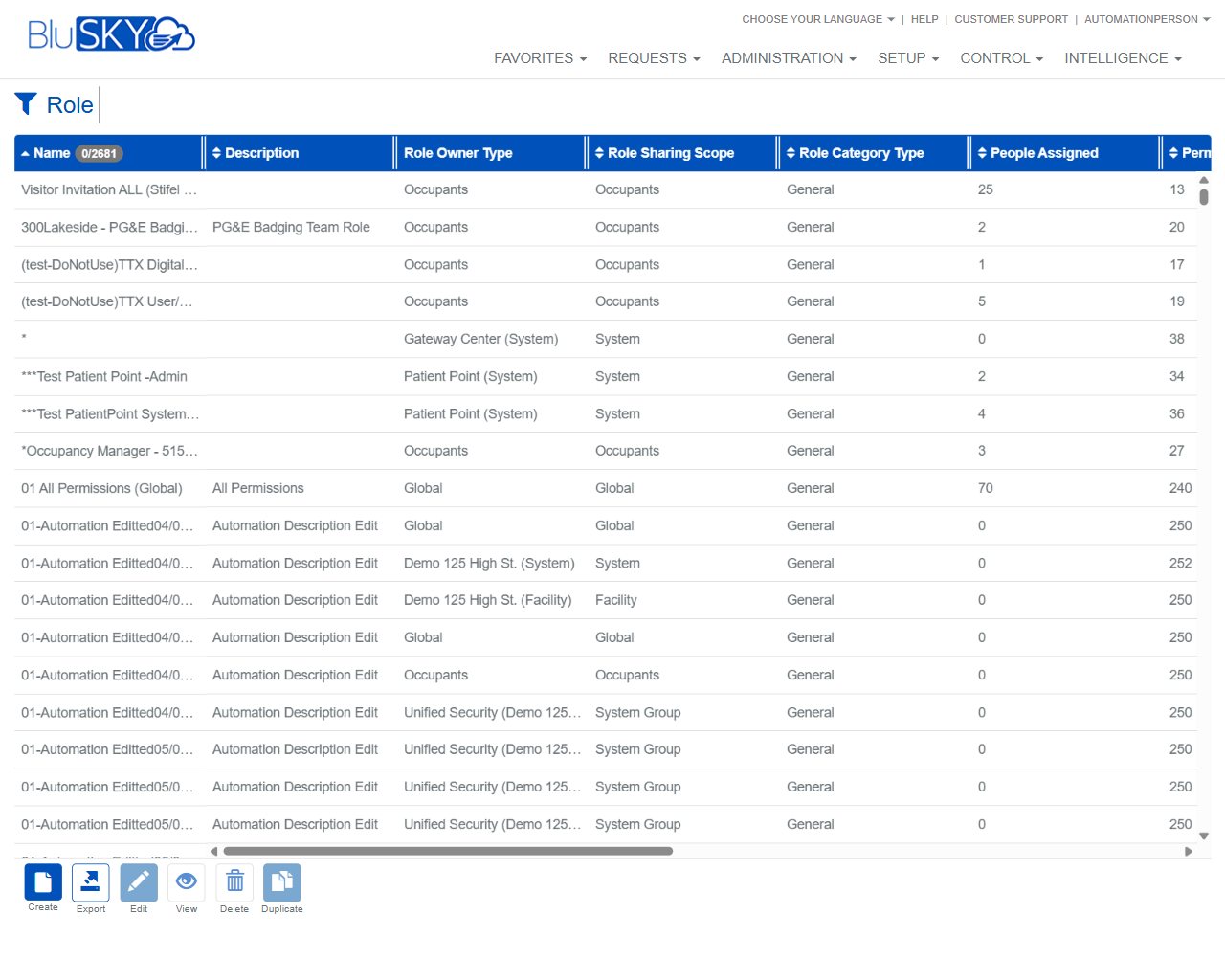
The Role screen lists all security roles available to your organization and provides tools to search, review, create, edit, duplicate, export, or delete roles. Roles bundle permissions that can be assigned to people, controlling what they can see and do in BluSKY.
Field Definitions
| Field Label | Definition | Notes |
|---|---|---|
| Owner Type | Filter that limits the role list to a specific owner context. | Typical values include Global, System, Occupants, Facility, and System Group. Refresh icon reloads available values. |
| Search Text | Free-text filter applied to role attributes (e.g., Name, Description). | The X icon clears the text. The ? icon displays search help/wildcards (if enabled). |
| Search | Status filter for the list. | Values commonly include Active, Inactive, and All. Refresh icon restores the default. |
| Name | The unique name of the role. | Column header may display a loaded/total counter (e.g., 0/2681). Click a row to select; double‑click to open (based on permissions). |
| Description | Brief explanation of the role’s purpose. | Optional but recommended for clarity. |
| Role Owner Type | The entity that owns the role. | Examples seen: Global, Occupants, Facility, System, System Group, Patient Point (System). Ownership impacts who can manage the role. |
| Role Sharing Scope | Where the role can be shared/used beyond its owner. | Examples: Global, Occupants, System, Facility, System Group. Determines visibility/availability to other contexts. |
| Role Category Type | Classification of the role. | Example value: General. Categories may be used for filtering and reporting. |
| People Assigned | Number of people currently assigned to the role. | Often clickable to view the underlying people list (if enabled and permitted). |
| Permissions | Count of permissions included in the role. | Use this to gauge the breadth of access the role grants. |
Screen Actions and Functions
- Reset – Clears all filters to their defaults.
- Submit – Runs the search with the current filter values.
- Create – Opens the role creation form.
- Edit – Opens the selected role for modification.
- View – Opens the selected role in read-only mode.
- Delete – Removes the selected role (subject to constraints).
- Duplicate – Creates a copy of the selected role for quick setup.
- Export – Exports the current result set to a file (e.g., CSV/Excel).
- Column sort – Click column headers to sort ascending/descending.
- Refresh picklist – Circular-arrow icons next to filters reload available options.
- Clear search text – X icon clears the Search Text field.
Usage Instructions & Examples
- Search for an active occupant-owned role by name
- In Owner Type, select Occupants.
- In Search Text, enter part of the role name (e.g., Manager).
- Ensure Search is set to Active.
- Click Submit to display matching roles.
- Create a new role
- Click Create.
- Enter a clear Name and Description.
- Choose the appropriate Role Owner Type and Role Sharing Scope.
- Select a Role Category Type.
- Save the role, then add required permissions in the role details.
- Assign the role to people as needed.
- Duplicate an existing role to speed setup
- Select a role that’s close to what you need.
- Click Duplicate.
- Update the Name and Description to reflect the new purpose.
- Review and adjust permissions; save.
- Assign the new role to people.
- Export the role list
- Apply any filters you need.
- Click Export.
- Open or save the generated file to analyze or share offline.
System Behaviors and Edge Cases
- Editing or deleting system-owned or global roles may be restricted; you may only be able to view or duplicate them depending on permissions.
- Deletion may be blocked if the role is assigned to people; unassign or confirm as prompted before deleting.
- Export respects current filters and sort order.
- The list may use incremental loading; the Name header counter shows loaded/total results.
- Reset returns filters to defaults (e.g., Owner Type = All, Search = Active, empty Search Text).
- Duplicating a role copies its permissions but typically does not copy People Assigned.
- Sorting or refreshing filters re-runs the query and may change the visible set.
- If no results match the filters, the grid displays an empty list until filters are adjusted.
Permissions
- Access to this screen is typically granted to:
- Global Administrators and Tenant/Occupant Administrators
- Role or Permission Managers (as defined by your tenant)
- Action-level requirements (may vary by deployment):
- View roles: ViewRoles
- Create/Edit roles: EditRoles
- Delete roles: DeleteRoles
- Duplicate roles: EditRoles or a specific DuplicateRoles right
- Export: ExportRoles
Linked Workflows
- Assign People to Roles from the People screen or within the Role detail page.
- Manage Role Permissions within the Role details to define what the role can do.
- Use Audit/History views to review changes to roles and permissions.
- Apply roles in onboarding workflows so new users inherit required permissions at creation.
Reference Image Links