Access Level Groups
Access Level Group Screen
Screen Overview
The Access Level Group screen lets administrators create and manage reusable bundles of access entitlements that can include one or more Access Levels and/or individual Readers. These groups can then be assigned to people or applied by default based on tenant rules, streamlining role- or occupancy-based access provisioning.
Field Definitions
| Field Label | Definition | Notes |
|---|---|---|
| Active / All (Toggle) | Filter to display only active groups or all groups. | Located under the page title. Defaults to Active. |
| System (Filter) | Limits the results to a specific access control system. | Optional; affects Facility options. |
| Facility (Filter) | Limits the results to a specific facility within the selected system. | Optional; populated by System selection. |
| Search (Filter) | Status filter for records (e.g., Active). | Defaults to Active. |
| View (Filter) | Controls the result view scope (e.g., All). | Optional. |
| Search Text (Filter) | Free-text filter against role/occupancy or group name. | Placeholder: “role/occupancy name”. Press Submit to apply. |
| Name (Grid Column) | Access Level Group name. | Click to open and edit the group. |
| Description (Grid Column) | Text description of the group’s purpose. | Read-only in the grid. |
| Occupancy (Grid Column) | Occupancy associated with the group. | May be blank if not set. |
| Facility (Grid Column) | Facility associated with the group. | Derived from the group definition. |
| System (Grid Column) | System associated with the group. | Required for each group. |
| People Assigned (Grid Column) | Count of people currently assigned this group. | Read-only; updates as assignments change. |
| Access Rights # (Grid Column) | Number of access items (Access Levels and/or Readers) included in the group. | Read-only; reflects items in Access Items table. |
| Date Inserted (Grid Column) | Timestamp when the group was created. | System-generated. |
| Inserted By (Grid Column) | User who created the group. | System-generated. |
| Date Updated (Grid Column) | Last modified timestamp. | System-generated. |
| Updated By (Grid Column) | User who last updated the group. | System-generated. |
| Date Deleted (Grid Column) | Timestamp if the group was deleted or deactivated. | May be blank for active records. |
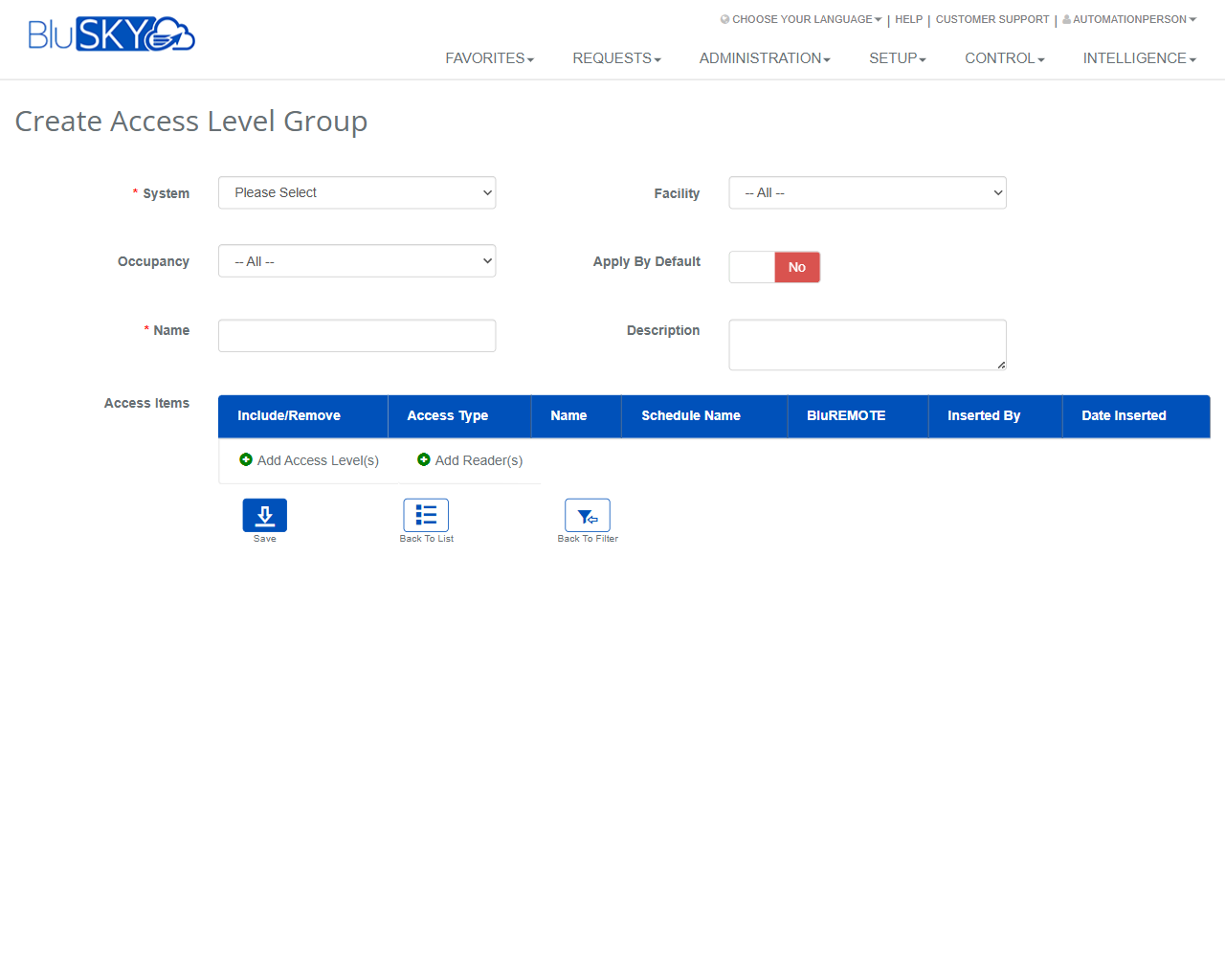
| System (Form) | Target access control system for the new group. | Required. Dropdown. |
| Facility (Form) | Facility context for the group. | Optional. Dropdown. |
| Occupancy (Form) | Occupancy context for the group. | Optional. Dropdown. |
| Apply By Default (Form) | When enabled, the group is automatically applied according to tenant default assignment rules. | Toggle; default is No. Behavior depends on tenant configuration. |
| Name (Form) | Unique name for the group. | Required. |
| Description (Form) | Description of the group. | Optional. |
| Access Items: Include/Remove (Form Table) | Indicates whether an item is included and allows removing items from the group. | Shown after items are added. |
| Access Items: Access Type (Form Table) | Type of access item (Access Level or Reader). | Read-only once added. |
| Access Items: Name (Form Table) | Name of the Access Level or Reader included. | Read-only in table. |
| Access Items: Schedule Name (Form Table) | Schedule controlling when the item is effective. | Editable per item if schedules are applicable. |
| Access Items: BluREMOTE (Form Table) | Indicates BluREMOTE applicability for the item. | Read-only/flag; depends on item capabilities. |
| Access Items: Inserted By (Form Table) | User who added the item to the group. | System-generated. |
| Access Items: Date Inserted (Form Table) | When the item was added to the group. | System-generated. |
Screen Actions and Functions
- Create (Filter panel) – Starts a new Access Level Group.
- Submit – Applies the selected filters and search text.
- Reset – Clears all filters back to defaults.
- Create (Grid footer) – Creates a new Access Level Group from the list view.
- Export – Exports the current grid results to a file (e.g., CSV/Excel).
- Save – Saves the Access Level Group definition.
- Back To List – Returns to the results grid.
- Back To Filter – Returns to the filter panel with current filter values.
- Add Access Level(s) – Opens a picker to add one or more Access Levels to the group.
- Add Reader(s) – Opens a picker to add one or more Readers to the group.
- Column Sort (Grid) – Click a column header to sort results.
Usage Instructions & Examples
How to Find Existing Access Level Groups
- Open Administration > Access Level Group.
- Optionally select System and Facility; choose Search = Active and View = All.
- Enter a keyword in Search Text (e.g., an occupancy or group name) and click Submit.
- Click a group Name in the grid to view or edit details.
How to Create a New Access Level Group
- From the filter page or grid, click Create.
- In the form, select System (required) and optionally select Facility and Occupancy.
- Enter a unique Name and, if desired, a Description.
- If you want automatic assignment based on tenant rules, set Apply By Default to Yes.
- Click Add Access Level(s) and select the appropriate Access Levels. Confirm.
- If needed, click Add Reader(s) to include specific Readers. Confirm.
- For any item that needs time control, set the Schedule Name.
- Click Save. You will be returned to the list with the new group visible.
How to Export the List
- Use filters to narrow the results as needed and click Submit.
- Click Export on the grid footer to download the file.
Example: Create a Visitor Access Bundle
- Create a group named “Visitor – Lobby Only.”
- Select the building’s System and Facility; leave Occupancy blank if not required.
- Add Access Level(s): “Lobby Doors” and “Elevators – Lobby.”
- Add Reader(s) if a specific turnstile reader must be included.
- Set Schedule Name = “Business Hours” for each item.
- Save.
System Behaviors and Edge Cases
- Name and System are required; Save is blocked until they are provided.
- If a duplicate Name already exists in the same System, the system will prevent saving and display an error.
- Facility and Occupancy dropdowns are context-sensitive and filtered by the selected System.
- Apply By Default behavior follows tenant configuration; if a conflicting default exists, the system may warn or require confirmation before replacing it.
- The Access Rights # column updates automatically based on items added or removed in Access Items.
- Large result sets show a loading spinner; sorting and filtering may re-trigger loading.
- Reset restores filter controls to defaults (e.g., Search = Active; no System/Facility selected).
- Export respects current filters and sort order.
- Grid may display Date Deleted for inactive/removed groups; these appear only when the All toggle is selected.
Permissions
- Available to Global Administrators and Tenant/Site Administrators with access management rights.
- Creating or editing groups requires permission to manage Access Level Groups and to view the underlying Access Levels and Readers.
- Export may be limited to users with data export permissions.
- Users without edit rights can search and view but cannot Save or use Add Access Level(s)/Add Reader(s).
Linked Workflows
- People management: Assign Access Level Groups to people for quick, consistent access provisioning.
- Access Levels: Maintain Access Levels (and Schedules) in Setup to ensure groups reference current definitions.
- Readers: Hardware and Reader configuration must exist before Readers can be added to groups.
- Schedules: Create and maintain Schedules used by Access Items included in groups.
- BluREMOTE: If enabled, items marked for BluREMOTE can be controlled via mobile features.
Reference Image Links