Holidays
Holiday List and Create Holiday
Screen Overview
The Holiday List and Create Holiday pages allow administrators to manage holiday records used by schedules and access control behaviors in BluSKY. From the list, users can filter, search, and maintain holidays for specific systems. The create page supports adding new holidays or copying from the BluSKY global holiday catalog.
Field Definitions
| Field Label | Definition | Notes |
|---|---|---|
| Create via | Selects how the holiday will be created: Create New or Copy From Global List. | Create New enables manual entry; Copy From Global List populates fields from the BluSKY global holiday catalog (if permitted). |
| System | The system/building the holiday belongs to. | Appears on both List (filter) and Create forms. “Add Global Holiday” targets the shared global catalog (permission-restricted). |
| Date | The calendar date and time for the holiday. | Uses a date-time picker. Most holidays are set at 12:00 AM for an all-day event. |
| Name | The name/label of the holiday. | Required on Create. Also displayed in the grid. |
| Holiday Type | Classification used by schedules (e.g., Default Holiday). | Dropdown on Create; also shown in the grid. |
| Search Text | Free-text filter for the Holiday List. | Searches by Name. |
| View | Filter to show All Active or Deleted records. | Useful for reviewing soft-deleted items. |
| Holiday Count | Displays the number of holidays in the current result set. | Read-only indicator above the grid. |
| Deleted | Indicates whether a holiday has been soft-deleted. | Read-only grid column. |
Screen Actions and Functions
- Submit – Applies the selected filters on the Holiday List.
- Reset – Clears all filters on the Holiday List.
- Create – Opens the Create Holiday page from the list, or saves the new holiday from the create form.
- View – Opens the selected holiday in read-only mode.
- Edit – Opens the selected holiday for modification.
- Delete – Soft-deletes the selected holiday(s); records remain available under View = Deleted.
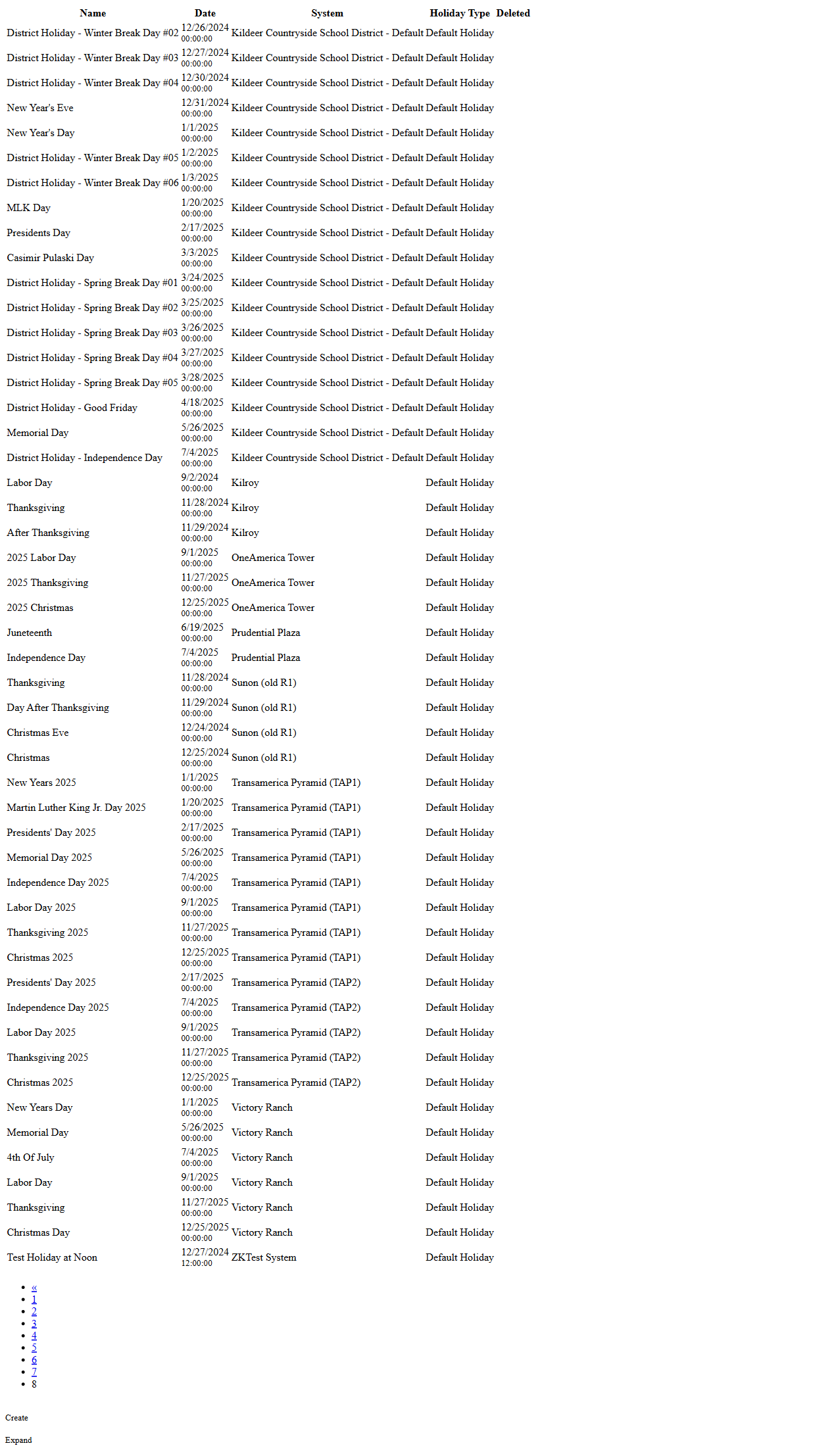
- Expand – Toggles an expanded, printer-friendly list view with pagination.
- Back To List – Returns from the create page to the Holiday List.
- Row Select – Click a row to select; selection count displays above the grid (e.g., “1/50 selected”).
- Calendar Picker – Opens the date selector for the Date field.
Usage Instructions & Examples
How to find an existing holiday
- On the Holiday List, choose a System (optional).
- Enter text in Search Text to match the holiday Name (e.g., “Christmas”).
- Set View to All Active or Deleted as needed.
- Click Submit to update the grid results.
How to create a new holiday
- Click Create on the Holiday List.
- In Create via, select Create New.
- Choose the target System.
- Enter a Name (required).
- Set the Date using the calendar icon.
- Choose a Holiday Type.
- Click Create to save and return to the list.
How to copy a holiday from the global catalog
- Click Create on the Holiday List.
- Select Copy From Global List under Create via.
- Choose System (or “Add Global Holiday” if creating a global template and you have permission).
- Select the desired holiday from the global list prompt (if shown), review populated fields, and adjust Date/Name as needed.
- Click Create.
How to edit or delete a holiday
- Locate the holiday on the list (use filters as needed).
- Select a single row and click Edit to modify, then save.
- To remove, select one or more rows and click Delete. Use View = Deleted to review removed records.
System Behaviors and Edge Cases
- Name is required when creating a holiday; Date must be provided in a valid format.
- Delete performs a soft delete; the record remains available for audit and can be viewed by setting View = Deleted.
- The selection counter (e.g., “1/50 selected”) appears when rows are highlighted; Edit/View actions require a single selection, while Delete supports multi-select.
- Expand switches the grid into a simplified, paginated, printer-friendly layout; toolbar icons may appear as text links in this view.
- Time is stored with the date; most schedules treat holidays as all-day when set at 00:00:00.
- “Add Global Holiday” in the System dropdown is only visible to users with permissions to manage the global catalog; creating or copying to the global list affects what other tenants can copy from, but does not assign access directly.
- Holiday Count updates after filters are applied and reflects the current page’s result set constraints.
Permissions
- View Holiday List: Users with read access to the target System.
- Create/Edit/Delete Holidays: Users with Holiday Management privileges for the target System.
- View Deleted items: Users with audit or delete-review privileges.
- Create/Copy to Global Catalog (“Add Global Holiday”): Global Administrators or users with Global Holiday Management rights.
Linked Workflows
- Schedules: Holidays are referenced by door, elevator, and access schedules to override normal operating hours.
- Access Levels/Rules: Use holiday-based exceptions to modify access on specific dates.
- Reporting: Holiday definitions are included in system configuration and audit reports.
Reference Image Links