Notifications
Notification Screen
Screen Overview
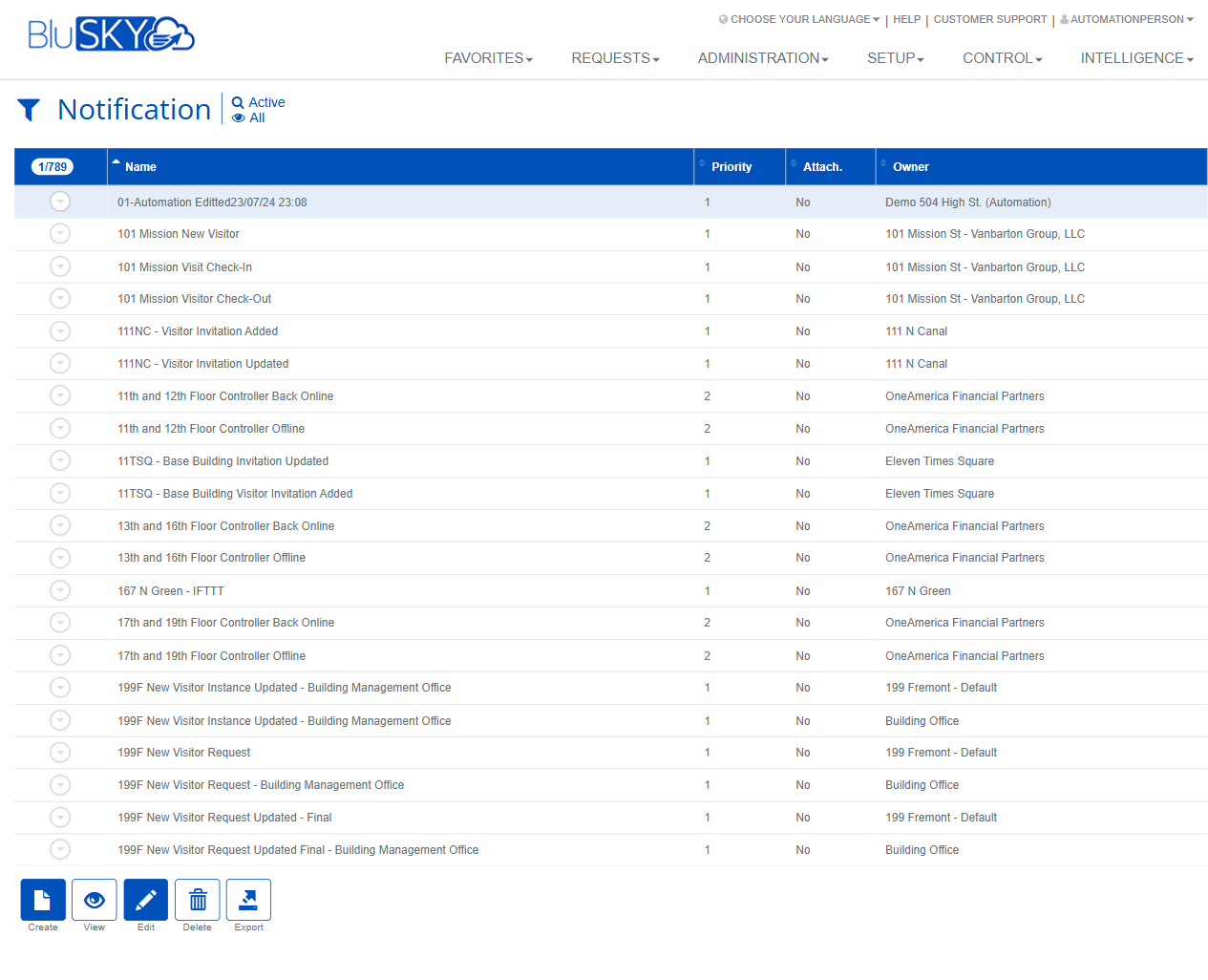
The Notification screen allows administrators to search, review, create, and maintain notification definitions used by BluSKY to communicate system and operational events (e.g., visitor invitations, device status alerts). Use the filter panel to narrow results by system, facility, category, and status. The results grid lists each notification with priority, attachment flag, and owner, and provides actions to view, edit, delete, create, or export.
Field Definitions
| Field Label | Definition | Notes |
|---|---|---|
| Active / All (quick filter) | A header toggle that limits the grid to Active notifications or shows All. | Mirrors/overrides the Search filter selection. Defaults to Active. |
| System | Dropdown to filter notifications to a specific BluSKY system/portfolio. | Optional. Selecting a System filters the Facility list. |
| Facility | Dropdown to filter by site/building. | Values cascade from the selected System. Optional. |
| Communication Category | Dropdown to filter by the configured communication category for a notification. | Categories are defined by your organization and may vary by system. |
| Search | Status scope for the search (e.g., Active, Inactive, All). | Default is Active. Impacts which records appear in the grid. |
| View | Result scope selector for which notifications to display (e.g., All). | Options depend on role and configuration. |
| Search Text | Free-text keyword search applied to notification Name. | Supports partial, case-insensitive matches. |
| Name | Column displaying the notification title. | Click to select a record; expanding the row shows more detail. |
| Priority | Column indicating the notification’s priority level. | Lower numbers typically indicate higher priority; used for ordering/escalation. |
| Attach. | Column showing whether the notification includes file attachments. | Displays Yes/No. Read-only. |
| Owner | Column listing the owning system, facility, or organization for the notification. | Read-only. |
| Expand Row | Icon at the start of each row to reveal additional details for that notification. | Details are read-only and may vary by notification type. |
| Record Count | Indicator above the grid showing the number of matching notifications. | Updates when filters change or a search is submitted. |
Screen Actions and Functions
- Create – Opens the notification editor to define a new notification.
- Submit – Executes the search using the current filter values.
- Reset – Clears all filters back to their defaults.
- View – Opens the selected notification in read-only mode.
- Edit – Opens the selected notification for modification.
- Delete – Removes or deactivates the selected notification (confirmation required).
- Export – Exports the current, filtered result set to CSV/Excel.
- Expand/Collapse Row – Shows or hides an in-line preview of the selected notification.
- Sort Columns – Click a column header to sort by that column.
- Select Row – Selecting a row enables View, Edit, and Delete (subject to permissions).
- Active/All Toggle – Quick-filter the grid without changing other filter fields.
Usage Instructions & Examples
How to find notifications
- Open the screen and confirm the Active/All toggle is set as needed.
- Optionally choose a System, then a Facility.
- Select Communication Category and adjust Search (Active/Inactive/All) and View as needed.
- Enter a keyword in Search Text to match the Name field.
- Click Submit to refresh the list. Use column sorting or row expansion to review results.
How to create a new notification
- Click Create.
- Complete required fields in the editor (e.g., Name, Priority, category/delivery settings, recipients).
- Set status to Active and Save.
- Return to the list, adjust filters if necessary, and click Submit to verify the new notification appears.
How to edit an existing notification
- Use the filters and Submit to locate the record.
- Select the row and click Edit.
- Update the necessary fields and Save.
- Confirm changes by refreshing the list or expanding the row.
How to export notifications
- Apply filters to limit the list to the desired records.
- Click Export.
- Open or save the generated CSV/Excel file.
How to include inactive notifications in results
- Either set the header toggle to All or set the Search filter to All.
- Click Submit to refresh the grid.
System Behaviors and Edge Cases
- View, Edit, and Delete are enabled only when a single row is selected and the user has permission.
- Export respects current filters and sorting; only the displayed result set is exported.
- Selecting a System dynamically limits the Facility choices to that system.
- Search Text performs a case-insensitive, partial match on Name.
- The Active/All header toggle and the Search filter both affect status; if they differ, the most recent change determines what appears.
- Deleting a notification that is referenced by other configurations may be blocked; deactivate it instead if deletion is not allowed.
- Expanded row details load on demand; large records may take a moment to display.
Permissions
- Screen access: Global Administrators and Tenant/Facility Administrators.
- Create/Edit/Delete: Users must have manage-notifications permissions (e.g., ManageNotifications).
- View/Export: Users with view permissions (e.g., ViewNotifications) can view and export but cannot modify.
- Data visibility is restricted to systems/facilities the user is authorized to access.
Linked Workflows
- Automation/Rules: Notifications can be associated with automation or event rules to send messages on specific system events.
- Visitor Management: Used for visitor invitation, check-in, and update communications.
- System/Device Alerts: Used for controller online/offline or health-related alerts.
- Reporting/Compliance: Exported notifications support auditing and compliance reviews.
Reference Image Links