Fit To Work
People Screen
Screen Overview
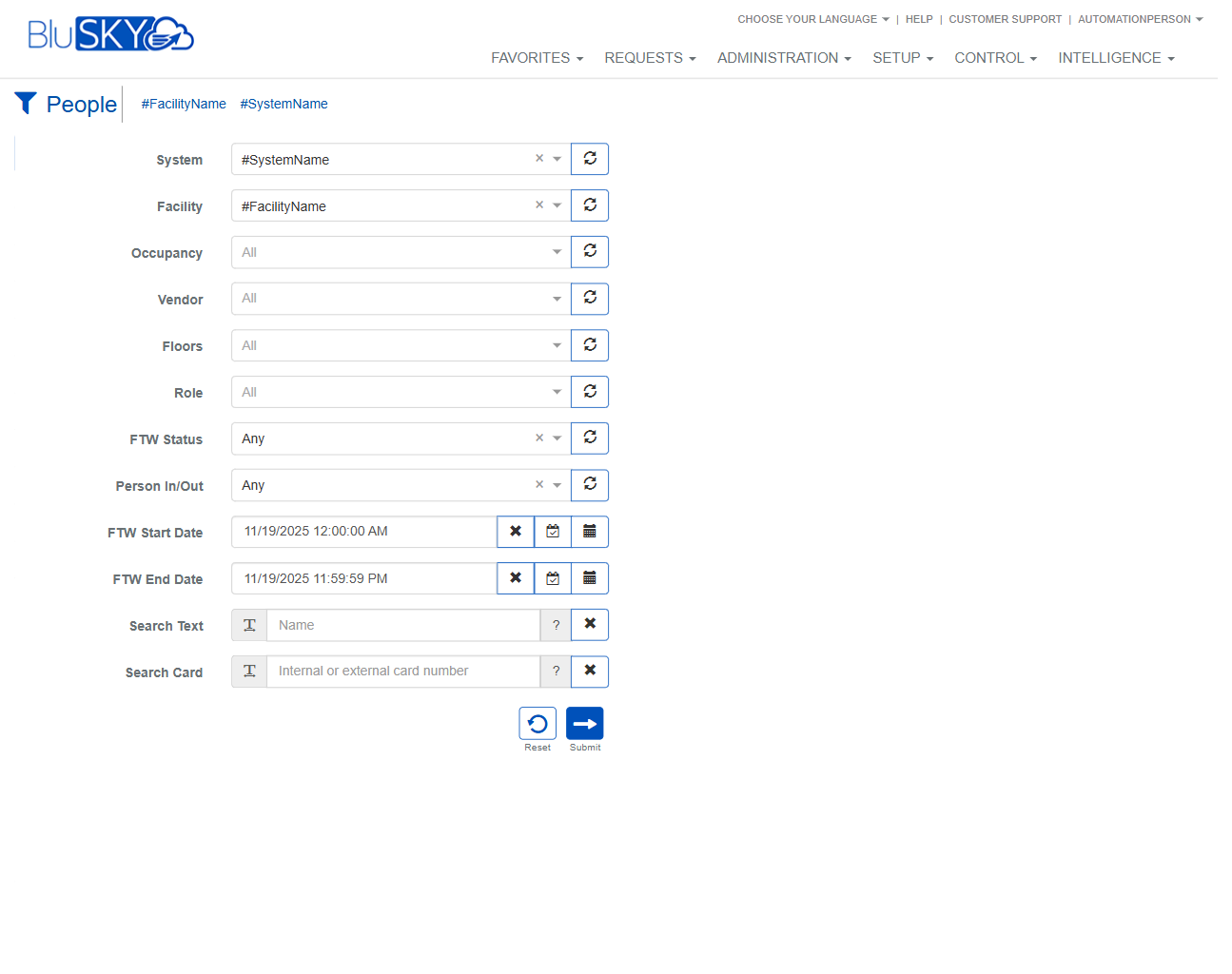
The People screen provides a searchable, filterable list of all person records in BluSKY. It is used to review core identity details (name, contact information, roles), credential numbers, and time-window (FTW) status changes. Administrators can open an FTW filter panel to set scope (system/facility), apply date ranges and other criteria, and export the resulting list.
Field Definitions
| Field Label | Definition | Notes |
|---|---|---|
| System | The BluSKY system context to query. | Filter; single-select. Use the circular refresh icon to reload available values. |
| Facility | The facility within the system to query. | Filter; single-select. Values depend on the selected System. |
| Occupancy | Filters people by occupancy category (e.g., employees, visitors, vendors). | Filter; optional. |
| Vendor | Filters by vendor affiliation. | Filter; optional; appears when using vendor programs. |
| Floors | Limits results to people associated with selected floors. | Filter; multi-tenant sites may use this to narrow scope. |
| Role | Filters by assigned role. | Filter; optional. |
| FTW Status | Filters by From–To–When status. | Filter; choices include Any and status-specific values. |
| Person In/Out | Filters by current in/out state. | Filter; optional; depends on presence features at the site. |
| FTW Start Date | Beginning of the time window for activity/search. | Filter; use calendar icon to pick a date/time or the clear icon to reset. |
| FTW End Date | End of the time window for activity/search. | Filter; must be the same as or later than FTW Start Date. |
| Search Text | Free-text search across person name fields. | Filter; case-insensitive. Clear with the X icon. |
| Search Card | Searches by internal or external card number. | Filter; enter full or partial card value as available. |
| Last Name | Surname of the person. | Grid column; clickable to open the person record. |
| First Name | First (given) name of the person. | Grid column; read-only. |
| M.I. | Middle initial. | Grid column; may be blank if not provided. |
| Photo | Indicates whether a photo is on file; may show a camera icon. | Grid column; read-only indicator. |
| FTW Status (Grid) | The person’s status within the selected FTW window. | Grid column; may display “Unspecified” when no status change is recorded. |
| FTW Date | Timestamp of the most recent FTW status change. | Grid column; read-only. |
| FTW Changed By | User who performed the FTW-related change. | Grid column; read-only. |
| Credentials | The primary credential/card number associated with the person. | Grid column; format depends on site configuration. |
| Person’s email address. | Grid column; may be a mailto link if enabled. | |
| Phone | Person’s phone number. | Grid column; may be masked or truncated in the grid. |
| Roles | Roles assigned to the person. | Grid column; long values may be truncated; open the record to view all. |
| #FacilityName | Header indicator showing the active facility context. | Read-only; updates when Facility filter changes. |
| #SystemName | Header indicator showing the active system context. | Read-only; updates when System filter changes. |
| Image Exists | Header indicator showing whether the selected person has a stored image. | Read-only; updates when a row is selected. |
| Badge Printed | Header indicator showing whether a badge has been printed for the selected person. | Read-only; updates when a row is selected. |
Screen Actions and Functions
- FTW – Opens the filter panel to set System, Facility, FTW dates, and other criteria.
- Submit – Applies the selected filters and refreshes the grid.
- Reset – Clears all filters in the FTW panel to system defaults.
- Export – Exports the current, filtered result set to a CSV/Excel file.
- Sort Columns – Click any column header to toggle ascending/descending order.
- Open Person – Click a Last Name link to open the full person record in a new view.
- Clear Selection – Use the X icon in a filter to remove its value.
- Refresh Picklist – Use the circular arrows icon next to a filter to reload available options.
- Date/Time Pickers – Use the calendar/clock icons to set precise FTW Start/End values.
- Horizontal Scroll – Use the bottom scrollbar to view columns that extend off-screen.
Usage Instructions & Examples
How to find people by name in a specific facility and role
- Click FTW to open the filter panel.
- Select System and Facility.
- Set Role to the desired role.
- In Search Text, type the person’s name (full or partial).
- Adjust FTW Start Date and FTW End Date if needed.
- Click Submit to view results. Click a Last Name to open the record.
How to look up a person by card number
- Click FTW.
- In Search Card, enter the internal or external card number.
- Optionally limit by System/Facility or dates.
- Click Submit to return the matching record(s).
How to export the people list
- Apply any needed filters via FTW and click Submit.
- Click Export at the bottom of the screen.
- Save the generated file locally.
How to clear all filters and start over
- Click FTW.
- Click Reset to clear all fields.
- Re-enter the desired criteria and click Submit.
System Behaviors and Edge Cases
- FTW Start Date must be earlier than or equal to FTW End Date; otherwise, no results or a validation message may appear.
- Export includes only the rows currently returned by your filters and sort order.
- If no records match the criteria, the grid displays an empty result set.
- FTW Status in the grid may show “Unspecified” when no status change exists within the selected window.
- Email and phone fields may appear blank if data is not provided for a person.
- Roles and long phone numbers may be truncated in the grid; open the person record to view full values.
- Header indicators (Image Exists, Badge Printed) update when a row is selected and may be blank otherwise.
- Column sorting persists until changed or the page is reloaded.
Permissions
- Access to the People screen typically requires Administrator or Security/Operations roles (e.g., Global Administrator, Tenant Administrator).
- Viewing credential numbers may require a “View Credentials” or equivalent permission.
- Export is available only to users granted data export permissions.
- Opening and editing a person record requires person-management permissions.
Linked Workflows
- From a person record you can manage Credentials, Roles, and Photo/Badge.
- After locating a person, administrators can assign Access Levels or deactivate/reactivate the person as needed.
- People records are used by visitor and occupancy workflows (check-in, presence/in/out reporting).
Reference Image Links