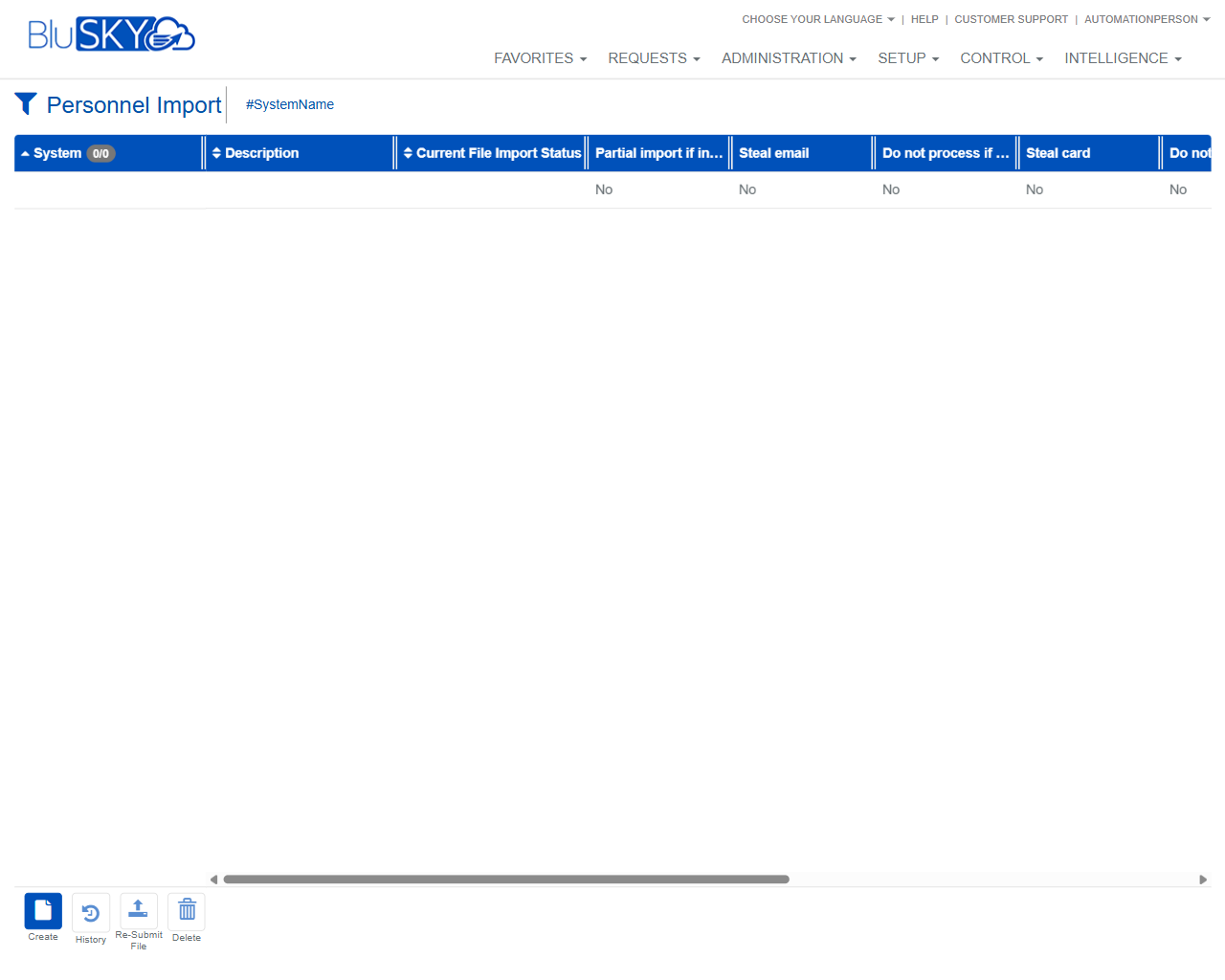
Personnel Import
Personnel Import
Screen Overview
The Personnel Import screen allows administrators to search, review, create, and manage personnel import configurations and their most recent processing status. It provides filters for narrowing results and actions to create a new import definition, view run history, re-submit a file, or delete an existing configuration.
Field Definitions
| Field Label | Definition | Notes |
|---|---|---|
| System | The BluSKY system to which the import configuration belongs. | Used as a filter at the top of the page and also appears as a column in the results grid. |
| Current File Import Status | Filter/column indicating the latest processing state of the file. | Examples may include Pending, Processing, Completed, or Failed. Exact values depend on system configuration. |
| Search Text | Free-text filter applied to names/descriptions of import configurations. | “?” opens help for search; “x” clears the text. |
| Description | Text description of the import configuration. | Grid column. Read-only in the list. |
| Partial import if in... | Indicates whether partial import is allowed when validation errors occur. | Label is truncated in the list. When enabled, valid rows are imported and errors are logged for invalid rows. |
| Steal email | Conflict-handling rule for duplicate emails found during import. | When enabled, ownership of the email may be reassigned to the imported record per policy. |
| Do not process if ... | Rule preventing processing when specific conflicts/conditions are detected. | Label is truncated; open the record to view the full rule text. |
| Steal card | Conflict-handling rule for credential/card number duplication. | When enabled, the card may be reassigned to the imported record per policy. |
| Do no... | Additional conflict/processing rule shown in the grid. | Label is truncated; open the record to see the full label and behavior. |
Screen Actions and Functions
- Create – Opens a form/wizard to define a new personnel import and upload its source file.
- Submit – Runs the current filters and refreshes the grid with matching import configurations.
- Reset – Clears all filter fields to their defaults.
- History – Opens the processing history for the selected import configuration.
- Re-Submit File – Re-queues the most recent file for the selected configuration for processing.
- Delete – Removes the selected import configuration.
- Refresh System list – Reloads the System picklist (circular-arrow icon next to System).
- Refresh Status list – Reloads the Current File Import Status picklist.
- Search help/clear – “?” shows search tips; “x” clears Search Text.
Usage Instructions & Examples
How to Find Existing Import Configurations
- Select a System or leave as default to search across accessible systems.
- Optionally set Current File Import Status and/or enter Search Text.
- Click Submit to display matching configurations.
How to Create a New Personnel Import
- Click Create.
- Complete required fields in the form (e.g., System, Description, import rules).
- Upload the source file in the prompted step.
- Save/Submit. Return to the list and click Submit to refresh the grid and view status.
How to Re-Submit a Failed or Completed File
- In the grid, select the desired import configuration.
- Click Re-Submit File.
- Confirm the action. Monitor status via the Current File Import Status column or open History.
How to View Import History
- Select an import configuration in the grid.
- Click History to open the run log, including timestamps, counts, and any error messages.
How to Delete an Import Configuration
- Select the configuration to remove.
- Click Delete and confirm the prompt.
System Behaviors and Edge Cases
- The grid remains empty until Submit is clicked or filters return results.
- Actions that operate on a configuration (History, Re-Submit File, Delete) are disabled until a single row is selected.
- If Partial import is disabled and any validation errors are detected, the system will not import any records and will log the errors.
- If Partial import is enabled, valid rows are processed while invalid rows are skipped and reported in History.
- “Steal email” and “Steal card” govern conflict resolution; when disabled, conflicting records are typically skipped and logged.
- Status values and transitions are system-generated and reflect the most recent processing event for each configuration.
- Deletion may be blocked if a file is currently processing.
Permissions
- Screen access typically requires Global Administrator or Tenant Administrator privileges.
- Creating imports requires permission to Create Personnel Imports.
- Re-Submit File and History require View/Manage Personnel Imports.
- Delete requires Delete Personnel Imports.
- Visibility of Systems and records is restricted by the user’s tenant/system scope.
Linked Workflows
- People: Imported records appear on the People screen for further management.
- Credentials: If card data is included, imported credentials can be managed on the Credentials/Access Levels screens.
- Reports/History: Use Import History to audit runs and download error details for correction and re-submission.
Reference Image Links