Rules
Rules Screen
Screen Overview
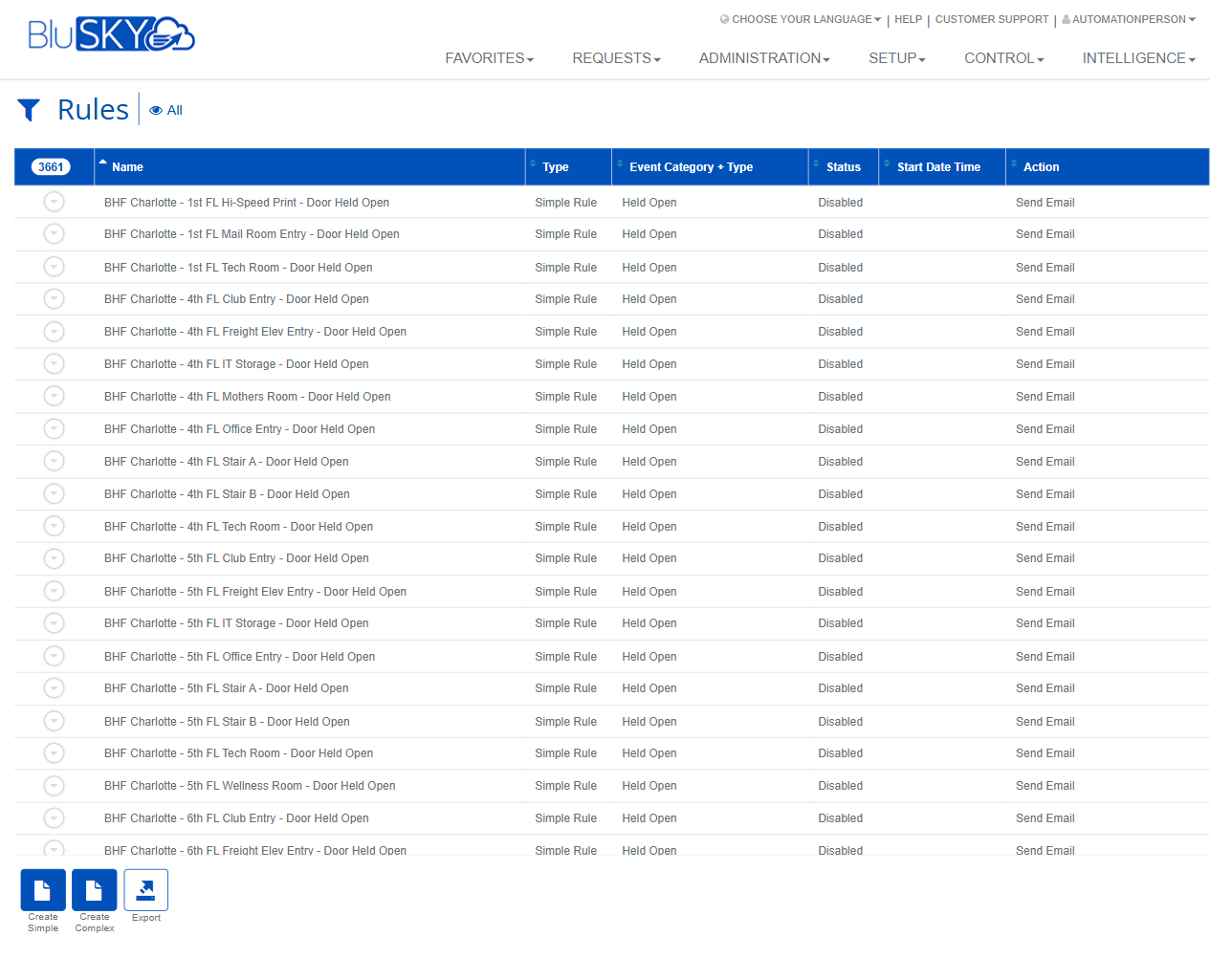
The Rules screen allows administrators and operators to search, review, create, and maintain event-driven automation rules in BluSKY. Use the filters to narrow results by system, facility, event category/type, and rule status. From the results grid you can view details, edit or duplicate rules, enable/disable them, or export the list. Quick actions are provided to create either Simple or Complex rules.
Field Definitions
| Field Label | Definition | Notes |
|---|---|---|
| System Group (context) | Read-only badge indicating the current rules context scope (e.g., Shared). | Determines which rules are visible/editable based on organizational scope. |
| System Group | Filter to a specific System Group. | Default is -- All -- to include every available group. |
| System | Filters rules by BluSKY System. | Use when your tenant spans multiple systems. |
| Facility | Filters rules to a specific Facility within the selected System. | Populates after selecting a System; default is -- All --. |
| Event Category | Filters by the high-level event category that can trigger a rule (e.g., Held Open). | Selecting a category narrows the Event Type options. |
| Event Type | Filters by a specific event type within the chosen category. | Default is -- All --. |
| Rule Type | Filters by rule architecture: Simple Rule, Complex Rule, or Both. | Default is Both. |
| Search | Filters by rule status: Active/Inactive/All. | Default shown is Active. |
| View | Controls which subset of rules to show (e.g., All). | Exact options depend on tenant configuration and permissions. |
| Search Text | Free-text search against rule name. | Case-insensitive; press Submit to apply. |
| Name | The display name of the rule as shown in the results grid. | Click a row, then use View or Edit to open details. |
| Type | Indicates whether the rule is a Simple Rule or Complex Rule. | Simple = single-condition; Complex = advanced logic and/or multiple conditions. |
| Event Category + Type | Shows the triggering event category and specific event type for the rule. | Read-only column in the results grid. |
| Status | Current operational state of the rule (Enabled/Disabled). | Can be toggled via Change Status. |
| Start Date Time | Optional start timestamp when the rule becomes effective. | Blank means effective immediately when enabled. |
| Action | The action executed when the rule triggers (e.g., Send Email). | Actual actions depend on configuration (notifications, outputs, etc.). |
Screen Actions and Functions
- Create Simple – Launches the wizard to define a Simple Rule.
- Create Complex – Launches the designer for a Complex Rule.
- Submit – Applies the selected filters and refreshes the results grid.
- Reset – Clears all filters back to their defaults.
- View – Opens the selected rule in read-only mode.
- Edit – Opens the selected rule for modification.
- Delete – Removes the selected rule from the tenant.
- Duplicate – Creates a copy of the selected rule for quick reuse.
- Change Status – Enables or disables the selected rule.
- Export – Exports the current, filtered list to a file (e.g., CSV/Excel).
Note: The bottom action bar is contextual. When no row is selected, only actions that do not require a selection (e.g., Create, Export) appear. Selecting a row reveals row-dependent actions (View, Edit, Delete, Duplicate, Change Status).
Usage Instructions & Examples
How to find rules for a specific facility and event
- In System, choose the applicable system.
- In Facility, choose the facility of interest.
- In Event Category, select the category (e.g., Held Open); optionally refine Event Type.
- Leave Rule Type = Both, Search = Active, and View = All.
- (Optional) Enter a keyword in Search Text to match the rule Name.
- Click Submit to refresh the results.
How to create a Simple Rule that emails on a door-held-open event
- Click Create Simple.
- Provide a clear Name.
- Choose the System and Facility, then set Event Category = Held Open and select the Event Type.
- Configure the Action = Send Email and select recipients.
- Set Status = Enabled and (optional) Start Date Time.
- Save. The new rule appears in the list.
How to enable or disable an existing rule
- Select the rule row in the grid.
- Click Change Status.
- Confirm the change. The Status column updates to Enabled or Disabled.
How to export the current list of rules
- Apply filters as needed and click Submit.
- Click Export.
- Download the generated file and open it in your spreadsheet tool.
System Behaviors and Edge Cases
- Filters are not applied until you click Submit; use Reset to clear all criteria.
- The Event Type list is constrained by the chosen Event Category.
- The action toolbar changes based on selection and permissions; edit/delete options only show when a row is selected and you have rights.
- Change Status toggles a rule between Enabled and Disabled without altering its definition.
- Start Date Time governs when an Enabled rule becomes effective; if the start time is in the future, the rule will not trigger until that time.
- Export respects all current filters and search text.
- Duplicated rules inherit the source configuration; you must provide a unique Name before saving.
- If no records match your filters, the grid displays no rows and only Create/Export are available.
- Large result sets may paginate; the counter at the top reflects the total found.
Permissions
- View Rules: Users with Read Rules permission or higher.
- Create Simple/Complex: Users with Create Rules permission.
- Edit, Duplicate, Change Status: Users with Modify Rules permission.
- Delete: Users with Delete Rules permission.
- Export: Users with Export Rules permission.
- Access scope (e.g., Shared vs tenant-specific System Group) is controlled by the user’s role and assigned system/facility access.
Linked Workflows
- Notification Management: Maintain email recipients or distribution lists referenced by Send Email actions.
- Event and Alarm Monitoring: Confirm that triggering events (e.g., Held Open) are generated as expected.
- Schedules/Timeframes: Optionally referenced by rules to limit when they apply.
- Device/Point Configuration: Ensure doors, inputs, or other sources generate the events used in rules.
Reference Image Links