Schedules
Schedule Screen
Screen Overview
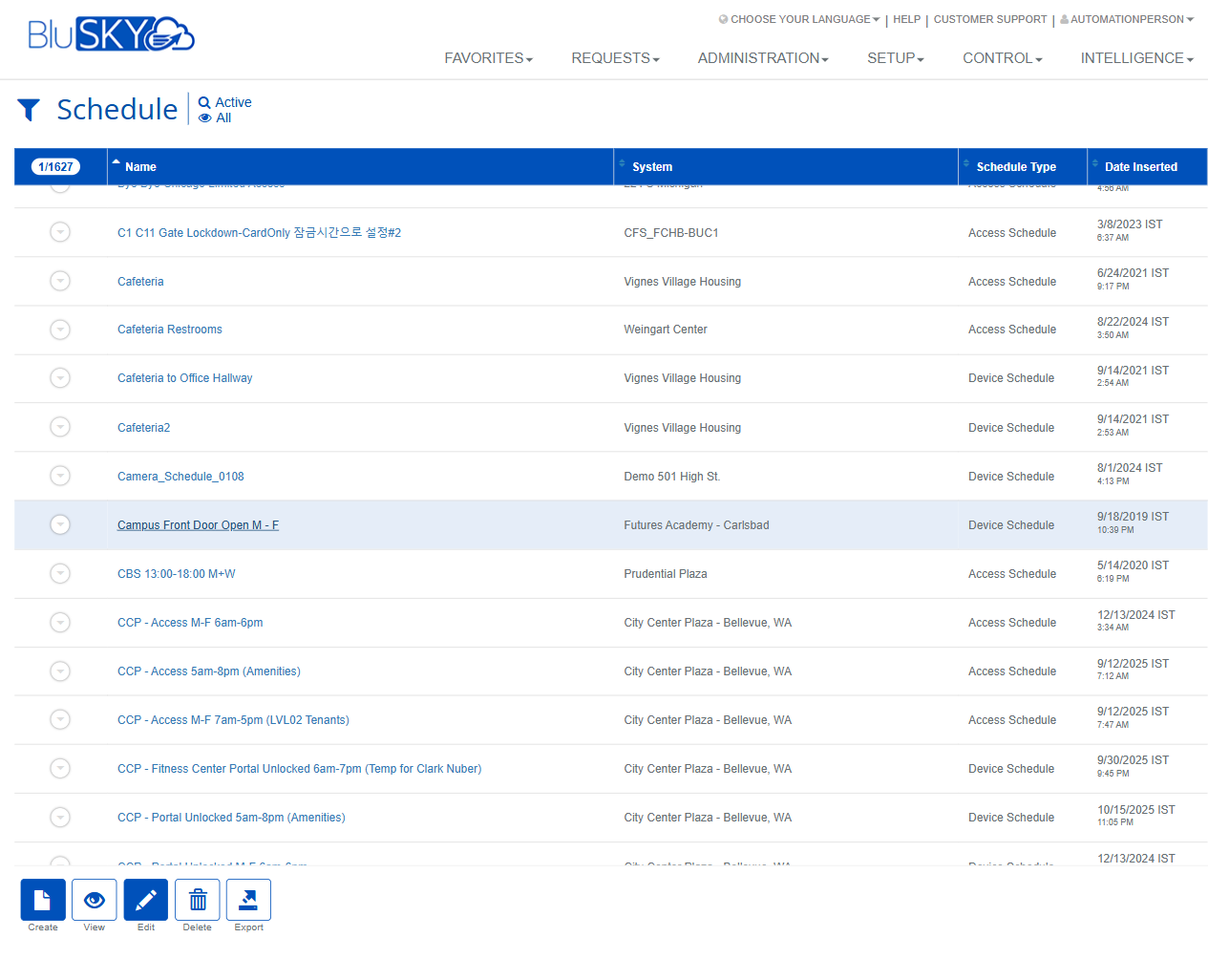
The Schedule screen provides a centralized list of all schedules configured in BluSKY across selected systems. Use this page to search, view, create, edit, delete, and export Access Schedules and Device Schedules. Filters at the top narrow the results, and the grid displays key schedule attributes with quick navigation to details.
Field Definitions
| Field Label | Definition | Notes |
|---|---|---|
| System (filter) | Dropdown to limit results to a specific BluSKY system/site. | Defaults to “-- All --”. Narrowing by system improves performance and relevance. |
| Search (filter) | Status filter for the list. | Options shown include “Active” and “All”. “Active” is the default. |
| View (filter) | Additional result scoping for the grid. | Defaults to “All”. Used to change which schedule subsets are shown (e.g., types). |
| Search Text | Free-text search entry. | Placeholder indicates search by Name. Press Submit or Enter to run. |
| Active / All (chip) | Quick status toggle indicator at the top left of the screen. | Mirrors the Search (filter) selection; clicking the chip switches the view. |
| Selected/Total counter | Shows how many rows are currently selected out of the total results. | Format: “n/total”. When none are selected, only the total count is shown. |
| Name (column) | The schedule name. | Click the linked name to open the schedule details. |
| System (column) | The system/site that owns the schedule. | Read-only on the list; editable in the schedule record. |
| Schedule Type | Indicates whether the row is an Access Schedule or a Device Schedule. | Read-only on the list. |
| Date Inserted | Timestamp of when the schedule was created/added to the system. | Displayed in the user’s locale/time zone settings. |
| Row Expander | Chevron icon to expand a row for inline details (if available). | Located at the far-left of each row. |
Screen Actions and Functions
- Create – Opens the schedule creation form.
- View – Opens the selected schedule in read-only mode (available when exactly one row is selected).
- Edit – Opens the selected schedule for modification (available when exactly one row is selected and you have edit rights).
- Delete – Removes selected schedules after confirmation (available when one or more rows are selected and you have delete rights).
- Export – Exports the current result set to a file (respects active filters).
- Submit – Executes the search using the current filter values.
- Reset – Clears filters back to defaults and refreshes the grid.
- Row Select – Click a row to select it; the Selected/Total counter and available actions update accordingly.
Usage Instructions & Examples
How to find schedules for a specific site
- In System (filter), choose the desired system/site.
- Ensure Search is set to Active to limit to active schedules.
- Optionally enter part of the schedule name in Search Text.
- Click Submit to refresh the grid.
How to open and review a schedule
- Locate the schedule in the grid.
- Click the schedule Name link to open its details.
- Review periods, assignments, and any related configuration, then navigate back to the list as needed.
How to create a new schedule
- Click Create.
- In the form, select the System/site and Schedule Type (Access or Device).
- Enter a unique Name and define the required time periods/segments.
- Save. The new schedule appears in the list and can be assigned to access levels or devices.
How to modify or delete a schedule
- Select exactly one row to enable View and Edit. Click Edit to change the configuration; Save when done.
- To delete, select one or more schedules and click Delete. Confirm the action to complete removal.
How to export the schedule list
- Apply any desired filters and click Submit.
- Click Export to download the filtered results.
System Behaviors and Edge Cases
- The action bar adapts to selection state:
- No selection: Create, Export available.
- One selection: Create, View, Edit, Delete, Export available.
- Multiple selections: Create, Delete, Export available.
- Export includes only rows that match current filters; it does not require selecting rows.
- Deletion may be blocked if a schedule is referenced elsewhere (e.g., assigned to access levels or devices); an error or warning will appear.
- Date Inserted reflects the user’s locale/time zone settings; values may differ between users in different regions.
- Searching without entering any criteria and with View=All may return a large result set; refine using System or Search Text for faster results.
Permissions
- Accessible to users with administrative rights such as Global Administrators and Tenant Administrators.
- Create/Edit/Delete actions require the appropriate schedule management permissions (e.g., ManageSchedules or equivalent).
- Users without edit rights can view and export but cannot modify or delete schedules.
Linked Workflows
- Assign Access Schedules to Access Levels to control when access is granted.
- Attach Device Schedules to doors/readers, panels, or automation rules to control device behavior by time.
- Use schedules within Door Mode or Elevator Mode configurations for time-based unlocking or floor availability.
- Reference schedules in rule engines or event automation where time-based conditions are needed.
Reference Image Links