Access Levels
Access Level Screen
Screen Overview
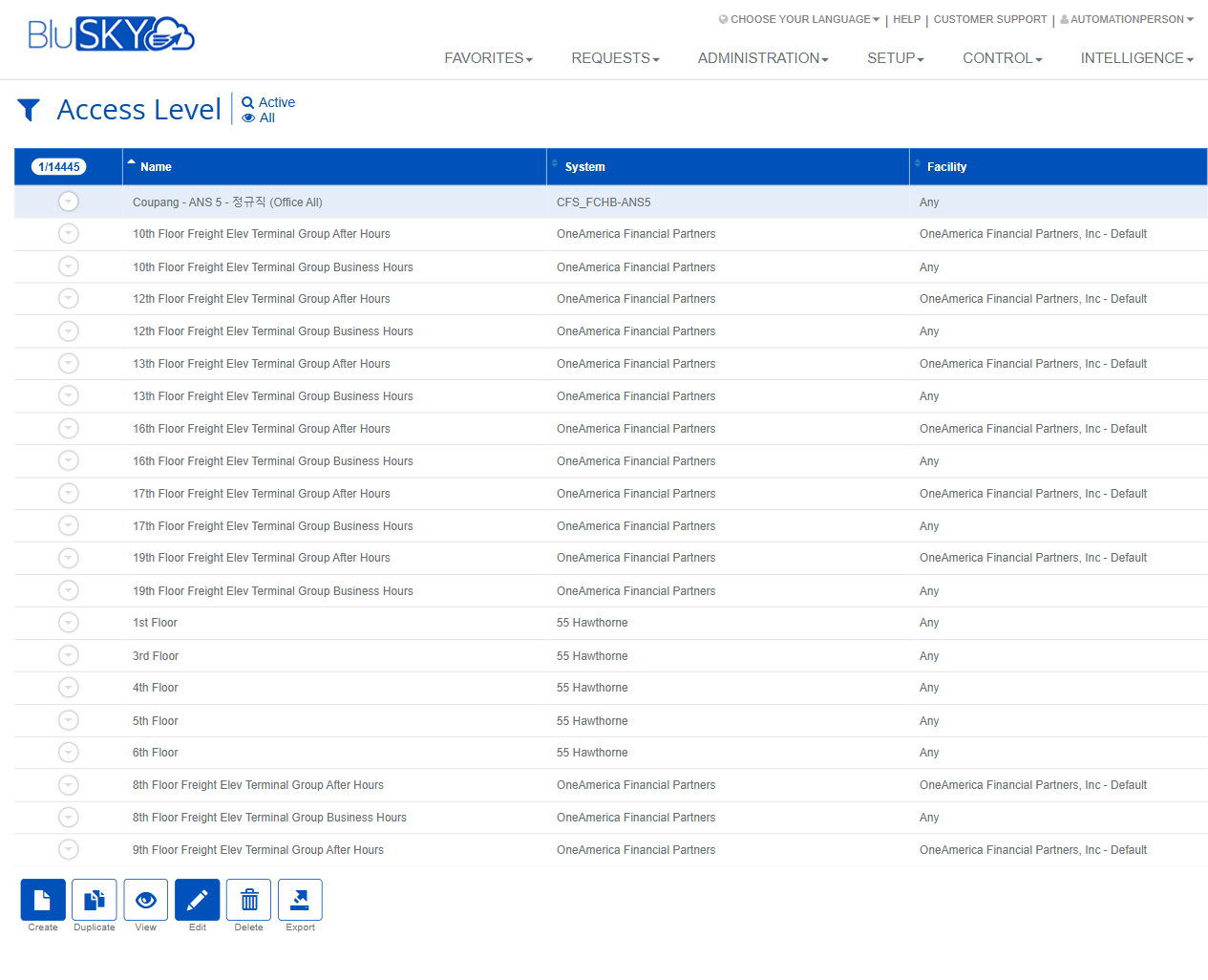
The Access Level screens allow administrators to search, create, and manage access level records used to grant people entry rights across systems and facilities. The workflow includes a search/filter page, a results grid with row-level actions, and a creation form for defining new access levels.
Field Definitions
| Field Label | Definition | Notes |
|---|---|---|
| System | The access control system where the access level exists. | Required when creating. Filters facilities and companies available. |
| Facility | The site or facility the access level applies to. | Optional; “Any” means it is not limited to a specific facility. |
| Company | Company scope for the access level. | “Any” allows assignment to any company within the selected system. |
| Access Level Type | Classification of the access level. | Required. Example shown: Personnel. Available options depend on system configuration. |
| Name | The display name of the access level. | Required. Must be unique within the selected system/facility per your organization’s standards. |
| Apply By Default | Toggle indicating whether this access level should be preselected during relevant assignments. | Defaults to No. Behavior depends on tenant configuration and does not remove or retroactively change existing assignments. |
| Start Date Time | Optional start date and time when the access level becomes effective. | Leave blank to make it effective immediately upon save. |
| End Date Time | Optional end date and time when the access level expires. | Leave blank for no expiration. Must be later than Start Date Time if both are set. |
| Time Zone | Time zone applied to Start/End Date Time. | Appears adjacent to date fields (e.g., IST). Controls how times are interpreted. |
| Search | Filter for record status. | Common values: Active or All. Default is Active. |
| View | Additional filter to refine the list display. | Options vary by tenant; default shown is All. |
| Search Text | Free-text search field for access level name. | Partial matches supported. |
| Results Grid: Name | Column showing the access level name. | Click to select a record for actions. |
| Results Grid: System | Column showing the system associated to each access level. | Read-only in the grid. |
| Results Grid: Facility | Column showing the facility association. | Read-only in the grid. |
| Results Grid: Row Selector/Expander | Icon at the left of each row to select or expand quick details. | Enables action buttons and may reveal additional info inline (when available). |
| Record Count Indicator | Badge showing total results, and count of selected items (e.g., 1/14445). | Updates as filters change or rows are selected. |
Screen Actions and Functions
- Create – Opens the Create Access Level form.
- Submit – Runs the search using the current filter values.
- Reset – Clears all filters back to defaults.
- Export – Exports the current result set to a file (format depends on tenant configuration).
- Duplicate – Creates a new access level by copying the selected one.
- View – Opens the selected access level in read-only mode.
- Edit – Opens the selected access level for modification.
- Delete – Removes the selected access level from active use (subject to permissions and dependencies).
- Back To List – Returns from the create/edit form to the results list.
- Row Expand/Select – Expands quick details and/or selects the row to enable actions.
- Date/Time Pickers – Calendar/time controls to set Start/End Date Time.
- Time Zone Picker – Sets the time zone used for date/time fields.
- Toggle Apply By Default – Switches the default-apply setting for the access level.
Usage Instructions & Examples
How to Find and View an Access Level
- Open the Access Level page and confirm Search = Active.
- Optionally set System, Facility, or Company to narrow results.
- Enter a keyword in Search Text and click Submit.
- Select a row and click View to open it in read-only mode.
How to Create a New Access Level
- Click Create.
- Select a System.
- (Optional) Select a Facility and/or Company.
- Choose an Access Level Type.
- Enter a Name.
- (Optional) Set Start Date Time, End Date Time, and confirm the Time Zone.
- (Optional) Set Apply By Default = Yes if this access level should be preselected during assignments.
- Click Create to save. Use Back To List to return to the grid.
How to Duplicate an Existing Access Level
- Filter or search to locate the source access level and select its row.
- Click Duplicate.
- Update the Name and any other fields (e.g., Facility, dates).
- Click Create to save the duplicate.
System Behaviors and Edge Cases
- The list defaults to Search = Active; switch to All to include inactive/expired access levels.
- System is required for creation; Facility and Company lists are filtered by the selected System.
- If both Start and End Date Time are provided, End must be later than Start; otherwise, saving is blocked.
- Leaving Start blank makes the access level effective immediately upon creation; leaving End blank creates a non-expiring access level.
- Time Zone next to the date fields determines how Start/End Date Time are interpreted and stored.
- Apply By Default controls preselection behavior during related assignments. It does not remove existing assignments and may not affect historical records.
- Export respects the current filters and user permissions.
- Deleting an access level may be restricted if it is in use by people, groups, or workflows; administrators may need to remove dependencies first.
- Record Count Indicator updates to show selected/total (e.g., 1/14445) and helps confirm multi-select operations.
Permissions
- Access restricted to roles with access administration rights, typically Global Administrators or Tenant/Facility Administrators.
- Create/Edit/Duplicate/Delete actions require the ManageAccessLevels permission (or equivalent).
- Export requires data export permission.
- Some tenants may restrict Apply By Default to higher-privilege roles.
Linked Workflows
- Assign access levels to people from the People screen.
- Use access levels within visitor or contractor onboarding workflows.
- Define or adjust doors/readers/elevator associations and schedules within the access level’s detail pages.
- Include access levels when issuing credentials or configuring groups.
Reference Image Links