Occupancies
Occupancy Screen
Screen Overview
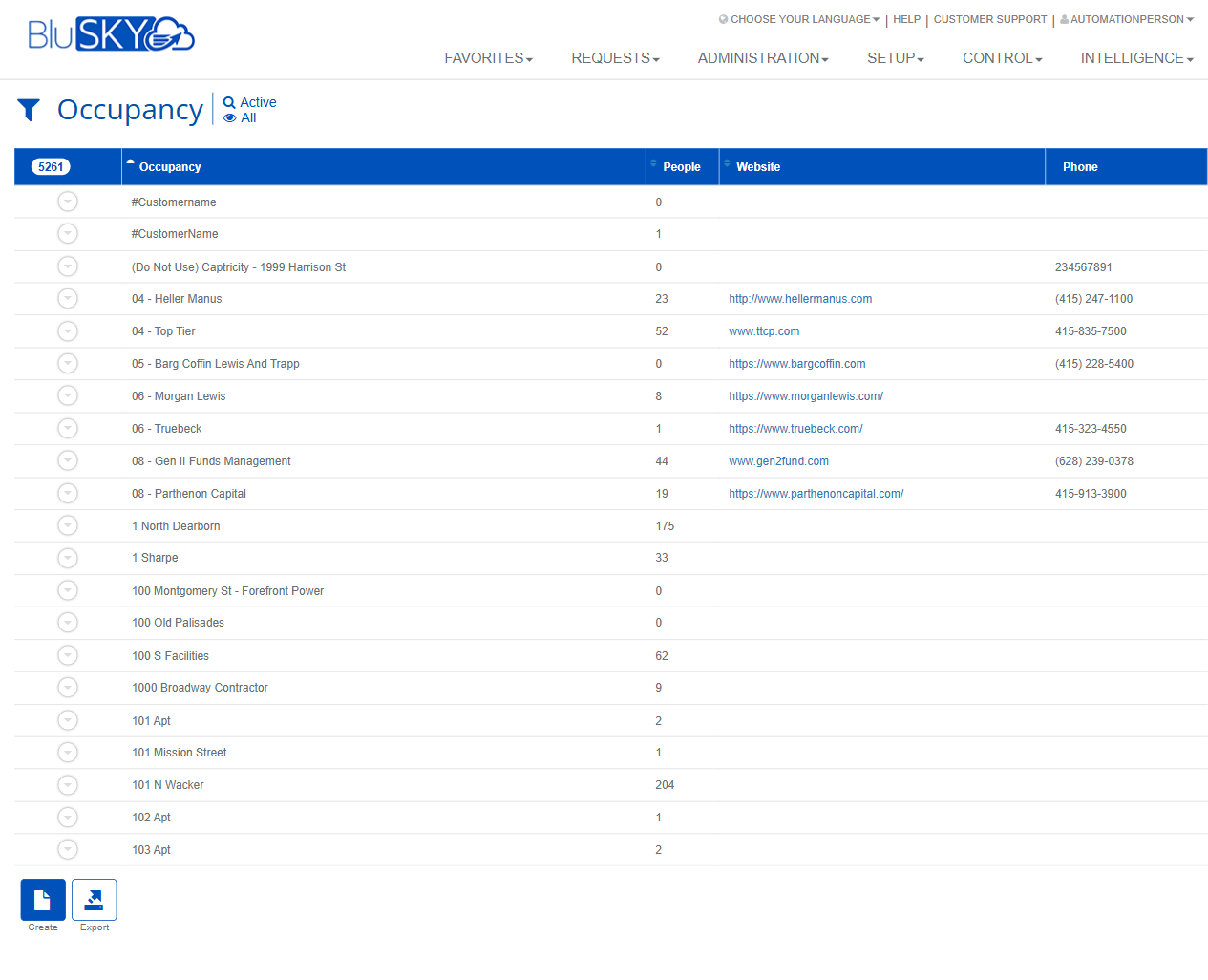
The Occupancy screen centralizes management of tenant/organizational occupants within facilities. It provides filters to locate occupancies and a results grid showing key details such as people count, website, and phone. From this screen, authorized users can create, view, edit, delete, export, and (where applicable) synchronize occupancy records with connected systems.
Field Definitions
| Field Label | Definition | Notes |
|---|---|---|
| System | Filters results to a specific security/access control system. | Dropdown. Default: -- All --. |
| Facility | Filters results to a specific facility within the selected system. | Dropdown. Default: -- All --. |
| Search | Status filter for records. | Common values include Active and All. Default: Active. |
| View | Selects which saved or preset view to display. | Default: All. Availability of other views depends on configuration. |
| Search Text | Free-text search against occupancy name. | Placeholder shows “Occupancy Name”. Partial matches supported. |
| Active (quick filter) | Shortcut toggle near the page title to show active occupancies. | Mirrors the Search=Active setting. |
| All (quick filter) | Shortcut toggle near the page title to show all occupancies. | Mirrors the Search=All setting. |
| Result Count | Badge showing the number of records returned. | Updates after Submit or changing quick filters. Read-only. |
| Occupancy (column) | Name of the occupancy (tenant/organization). | Primary identifier in the grid. |
| People (column) | Number of person records associated to the occupancy. | Read-only count. |
| Website (column) | Website URL for the occupancy. | Displays as a link if provided. |
| Phone (column) | Main phone number for the occupancy. | Formatting varies by data entered. |
Screen Actions and Functions
- Create – Opens the form to add a new occupancy.
- Submit – Applies current filters and refreshes the results grid.
- Reset – Clears filters back to defaults (System: All, Facility: All, Search: Active, View: All, blank Search Text).
- View – Opens the selected occupancy in read-only mode.
- Edit – Opens the selected occupancy for modification.
- Delete – Removes the selected occupancy record (subject to dependency checks and permissions).
- Sync Status – Initiates a synchronization of the selected occupancy with connected/linked systems (only shown when integrations are enabled).
- Export – Exports the current result set to a file (e.g., CSV/Excel), honoring filters and sorting.
- Row Expand (chevron) – Expands a row to reveal additional quick details, when available.
Usage Instructions & Examples
How to Find an Occupancy
- Choose System and Facility (optional).
- Ensure Search is set to Active or select All to include inactive records.
- Enter part or all of the name in Search Text.
- Click Submit to refresh results.
How to Create a New Occupancy
- Click Create.
- Complete required fields on the form (e.g., Occupancy Name, Facility, contact details).
- Set status to Active (if applicable).
- Save. The new occupancy appears in the results list.
How to Edit an Occupancy
- Select a row in the grid.
- Click Edit.
- Update fields as needed and Save.
How to Export Occupancies
- Apply filters and click Submit.
- Click Export to download the filtered list.
How to Use Quick Filters
- Click Active near the title to quickly show active records.
- Click All to include all statuses without changing other filter fields.
- Use Submit if you adjusted filters in the panel; quick filters refresh immediately.
How to Synchronize Status (integrated systems)
- Select the occupancy record that should be reconciled with an external system.
- Click Sync Status and confirm when prompted.
- Monitor for confirmation or review logs/indicators as configured.
System Behaviors and Edge Cases
- Quick filters (Active/All) apply immediately to the grid; the Search dropdown reflects the current state.
- Reset restores default filter values and clears Search Text.
- Export includes only records currently returned by the filters; extremely large exports may be split or subject to system limits.
- Website values display as hyperlinks; blank values render as plain text or empty cells.
- Delete may be blocked if the occupancy has dependent records (e.g., associated people or access assignments). In such cases, deactivate or remove dependencies first.
- If no records match the criteria, the grid displays zero results and the count badge updates accordingly.
- Sync Status is hidden when no external integration is configured for the selected system/facility.
Permissions
- Screen access is typically available to Global Administrators and Tenant/Facility Administrators.
- Create, Edit, Delete, and Sync Status require Occupancy Management privileges.
- Export requires data export permissions.
- Users without edit privileges can view and export (if permitted) but cannot modify or delete occupancies.
Linked Workflows
- After creating an occupancy, add People under that occupancy for identity and credential management.
- Assign Access Levels or groups to the occupancy’s people from the relevant access control screens.
- Configure visitor/tenant policies (e.g., visitor approvals, notifications) tied to the occupancy.
- Use reporting dashboards to analyze occupancy populations and activity.
Reference Image Links