Vendor Mgmt.
Vendor Screen
Screen Overview
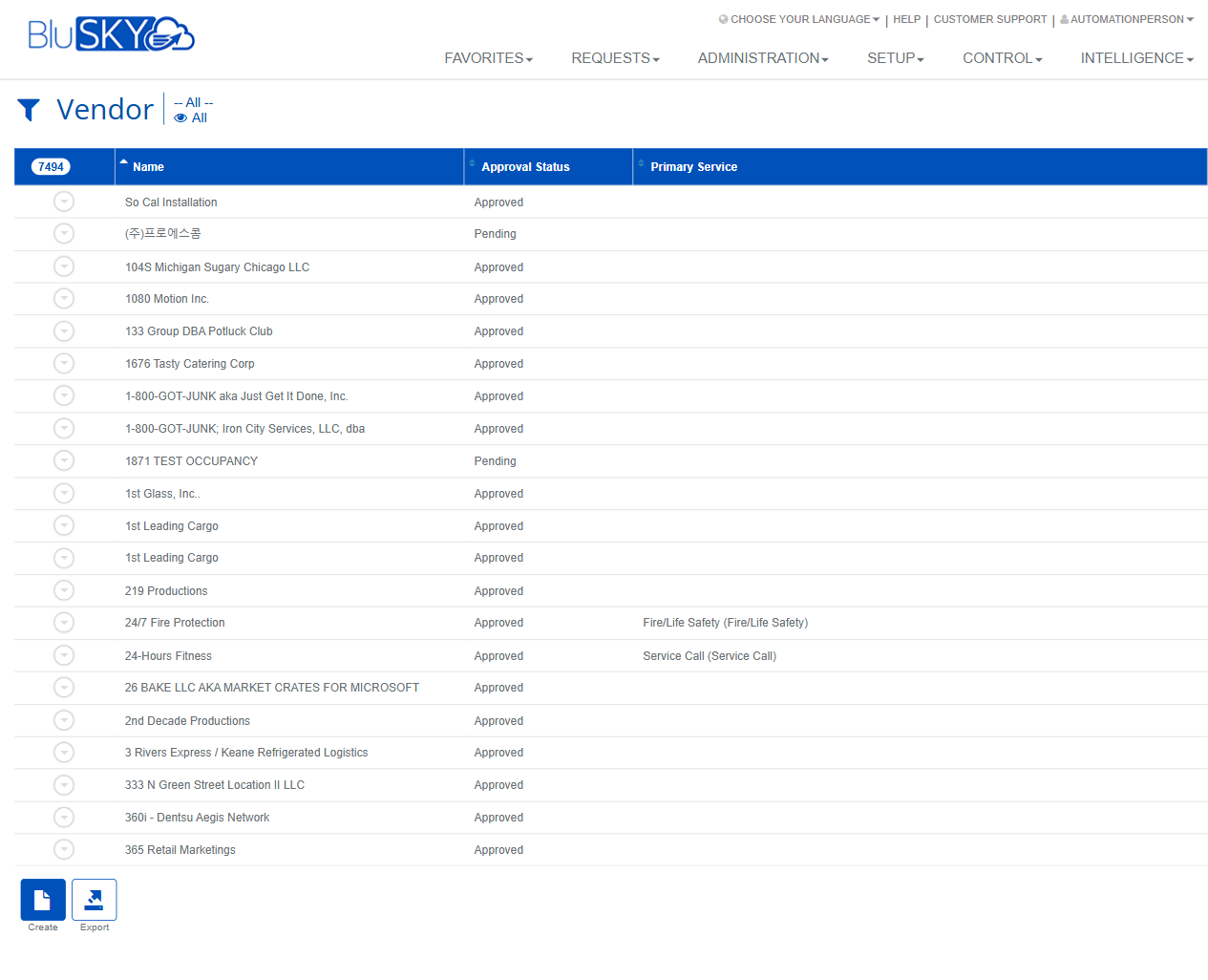
The Vendor screen enables administrators and facility managers to search, review, and maintain vendor records used across BluSKY. It provides filters for System and Facility scope, vendor approval status, primary service, and Certificate of Insurance (COI) expiration. From the results grid, users can create new vendors, view or edit existing vendors, delete records, and export the current list.
Field Definitions
| Field Label | Definition | Notes |
|---|---|---|
| System | Limits the search to a specific BluSKY system. | Default is “-- All --”. Impacts which Facilities and vendors are available. |
| Facility | Filters results to vendors associated with a specific facility. | Default is “-- All --”. Facility choices depend on the selected System. |
| Service Name | Filters by the vendor’s service or trade (e.g., Fire/Life Safety, Service Call). | Free-text or selectable depending on configuration. Partial matches return results. |
| Search | Status filter for vendor records. | Default “Active”. Options typically include Active, Inactive, or All. |
| COI expiring in x days | Returns vendors whose Certificate of Insurance will expire within the selected timeframe. | Default “-- All --”. Vendors without a COI on file are excluded unless All is selected. |
| View | Filters by a high-level view of vendor state. | Default “All”. Often used to narrow results by approval or visibility settings. |
| Search Text | Free-text search against vendor Name. | Placeholder “Name”. Supports partial text. |
| Name | Vendor company name displayed in the results grid. | Click to select the record for actions. |
| Approval Status | Indicates whether a vendor is Approved or Pending. | Read-only in the grid; editable within the vendor record. |
| Primary Service | The vendor’s designated primary service/trade. | May be blank if no primary service is set. |
| Row Expander | Icon at the far-left of each row to expand more details (when available). | Availability of expanded details may vary by configuration. |
| Result Count | Counter above the grid that shows how many results are returned. | Reflects the current filter set. |
Screen Actions and Functions
- Create – Opens the vendor creation form.
- Submit – Applies the selected filters and displays matching vendors.
- Reset – Clears all filters back to their defaults.
- View – Opens the selected vendor in read-only mode.
- Edit – Opens the selected vendor for changes.
- Delete – Removes the selected vendor from active use. May be a soft delete depending on policy.
- Export – Exports the currently filtered list to a spreadsheet (e.g., CSV/XLSX).
- Sort Columns – Click column headers (Name, Approval Status, Primary Service) to sort ascending/descending.
- Expand Row – Displays additional vendor details when provided by configuration.
Usage Instructions & Examples
How to find approved vendors with COI expiring soon
- Set System and Facility as needed.
- In View, keep All. In Search, keep Active.
- In COI expiring in x days, choose 30.
- Click Submit to see approved vendors with COIs expiring in the next 30 days.
- Sort by Primary Service if needed.
How to search for a vendor by name
- In Search Text, type part of the vendor’s name.
- Optionally set System/Facility to narrow the scope.
- Click Submit. Select the matching row to View or Edit.
How to create a new vendor
- Click Create.
- Enter required vendor details and assign a Primary Service if applicable.
- Set Approval Status to Pending or Approved per your process.
- Save. The vendor appears in the results after Submit.
How to update approval status
- Use Search/Text filters to locate the vendor and click Submit.
- Select the vendor and click Edit.
- Change Approval Status, update other details as needed, and Save.
How to export the current vendor list
- Apply all desired filters (System, Facility, COI window, etc.).
- Click Submit to refresh results.
- Click Export to download the filtered list.
System Behaviors and Edge Cases
- View, Edit, and Delete actions are disabled until exactly one vendor row is selected.
- Export includes only the vendors returned by the current filters and sort order.
- Filters are combined with AND logic; each additional filter narrows the result set.
- If no records match, the grid displays zero results and action buttons remain disabled.
- COI expiring in x days returns only vendors with a COI date; vendors without COI will not appear unless the filter is set to All.
- Primary Service may be empty for some vendors; the grid may show a blank cell for those rows.
- Changes to System affect the available Facility list; resetting System to All re-enables all Facilities.
Permissions
- Access typically restricted to administrative roles responsible for vendor management (e.g., Global or Tenant Administrators, Property/Facility Managers).
- Create and Edit require vendor management permissions.
- Delete requires elevated permission; some tenants enforce soft delete only.
- Export may be limited to users with reporting or export rights.
- Users only see Systems/Facilities within their assigned scope.
Linked Workflows
- Certificate of Insurance (COI) management: upload and track vendor COIs; use the “COI expiring in x days” filter for compliance reviews.
- Service/Work Request workflows: approved vendors can be selected as service providers for requests or work orders.
- Facility onboarding: associate vendors with specific Facilities and designate Primary Service providers.
Reference Image Links