Distribution Lists
Distribution List
Screen Overview
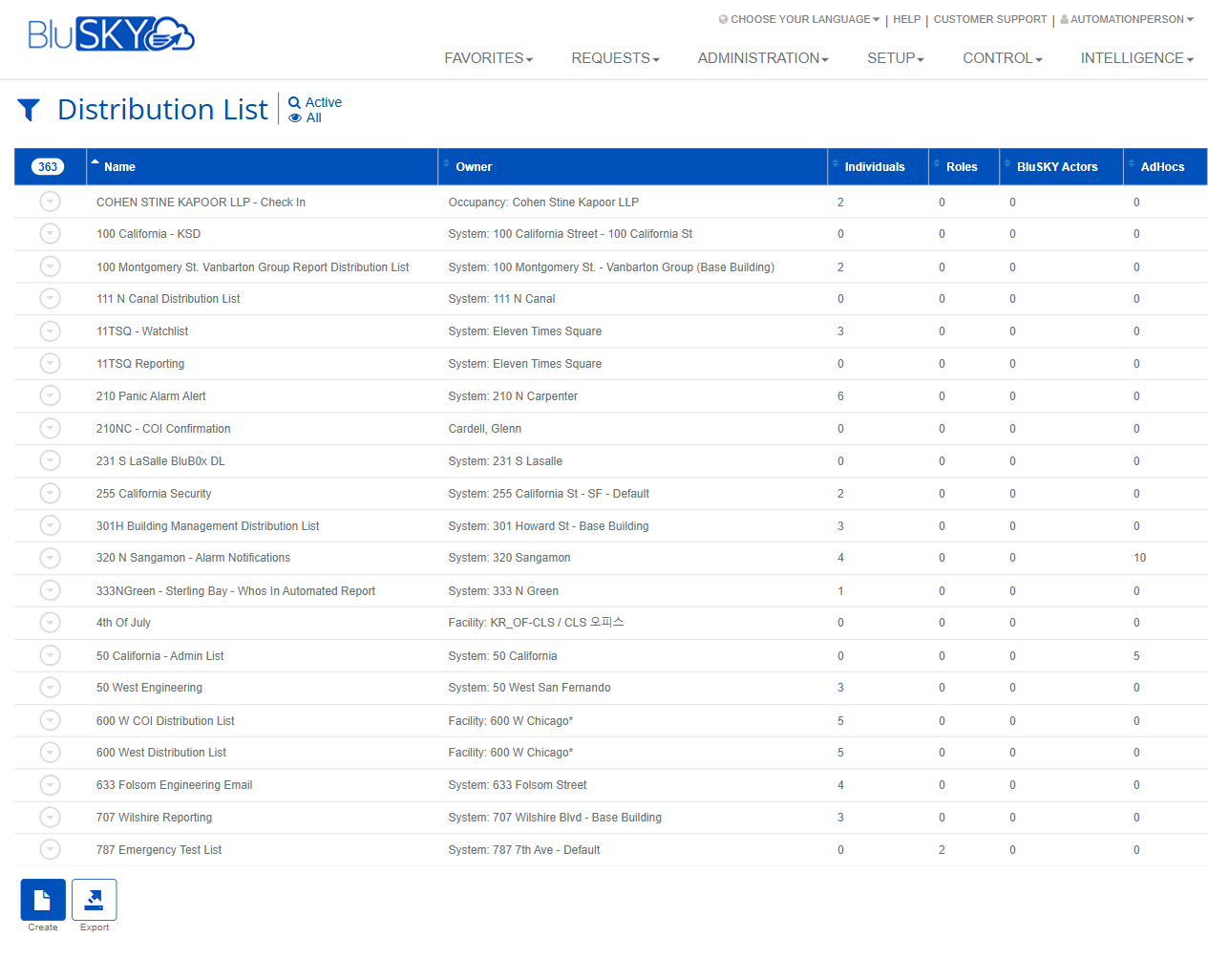
The Distribution List screens allow users to search, create, and manage recipient groups used for BluSKY notifications and automated report deliveries. From here you can filter existing lists, review membership counts, and define new lists scoped to a Company, Facility, Occupancy, a specific Person, or the overall System.
Field Definitions
| Field Label | Definition | Notes |
|---|---|---|
| Active | All toggle | Quick filter at the page title to show only Active lists or all lists. Default = Active. |
| System | Filter to limit results to a specific BluSKY System. | Dropdown on the Filter panel. |
| Facility | Filter to limit results to a specific Facility within the selected System. | Dropdown on the Filter panel. |
| Search | Status filter for the list grid. | Options include Active; All lists are shown when set to All. |
| View | Defines which lists appear based on visibility scope. | Default is All. Options depend on user permissions. |
| Search Text | Free-text search against list names. | Placeholder shows “Name”. |
| Name | The name of the distribution list. | Required when creating a list. Must clearly describe the list’s purpose. |
| Owner | The entity that owns and governs the distribution list. | Choose one of the Owner options below. Required. |
| Owner: Company | Sets the list to be owned by a Company. | Selecting prompts you to choose a Company. |
| Owner: Facility | Sets the list to be owned by a Facility. | Selecting prompts you to choose a Facility. |
| Owner: Occupancy | Sets the list to be owned by an Occupancy. | Selecting prompts you to choose an Occupancy. |
| Owner: Me | Sets the current logged-in user as the owner. | No additional selection is required. |
| Owner: Other Person | Assigns ownership to another person record. | Opens a person picker. |
| Owner: System | Sets the list at the System level. | Typically visible to system-level administrators. |
| Name (Grid) | Column showing each distribution list’s name. | Click the row expander to view details (if available). |
| Owner (Grid) | Column showing the owning entity for the list. | Mirrors the Owner selected at creation. |
| Individuals | Count of named person records included in the list. | Read-only counts in the grid. |
| Roles | Count of role-based recipients that will receive notifications. | Read-only counts in the grid. |
| BluSKY Actors | Count of system-defined actors used in workflows. | Read-only counts in the grid. |
| Adhocs | Count of ad-hoc email addresses included. | Read-only counts in the grid. |
Screen Actions and Functions
- Create – Opens the Create Distribution List form.
- Submit – Applies the current filter criteria to the grid.
- Reset – Clears filters to their defaults.
- View – Opens the selected list in read-only mode.
- Edit – Opens the selected list for modification.
- Delete – Removes the selected list from Active results.
- Export – Exports the grid results to a file (respects current filters).
- Save – Saves a new or edited distribution list.
- Back To List – Returns to the grid of results.
- Back To Filter – Returns to the filter panel from the grid.
- Row expander (chevron) – Expands a list row to view additional details (if available).
Note: Some actions (View, Edit, Delete) require a row selection and/or appropriate permissions to appear.
Usage Instructions & Examples
How to find existing distribution lists
- Go to Requests > Distribution List.
- Optionally set System and Facility to narrow scope.
- Ensure Search = Active or switch the page toggle to All to include inactive lists.
- Enter a keyword in Search Text and click Submit.
- Review the results and use Export if you need a spreadsheet.
How to create a new distribution list
- Click Create.
- Enter a Name that identifies the purpose (e.g., “Alarm Notifications – 50 California”).
- Under Owner, click the appropriate owner type (Company, Facility, Occupancy, Me, Other Person, or System).
- If prompted, pick the specific Company/Facility/Occupancy/Person.
- Click Save. You’ll return to the list where the new entry appears under Active.
How to edit or delete a distribution list
- From the results grid, select the desired list.
- Click Edit to modify details, then Save.
- To remove it from Active results, click Delete. Switch the page toggle to All if you need to review deleted/inactive lists later.
Example: Creating a facility-scoped alarm list
- Click Create.
- Name = “210 N Carpenter – Alarm Notifications.”
- Owner = Facility; choose “210 N Carpenter.”
- Save. Use subsequent membership tools (not shown here) to add Individuals, Roles, or Adhocs.
System Behaviors and Edge Cases
- Required fields: Name and an Owner selection are required before Save is enabled.
- Owner shortcuts: Me assigns the current user automatically; Other Person opens a person selector.
- Filter defaults: Search defaults to Active; the page-level Active | All toggle mirrors this behavior for the grid.
- Contextual actions: View/Edit/Delete appear only when you have permission and a row is selected.
- Export scope: Export includes only rows returned by current filters and search text.
- Deletion visibility: Deleted or inactivated lists no longer appear under Active; switch to All to include them in results.
- Membership counts: Individuals, Roles, BluSKY Actors, and Adhocs show counts in the grid; expanding a row may reveal details when supported.
Permissions
- Access to the Distribution List pages requires appropriate Requests module access.
- Create requires permission to create lists in the chosen ownership scope (Company/Facility/Occupancy/System).
- Edit/Delete require ownership or administrator-level permissions for the list’s scope.
- Users without modify permissions can typically search and export.
Linked Workflows
- Alarm and event notifications can send to Distribution Lists.
- Automated and scheduled reports (e.g., “Who’s In” reports) may target Distribution Lists.
- Tenant communications and compliance notifications (e.g., COI confirmations) commonly use these lists.
Reference Image Links