Log Book
Home Workspace & Navigation
Screen Overview
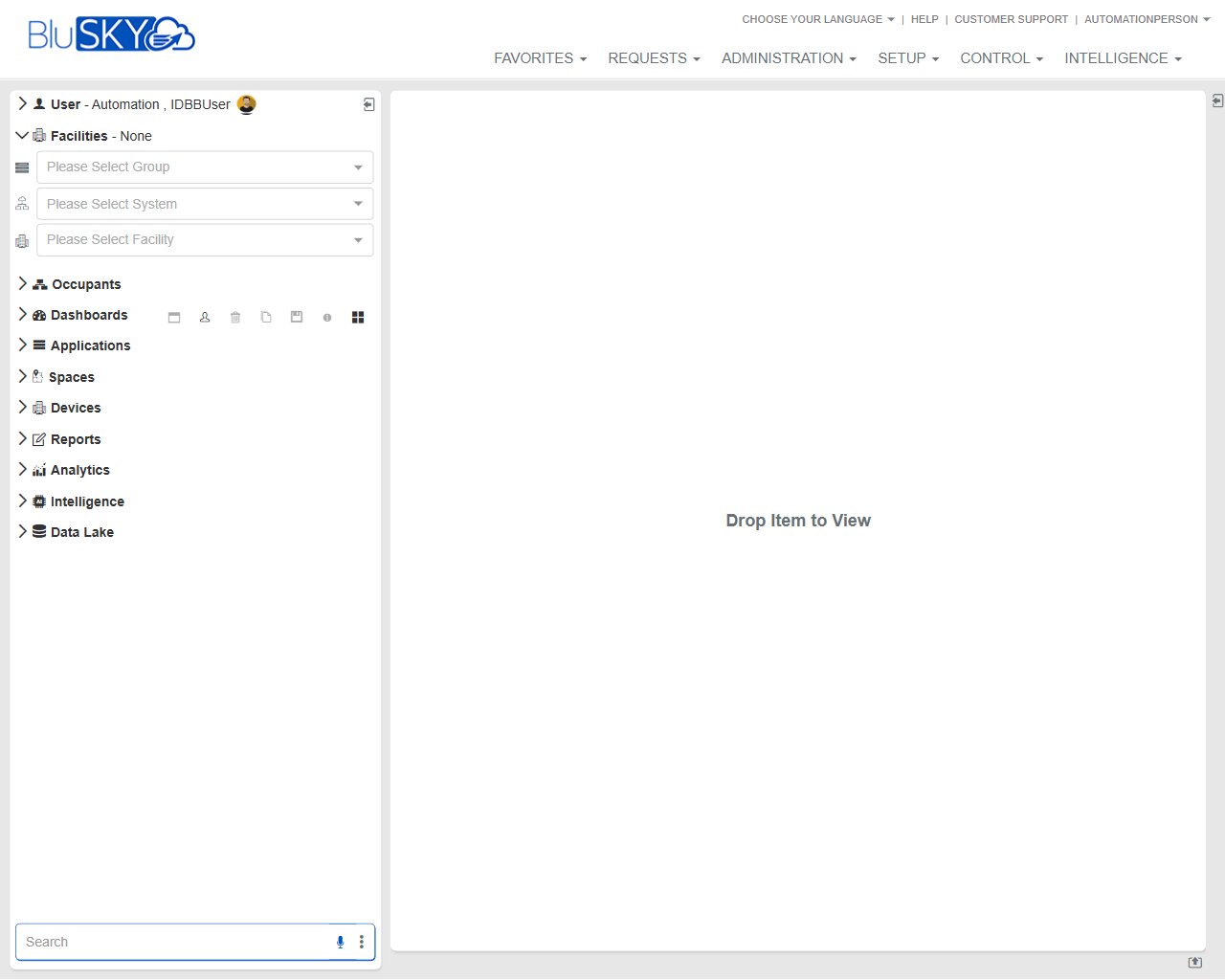
The Home Workspace & Navigation screen is the primary landing area in BluSKY. It provides:
- A left navigation panel with module categories (e.g., Occupants, Dashboards, Applications, Spaces, Devices, Reports, Analytics, Intelligence, Data Lake).
- Context selectors for Group, System, and Facility.
- A central workspace canvas where items are opened by dragging them from the navigation panel (indicated by “Drop Item to View”).
- A global top menu for Favorites, Requests, Administration, Setup, Control, and Intelligence, along with help and language options.
Field Definitions
| Field Label | Definition | Notes |
|---|---|---|
| User Header | Displays the currently signed-in user and profile menu. | Location: top-left of the navigation panel. Provides access to user options. |
| Facilities Header | Shows the current facility context or “None” when no facility is selected. | Context affects what items and data are available across modules. |
| Please Select Group | Dropdown to choose the organizational Group context. | Select first to filter available Systems and Facilities. |
| Please Select System | Dropdown to choose a BluSKY-connected System within the selected Group. | List is filtered by the chosen Group. |
| Please Select Facility | Dropdown to choose the Facility associated with the selected System. | Required for many operations and views. |
| Occupants | Navigation category for managing people-related data (employees, visitors). | Expand to access lists and tools for occupant management. |
| Dashboards | Navigation category for operational and analytical dashboards. | Items can be dragged to the workspace to view. |
| Applications | Navigation category for application-specific tools and integrations. | Availability depends on tenant configuration. |
| Spaces | Navigation category for locations, floors, suites, and space hierarchy. | Often requires Facility context for detailed views. |
| Devices | Navigation category for hardware devices (panels, readers, controllers). | Device visibility may depend on System and Facility. |
| Reports | Navigation category for standard and custom reports. | Many reports are context-sensitive. |
| Analytics | Navigation category for analytical models and visualizations. | Requires appropriate licensing and permissions. |
| Intelligence | Navigation category for advanced insights and automations. | Feature availability varies by subscription. |
| Data Lake | Navigation category for data export, archive, and lakehouse features. | Access typically restricted to data administrators. |
| Search (left panel) | Text search input to filter items in the navigation panel. | Supports partial matches; filters as you type. |
| Workspace Canvas | Central area where selected items are opened and displayed. | Accepts drag-and-drop from the navigation panel. |
| Favorites (top menu) | Global menu to access saved or pinned items quickly. | Content depends on user preferences. |
| Requests (top menu) | Global menu for service or access requests workflows. | Availability based on tenant setup. |
| Administration (top) | Global menu for administrative tools and configuration. | Restricted to admin roles. |
| Setup (top) | Global menu for system setup and master data configuration. | Restricted to setup/implementation roles. |
| Control (top) | Global menu for daily operations and live system controls. | Often used by operators. |
| Intelligence (top) | Global menu for analytics-driven features and insights. | Requires proper licensing and permissions. |
| Choose Your Language | Link to change the UI language. | Applies immediately after selection. |
| Help | Link to online help resources. | Opens BluSKY documentation/support resources. |
| Customer Support | Link to contact or open tickets with support. | Availability may depend on tenant support plan. |
Screen Actions and Functions
- Select Group, System, and Facility to set the working context.
- Expand a navigation category to reveal available items.
- Drag an item from the navigation panel into the Workspace Canvas to open it.
- Click a top menu (Favorites, Requests, Administration, Setup, Control, Intelligence) to navigate to major modules.
- Use the Search field to filter visible items in the navigation panel.
- Collapse/expand navigation sections to manage screen space.
Usage Instructions & Examples
How to set your working context
- Click Please Select Group and choose the desired Group.
- Click Please Select System to pick a System within that Group.
- Click Please Select Facility to set the Facility context.
How to open a dashboard in the workspace
- Expand the Dashboards category in the left panel.
- Drag the desired dashboard onto the Workspace Canvas where it says “Drop Item to View.”
- Review the dashboard once it loads in the canvas.
How to find and open a report using search
- In the Search field at the bottom of the left panel, type part of the report name (e.g., “access”).
- Select or drag the matching report from the filtered list into the Workspace Canvas.
- If prompted, complete any report parameters and run the report.
How to change the UI language
- Click Choose Your Language in the top header.
- Select the preferred language from the list.
- The interface refreshes in the selected language.
System Behaviors and Edge Cases
- Without a selected Facility, some categories or items may be unavailable or show empty lists.
- The Search field filters items in the left navigation panel in real time; clearing the text restores the full list.
- Items opened from the navigation panel load inside the Workspace Canvas; if an item cannot be opened without context, the system prompts you to select Group/System/Facility.
- Visibility of categories and items is permission-based; users only see modules they are allowed to access.
- Network or permission errors during drag-and-drop will prevent the item from opening and may display an error message.
Permissions
- All authenticated users can access the Home Workspace & Navigation screen.
- Visibility of categories (Occupants, Devices, Reports, etc.) is controlled by role-based permissions.
- Administration and Setup menus are restricted to users with corresponding administrative permissions.
- Access to Data Lake, Intelligence, and certain Analytics features requires specific licensing and elevated roles.
Linked Workflows
- Open Occupants to create or manage people, then proceed to assign access levels.
- Navigate to Devices to review hardware status, then use Control for live operations.
- Launch Reports to run compliance or activity summaries; export results as needed.
- Use Setup to configure master data (facilities, spaces) before performing daily operations in Control.
Reference Image Links