Visitor Admission
Visitor Admission - List
Screen Overview
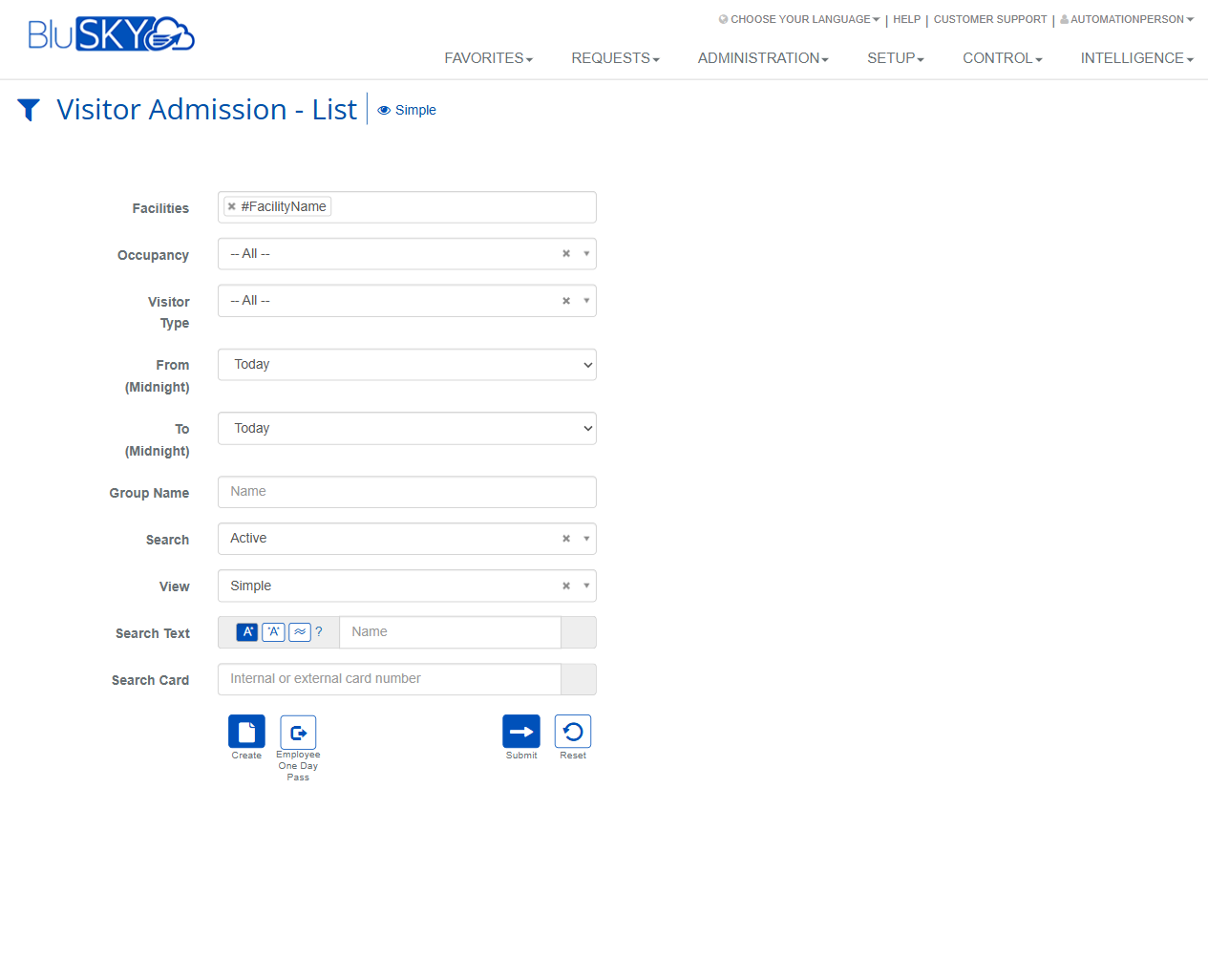
The Visitor Admission - List screen provides a searchable list of visitor admissions for selected facilities. It supports filtering by date range, occupancy, and visitor type, as well as quick searches by name or card number. From this screen, users can create new visitor admissions and issue employee one-day passes.
Field Definitions
| Field Label | Definition | Notes |
|---|---|---|
| Facilities | One or more facilities to include in the results. | Multi-select. Limits data to locations the user is authorized to view. |
| Occupancy | Filters by visitor occupancy state. | Examples may include In Building, Checked Out, Expected; exact values depend on site configuration. |
| Visitor Type | Filters results by visitor category. | Examples may include Visitor, Contractor, Vendor; configured per tenant. |
| From (Midnight) | Start of the date range to search, beginning at 00:00 of the selected day. | Defaults to Today. Inclusive. |
| To (Midnight) | End of the date range to search, ending at 24:00 of the selected day. | Defaults to Today. Inclusive. Must be on or after the From date. |
| Group Name | Filters results by visitor group name. | Free-text match. Optional. |
| Search | High-level status filter for admissions. | Common values include Active or All. |
| View | Controls the list presentation style. | Simple is shown in screenshots; other views may expose additional columns. |
| Search Text | Keyword search field, by default aimed at Name. | Supports partial text. Scope follows the selector icons shown beside the field. |
| Search Card | Searches by an internal or external card/badge number. | Exact match recommended for fastest lookup. |
| Guest Name | Name of the visitor associated with the admission. | Shown in the results grid. Click to open details (permissions required). |
| Group | The group with which the visitor is associated. | Populated if the admission is part of a group visit. |
| Host | The person hosting the visitor. | Typically an employee or tenant contact. |
| Occupancy (column) | Current occupancy status of the visitor. | Read-only in the list. |
| Message | Any note or message attached to the admission. | May show pre-registration or arrival notes. |
| Status | Operational state of the admission record. | Examples: Active, Inactive, Completed, Canceled. |
| Type | Admission type/category for the visit. | Mirrors the Visitor Type configuration. |
Screen Actions and Functions
- Create – Opens the admission creation form to add a new visitor or group admission.
- Employee One Day Pass – Launches a streamlined flow to issue a same-day credential to an employee.
- Submit – Executes the search using the selected filters.
- Reset – Clears all filters back to defaults (e.g., Today, Active, Simple).
- Column Sort – Click a column header to sort ascending/descending where enabled.
- Filter Panel Toggle – Use the funnel icon to expand/collapse the filter panel.
Usage Instructions & Examples
-
Find visitors expected today
- Open the filter panel (funnel icon) if it is collapsed.
- Ensure Facilities contains your site.
- Set From (Midnight) = Today and To (Midnight) = Today.
- Set Search = Active and View = Simple.
- Click Submit. Review Guest Name, Host, and Occupancy columns.
-
Search by visitor name
- Open the filter panel.
- Enter part or all of the name in Search Text.
- Optionally narrow by Visitor Type or Group Name.
- Click Submit to display matching rows.
-
Locate a visitor by card number
- Open the filter panel.
- In Search Card, enter the internal or external card number.
- Click Submit to return the matching admission, if any.
-
Create a new visitor admission
- Click Create.
- Complete the required fields in the admission form (visitor details, host, schedule).
- Save. The new admission appears in the list and can be acted on per site policy.
-
Issue an Employee One Day Pass
- Click Employee One Day Pass.
- Select the employee, set validity for the day, and assign the pass/credential.
- Save or print as prompted.
System Behaviors and Edge Cases
- Date validation: To (Midnight) must be the same as or later than From (Midnight); otherwise submission is blocked.
- Defaults: On load, filters commonly default to Today, Active, and Simple view to optimize performance.
- Facilities scope: If multiple facilities are selected, results aggregate across them; if none are selectable, contact an administrator for access.
- Large ranges: Very wide date ranges may increase query time; consider filtering by Visitor Type or Status.
- Search precedence: If Search Card is populated, results focus on card matches regardless of Search Text.
- Column sorting applies to the current result set only and is reset when filters are changed and resubmitted.
- Messages column truncation: Long notes may be truncated in the grid; open the record to read the full message.
Permissions
- View Visitor Admissions: Required to see the screen and search results.
- Create Visitor Admissions: Required to use Create.
- Issue One Day Pass: Required to use Employee One Day Pass.
- Facility Access: Results are limited to facilities the user is authorized to view.
- Edit/Manage Admissions: Additional permission needed to open and modify admission details from the list.
Linked Workflows
- Create Visitor Admission – leads to badge/credential assignment and optional notification to host.
- Check-In/Check-Out – performed from the admission detail when the visitor arrives or departs, updating Occupancy.
- Badge Printing – available from the admission detail if printing is enabled for the facility.
- Reporting – admissions feed occupancy and visitor activity reports in Intelligence.
Reference Image Links