Video
BluSKY Home Workspace
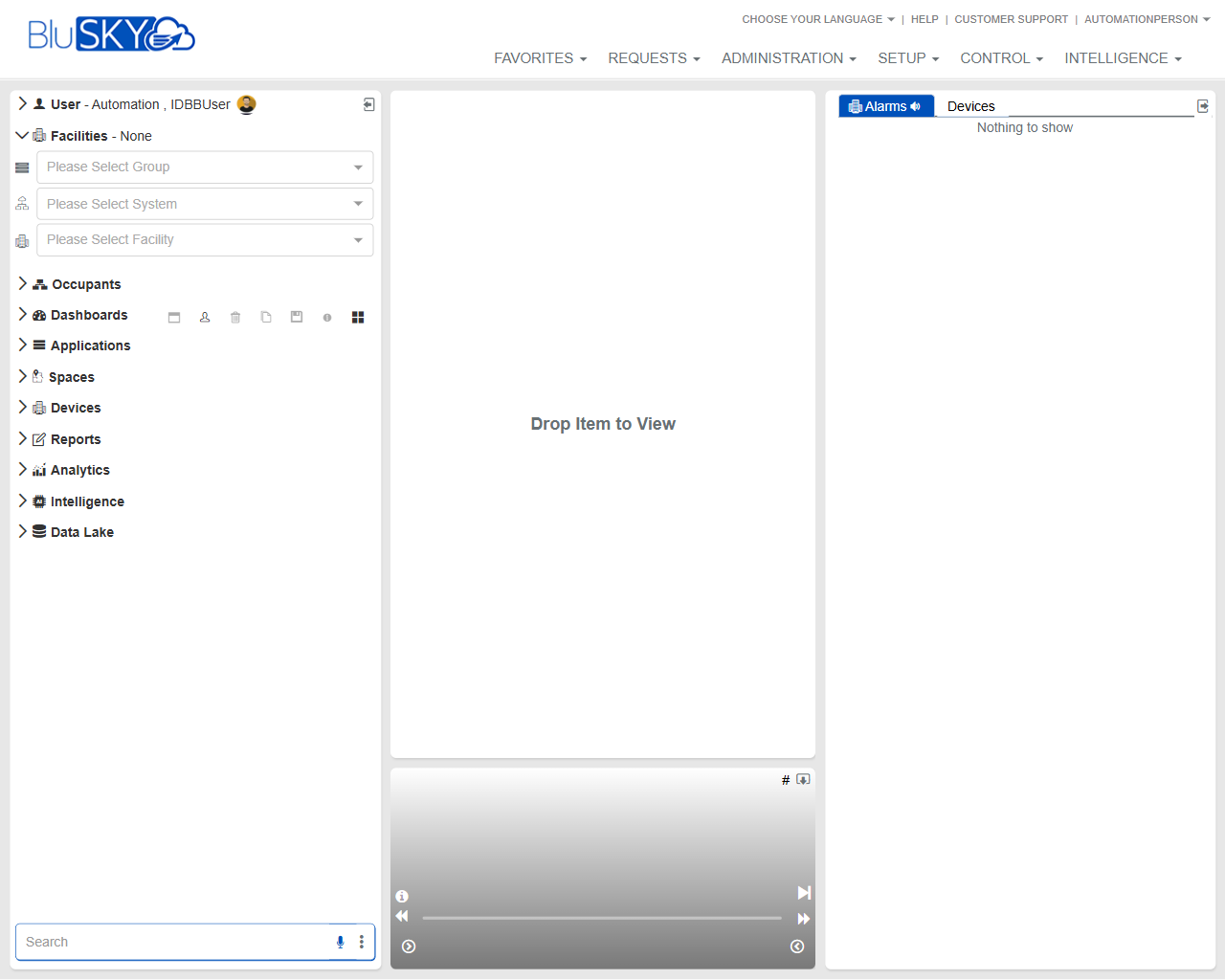
Screen Overview
The BluSKY Home Workspace is the primary landing page that provides a unified, drag‑and‑drop canvas for viewing and controlling BluSKY objects. Users set their facility context, browse navigation groups, and monitor live alarms and device status from the right‑hand panel. The top menu grants direct access to Favorites, Requests, Administration, Setup, Control, and Intelligence modules.
Field Definitions
| Field Label | Definition | Notes |
|---|---|---|
| User – [Current User] | Displays the signed‑in user and role context. | Read‑only; clicking may open profile options depending on configuration. |
| Facilities – None | Indicates the current facility context. | Shows “None” until a Group/System/Facility is selected. |
| Please Select Group | Dropdown to choose a Facility Group. | Selecting a Group filters available Systems and Facilities. |
| Please Select System | Dropdown to choose a System within the selected Group. | Disabled until a Group is selected. |
| Please Select Facility | Dropdown to choose a Facility within the selected System. | Sets the working context for lists, devices, and alarms. |
| Occupants | Left‑nav section to access people and tenant/visitor management objects. | Expand to drag items into the workspace. Visibility depends on permissions. |
| Dashboards | Left‑nav section listing available dashboards. | Quick‑action icons may appear for create/refresh where allowed. |
| Applications | Left‑nav section for BluSKY application modules. | Content varies by subscription and permissions. |
| Spaces | Left‑nav section for locations, floors, suites, and areas. | Drag a space to the canvas to view details or maps (where configured). |
| Devices | Left‑nav section for readers, doors, controllers, cameras, etc. | Items can be opened/controlled from the canvas with proper rights. |
| Reports | Left‑nav section for operational and audit reports. | Some reports may open in a new tab/window. |
| Analytics | Left‑nav section for analytical views and metrics. | Requires Analytics entitlements. |
| Intelligence | Left‑nav section for advanced AI/insight features. | Availability depends on tenant licensing. |
| Data Lake | Left‑nav section for data lake access and tools. | May require elevated data permissions. |
| Search (left bottom) | Global quick search across visible objects. | Results respect current context and user permissions. |
| Workspace Canvas – “Drop Item to View” | Central panel where items from the left nav can be dropped to open viewers, dashboards, or controls. | Supports multiple tiles; layout may be saved in some configurations. |
| Right Panel – Alarms | Tab showing current/active alarms and events. | Auto‑refreshes; may include audio indicators and acknowledge controls. |
| Right Panel – Devices | Tab that lists devices relevant to the selected context. | Shows “Nothing to show” when no devices match the context. |
| Favorites (top menu) | Menu to access saved items and frequently used views. | Users can pin items where enabled. |
| Requests (top menu) | Menu for service or change requests. | Availability depends on tenant workflows. |
| Administration (top menu) | Access to administrative tools and records. | Restricted to administrators. |
| Setup (top menu) | Access to system and facility configuration pages. | Restricted to setup/configuration roles. |
| Control (top menu) | Operational control tools (e.g., live monitoring, commands). | Requires operator/dispatcher permissions. |
| Intelligence (top menu) | Shortcut to intelligence features. | May mirror left‑nav Intelligence entry. |
| Choose Your Language | Selector for UI language. | Changes take effect immediately for the current session. |
| Help | Opens BluSKY help resources. | May link to documentation or support portal. |
| Customer Support | Opens customer support contact or ticketing. | Behavior depends on tenant configuration. |
| User Menu (top right) | Access to profile, sign out, and user preferences. | Options vary by role and tenant policy. |
Screen Actions and Functions
- Select a Facility Group, System, and Facility to set the working context.
- Expand a left‑nav section (e.g., Devices) and drag an item onto the Workspace Canvas to open it.
- Switch the right panel between Alarms and Devices to monitor live activity.
- Use the Search field to find objects, then drag results to the canvas.
- Navigate using the top menu to open Favorites, Requests, Administration, Setup, Control, or Intelligence modules.
- Acknowledge or silence alarms from the Alarms tab (if permitted).
- Resize panels or tiles on the canvas where supported by your tenant configuration.
Usage Instructions & Examples
How to set your facility context
- In the left panel, open Facilities.
- Select a value from Please Select Group.
- Select the corresponding System.
- Select the Facility. The right panel and left‑nav contents will filter to this context.
How to open and monitor a device
- Expand Devices in the left navigation.
- Drag the desired device (e.g., a door or camera) onto the Workspace Canvas.
- Interact with the device tile (e.g., view status, issue commands) as allowed by your permissions.
How to review active alarms
- Click the Alarms tab in the right panel.
- Select an alarm to view details; optionally acknowledge it if the action is available.
- Drag the related device from the list or left nav onto the canvas to investigate further.
How to access a dashboard
- Expand Dashboards in the left navigation.
- Drag a dashboard to the Workspace Canvas.
- Arrange tiles as needed and save the layout if your tenant supports layout saving.
System Behaviors and Edge Cases
- Until a Facility is selected, many lists may be empty and the Devices tab may display “Nothing to show.”
- Facility selection cascades: selecting a Group filters available Systems; selecting a System filters available Facilities.
- The Alarms panel auto‑refreshes; if there are no active alarms, the panel will be empty.
- Objects you lack permission to view will not appear in search results or left‑nav sections.
- Some items cannot be dropped on the canvas; the cursor will indicate when dropping is not allowed.
- Session context (selected Group/System/Facility) may persist for the session and can reset upon sign‑out.
- Network or permission errors can prevent tiles from loading; the canvas will show an error or remain blank.
- Audio or visual alarm indicators may be muted per session; muting does not acknowledge the alarm.
Permissions
- General access requires an authenticated BluSKY user account.
- Viewing Occupants, Devices, Spaces, and Dashboards depends on respective read permissions.
- Executing device commands requires device control permissions for the target device type.
- Viewing and acknowledging alarms requires alarm view/acknowledge permissions.
- Access to Administration and Setup menus is restricted to administrative/setup roles.
- Analytics, Intelligence, and Data Lake entries require specific tenant entitlements and role permissions.
Linked Workflows
- From the canvas, open a device tile and then proceed to detailed Device configuration via the Setup menu.
- Use the Alarms panel to jump to related device or door records for investigation and remediation.
- After selecting a Facility, run operational Reports relevant to that context.
- Open Dashboards for real‑time monitoring, then pin frequently used dashboards to Favorites.
- Navigate to Occupants to manage people/tenants and then assign access using Control or Setup.
Reference Image Links