Photo Id
Reader Control Screen
Screen Overview
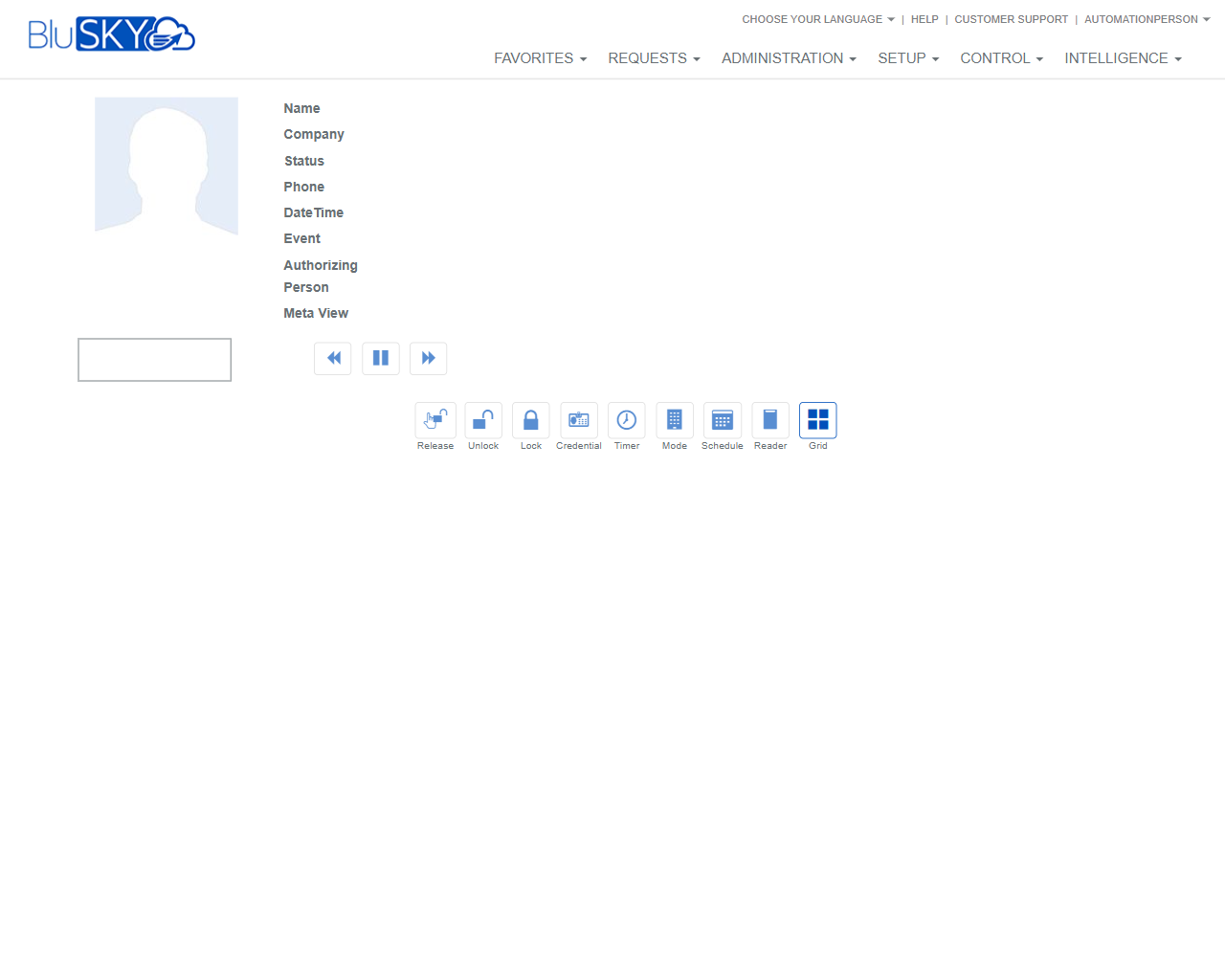
The Reader Control screen allows operators to monitor a selected reader/door and act on it in real time. The page displays the associated person/event details (e.g., Name, Company, Status, Date/Time, Event, Authorizing Person) and a Meta View area for visual context. Operators can issue momentary releases, force lock/unlock states, adjust modes and schedules, and switch between detailed and grid views of readers.
Field Definitions
| Field Label | Definition | Notes |
|---|---|---|
| Name | The name of the person associated with the current event. | May be blank if the event is not tied to a person. |
| Company | The organization of the associated person. | Populated when the person record includes a company. |
| Status | Current status of the person or event (e.g., Active/Inactive, Granted/Denied). | Read-only summary of the latest event context. |
| Phone | Phone number of the associated person. | Shown when available in the person record. |
| DateTime | Timestamp of the displayed event. | Read-only, system-generated. |
| Event | Short description of the most recent reader activity (e.g., Access Granted). | Content depends on the event type received. |
| Authorizing Person | The operator or workflow entity that authorized or acted on the event. | Used for audit trail and compliance. |
| Meta View | Visual context area (e.g., camera/thumbnail) linked to the event. | May show live or recorded imagery if configured. |
Screen Actions and Functions
- Previous/Pause/Play (Meta View controls) – Navigate or control playback/refresh of the Meta View panel.
- Release – Momentarily unlocks the door/reader for a single cycle.
- Unlock – Forces the reader/door to remain unlocked until changed.
- Lock – Forces the reader/door to remain locked (no access) until changed.
- Credential – Opens credential information related to the person/event (view or manage, as permitted).
- Timer – Applies a temporary state (e.g., unlock/lock) for a defined duration.
- Mode – Changes the reader’s access mode (e.g., Card Only, Card + PIN), as configured by the site.
- Schedule – Views or assigns the reader’s operating schedule.
- Reader – Opens the detailed reader record for configuration/diagnostics.
- Grid – Returns to the multi-reader grid view.
Usage Instructions & Examples
-
Momentarily release a door
- Verify the reader/event details in the left panel.
- Click Release.
- Confirm if prompted. The door will momentarily unlock and then relock.
-
Place a door in a forced unlocked state
- Click Unlock.
- Confirm the action. The reader remains unlocked until Lock or normal schedule restores it.
-
Lock down a door temporarily using a timer
- Click Timer.
- Choose Lock and set the duration.
- Apply. The reader returns to its prior state when the timer expires.
-
Change the reader access mode
- Click Mode.
- Select the desired mode (e.g., Card + PIN).
- Save/apply. New mode takes effect immediately.
-
Review visual context for an event
- Check the Meta View panel.
- Use Previous/Pause/Play to navigate or pause the feed.
- Correlate imagery with the DateTime and Event fields.
-
Switch to the grid of readers
- Click Grid to return to the multi-reader overview.
- Select another reader to control if needed.
System Behaviors and Edge Cases
- Release issues a single momentary unlock pulse; hardware relocks automatically per device settings.
- Unlock and Lock states persist until changed by an operator, a timer expires, or a schedule transition overrides them.
- Timer-based states supersede the current state for the selected duration and then revert.
- If the controller/reader is offline, action buttons may be disabled or return an error; commands are queued only if supported by the site configuration.
- Meta View displays imagery only when a camera or visual source is configured; otherwise it remains blank.
- All commands are audit-logged with DateTime and the Authorizing Person.
- Mode options displayed depend on the hardware and site configuration; unsupported modes are not shown.
- Schedules applied via Schedule will take effect at the next schedule boundary and may override manual states.
Permissions
- Accessible to Control Operators, Tenant Administrators, and Global Administrators.
- Lock/Unlock/Timer/Mode changes require elevated control permissions for the target reader/door.
- Users without modify permissions can view event/person details and Meta View but cannot execute control actions.
- Access is scope-limited to sites/portfolios assigned to the user.
Linked Workflows
- Event Grid: Review and investigate related access events across readers.
- Reader Configuration: Adjust hardware settings, inputs/outputs, and diagnostics.
- Schedules: Create or modify time schedules that govern reader behavior.
- Credentials/People: View or manage the person and credential tied to the displayed event.
- Cameras/Meta View Setup: Link cameras to readers for visual verification.
Reference Image Links