Monitoring Points Old
Monitoring Points Screen
Screen Overview
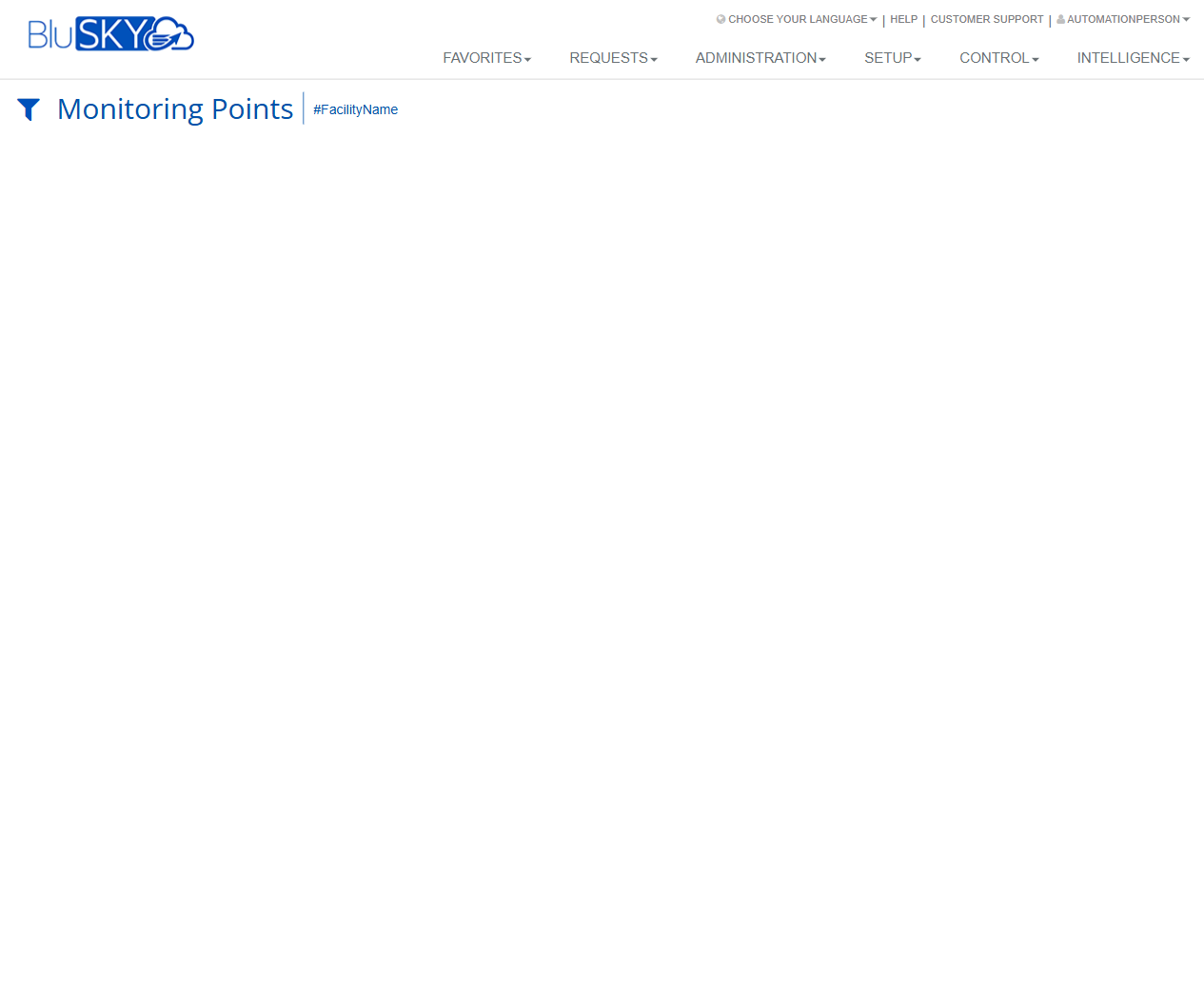
The Monitoring Points screen displays physical or logical monitoring points associated with a facility (e.g., inputs, sensors, or supervised points). Users can filter the view by facility and review the list of points. The screenshot shows the page header with a Filter control and a facility context tag; the results area is currently empty because no points are displayed under the current context or filters.
Field Definitions
| Field Label | Definition | Notes |
|---|---|---|
| Filter (funnel) | Opens filtering options for narrowing the list of monitoring points. | Location: left of the screen title. Read-only until opened. |
| #FacilityName | Context tag indicating the facility scope currently applied to the page. | Click or change facility (behavior may depend on tenant setup). |
| Results Area | Main area where monitoring points matching the current filters are listed. | Empty when no data matches filters or no facility context is set. |
Screen Actions and Functions
- Filter – Open the filter panel to set or adjust criteria (e.g., facility).
- Change facility context – Use the #FacilityName context to switch or clear the current facility (if enabled).
- Select a monitoring point – When results are present, click a row to view point details (availability depends on permissions).
Usage Instructions & Examples
-
Set or verify the facility context
- Locate the #FacilityName tag near the title.
- If incorrect or not set, change the facility context (if your tenant allows direct change here) or use the global navigation to select the correct facility.
-
Apply filters to locate monitoring points
- Click the Filter (funnel) icon.
- Choose or adjust available criteria (e.g., facility).
- Apply filters. Matching monitoring points will appear in the results area.
-
View point details
- In the results area, click a monitoring point row (when listed).
- Review its properties and status on the detail view (if accessible).
System Behaviors and Edge Cases
- If no facility is selected or the selected facility has no monitoring points, the results area will be blank.
- Filters may persist for the current session; clear or change them to refresh results.
- Users without sufficient permissions may see the page but no data.
- The #FacilityName context tag reflects the current scope; changing it updates all data shown on the screen.
Permissions
- View access typically requires a role with permission to read Monitoring Points for the selected facility.
- Access to point details may require elevated roles such as Operator, Tenant Administrator, or Global Administrator.
- Users without facility-level access will not see monitoring points for that facility.
Linked Workflows
- From a monitoring point (when listed), navigate to its detail view to review status, history, or related hardware.
- Administrators may proceed to device/panel configuration under Setup or Administration to modify point definitions (permissions required).
Reference Image Links