Event History
Event History Screen
Screen Overview
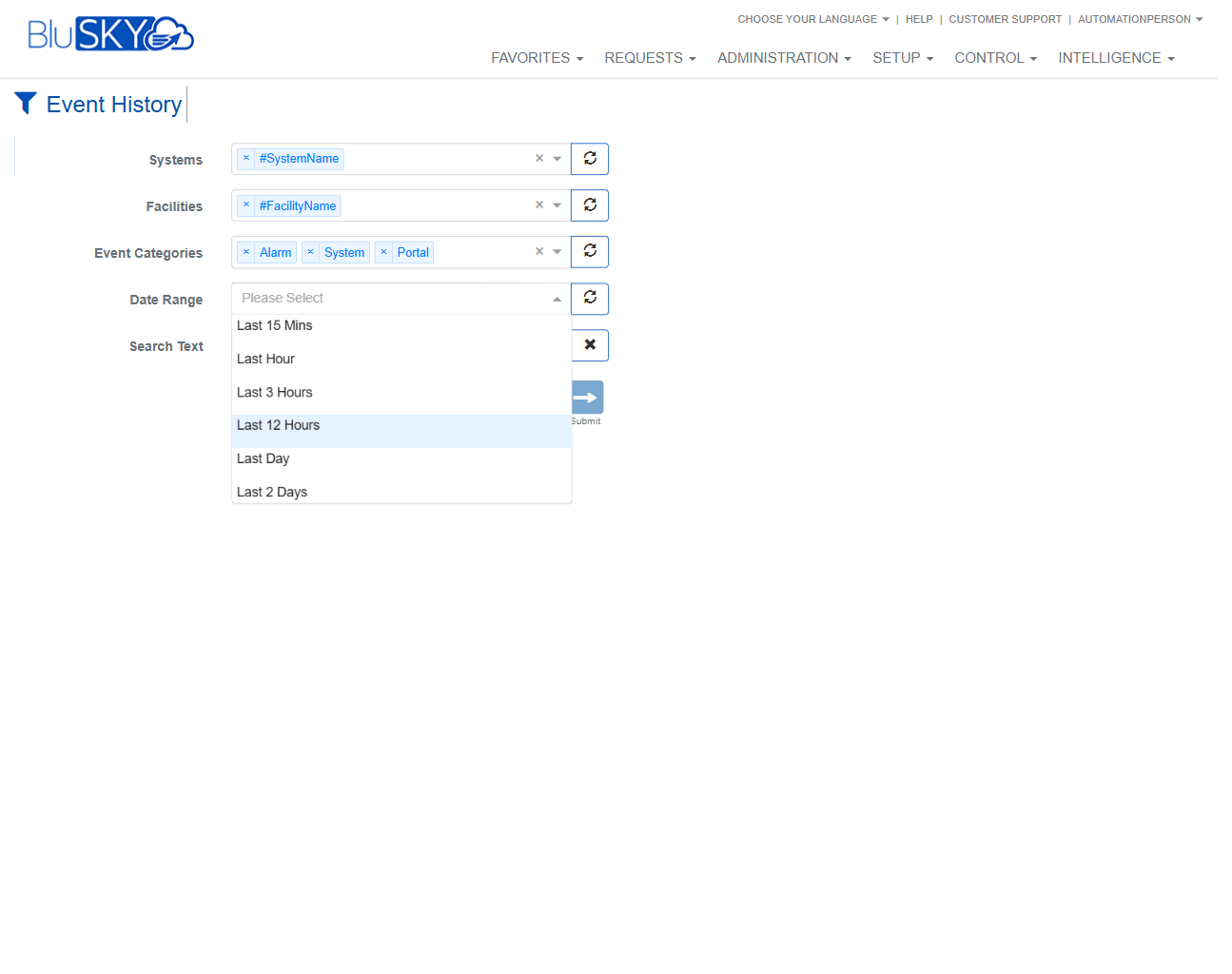
The Event History screen provides a searchable, filterable view of historical events generated across selected BluSKY systems and facilities. Users can constrain results by system, facility, event category, date range, and free-text search, then review event details in a tabular grid.
Field Definitions
| Field Label | Definition | Notes |
|---|---|---|
| Systems | One or more BluSKY systems to query for events. Selected systems appear as removable tags. | Required to return results. Use the circular refresh icon to reload available systems. |
| Facilities | One or more facilities within the chosen systems. | Optional. Options depend on the selected Systems. Use the refresh icon to reload the list. |
| Event Categories | Filters by event class (e.g., Alarm, System, Portal). Multiple categories can be selected. | Optional. At least one category should be selected for focused results. |
| Date Range | Time window applied to the search. | Dropdown options shown: Please Select, Last 15 Mins, Last Hour, Last 3 Hours, Last 12 Hours, Last Day, Last 2 Days. |
| Search Text | Free-text filter that matches across common event fields (e.g., event description, names). | Use the “x” to clear the search text. Partial strings are supported. |
| Event Date | Timestamp of the event in the results grid. | Read-only. Display format follows the site/user time settings. |
| Meta View | Link in the results grid to open a detailed/meta view for the selected event. | Read-only. Opens an event detail view; availability may vary by event type. |
| Person | Person associated with the event, if applicable. | Read-only. May be blank for device/system-only events. |
| Name | Friendly name tied to the event (such as door/portal/device or subject). | Read-only. Content varies by event type. |
| Facility | Facility where the event occurred. | Read-only. |
| Event | Event description/type (e.g., Access Granted, Door Forced, System). | Read-only. |
Screen Actions and Functions
- Open/Close Filters – Click the funnel icon to expand or collapse the filter panel.
- Select Systems, Facilities, and Event Categories – Add or remove tag selections; click “x” on a tag to remove it.
- Refresh Lists – Click the circular refresh icon next to Systems, Facilities, or Event Categories to reload available options.
- Set Date Range – Choose a preset time window from the dropdown.
- Enter Search Text – Type a keyword or phrase; click the “x” to clear it.
- Submit – Click the right-arrow Submit button to run the query with the current filters.
- Open Event Details – In the results grid, use Meta View (where available) to view detailed information about an event.
Usage Instructions & Examples
How to view alarms for a specific facility in the last 12 hours
- Open the filter panel.
- In Systems, select the desired system.
- In Facilities, select the relevant facility.
- In Event Categories, select Alarm.
- In Date Range, choose Last 12 Hours.
- Click Submit to view results.
How to find all events mentioning a specific door name
- Open the filter panel and select the appropriate System (and Facility if needed).
- Leave Event Categories broad (e.g., include Portal/System) or select as required.
- Set Date Range (e.g., Last Day).
- In Search Text, type part of the door/portal name.
- Click Submit. Review matching rows in the Event column and Name column.
How to review a single person’s recent activity
- Open the filter panel and choose the relevant System and Facility.
- Pick Event Categories that apply (e.g., Portal for access activity).
- Set Date Range (e.g., Last 2 Days).
- In Search Text, enter the person’s name or credential identifier.
- Click Submit, then use Meta View on a row to see more detail if available.
System Behaviors and Edge Cases
- If no filters are selected (or the selection is invalid), the results grid may remain empty until valid filters are applied and submitted.
- Selected Systems determine which Facilities are available; facilities outside chosen systems will not appear.
- The header area displays a summary of applied filters (e.g., selected system/facility, date range, categories).
- Large date ranges or many categories can increase query time; narrowing filters improves performance.
- Clearing the Search Text does not remove other filters; click Submit again to refresh results.
- Some events have no associated Person and will display blank in that column.
- Meta View may not be available for every event type.
- Event Date displays in the site/user time settings; events spanning time zone changes display according to those settings.
- When no events match, only the column headers are shown.
Permissions
- View access is typically granted to Global Administrators, Tenant Administrators, and Security/Operations users with the View Event History permission.
- Visibility of person-related data in the grid may require read permissions on People for the relevant tenant.
- Users without appropriate permissions will see limited or no data.
Linked Workflows
- From an event row, use Meta View to investigate details, then navigate to related records (e.g., Person, Facility, Portal/Device) where links are available.
- Use findings to adjust access configurations in Setup or initiate incident response procedures in Control modules.
Reference Image Links