Intercom Master Beta
Intercom Master Screen
Screen Overview
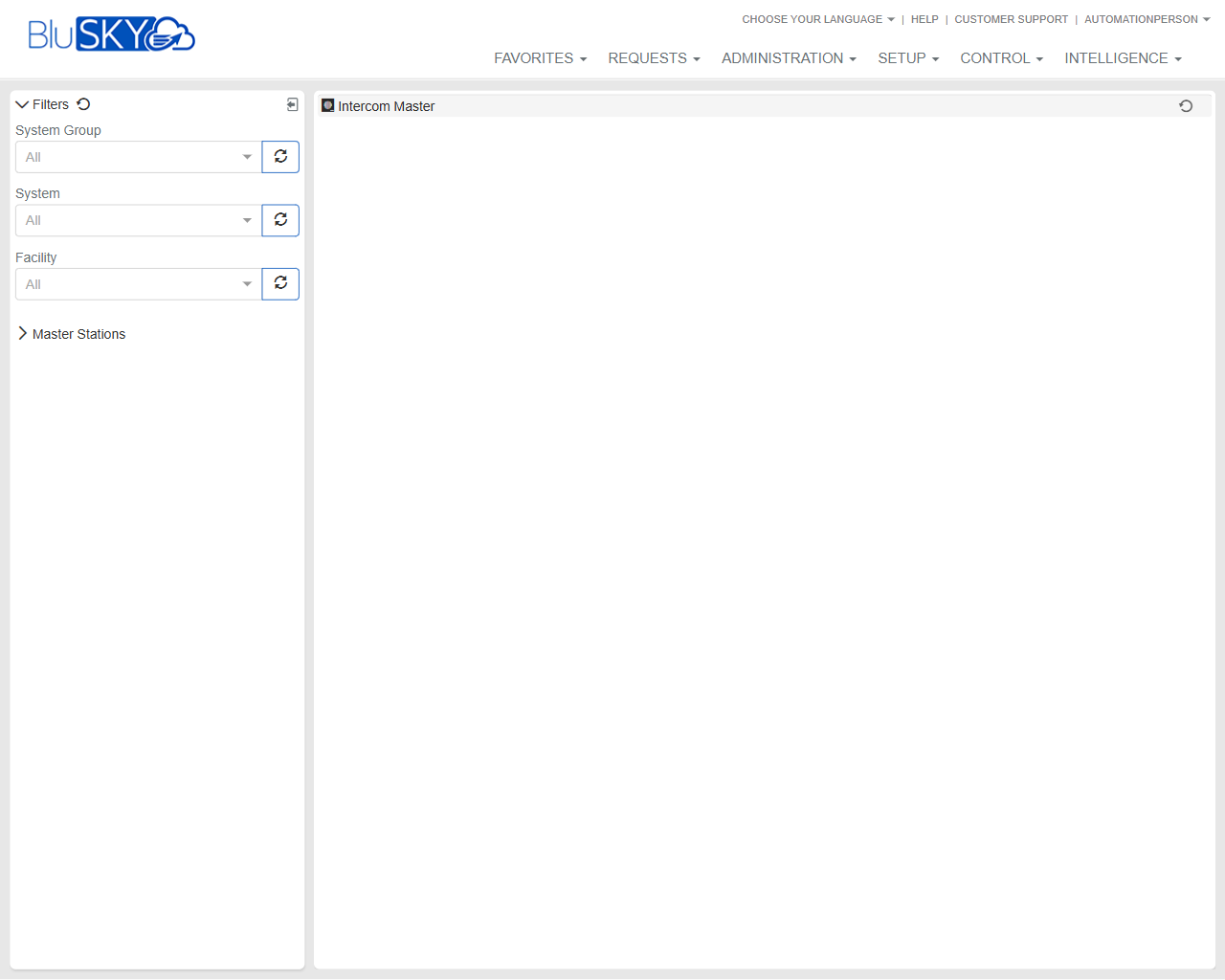
The Intercom Master screen provides a centralized view of intercom master stations across selected System Groups, Systems, and Facilities. Use the left-side Filters to scope results, then review the Intercom Master panel to monitor available master stations and related status. The page includes quick refresh controls to ensure the lists and device data are current.
Field Definitions
| Field Label | Definition | Notes |
|---|---|---|
| Filters | Left-side panel containing scoping controls for the page. | Can be collapsed/expanded to save space. |
| System Group | Dropdown to limit data to a specific System Group. | Defaults to All. Changing this updates the options available in System and Facility. |
| Refresh (System Group) | Refresh icon next to System Group. | Reloads available System Groups from the server without changing the current selection. |
| System | Dropdown to select a specific System within the chosen System Group. | Defaults to All. Options are filtered by the selected System Group. |
| Refresh (System) | Refresh icon next to System. | Reloads Systems for the current System Group. |
| Facility | Dropdown to select a Facility within the chosen System. | Defaults to All. Options are filtered by the selected System (and System Group). |
| Refresh (Facility) | Refresh icon next to Facility. | Reloads Facilities available for the selected System. |
| Master Stations | Collapsible list/tree of master stations that match the selected filters. | Expand to reveal stations; selecting a station drives the main panel content (when applicable). |
| Intercom Master | Main results panel that displays master station data for the current scope. | Header includes a global Refresh control. May appear empty if no stations match the filters. |
| Global Refresh (panel) | Circular arrow in the Intercom Master panel header. | Reloads intercom master station data for the current filter set. |
| Collapse/Expand (sections) | Chevron/twisty controls for Filters and Master Stations sections. | UI-only; helps manage screen space. |
Screen Actions and Functions
- Select System Group, System, and Facility to filter the master station list.
- Click Refresh next to any filter to reload the available options from the server.
- Expand Master Stations to view stations that match the current filters.
- Click Global Refresh in the Intercom Master panel to reload device data.
- Collapse/Expand the Filters or Master Stations sections to optimize workspace.
Usage Instructions & Examples
How to scope the view to a specific facility
- Open the Filters panel (if collapsed).
- Choose the appropriate System Group.
- Select the System within that group.
- Choose the target Facility.
- Expand Master Stations to see the stations available at that facility.
How to refresh device data
- Verify your filters are set as intended.
- Click the Global Refresh icon in the Intercom Master panel header.
- Wait for the panel to reload; verify station entries and status update accordingly.
How to refresh filter sources (if a new site or device was just added)
- Click Refresh next to the relevant dropdown (System Group, System, or Facility).
- Re-open the dropdown and select the new option if applicable.
- Expand Master Stations to confirm the new station(s) appear.
System Behaviors and Edge Cases
- Changing System Group resets and refilters the available options in System and Facility.
- If no stations match the selected filters, the Intercom Master panel will be blank.
- Refresh icons only reload option lists; they do not change your current selections.
- The Global Refresh in the Intercom Master panel reloads station data without altering filters.
- Data availability and update speed may be subject to backend polling/communication intervals with intercom hardware.
- Users without sufficient permissions may see the page but no station data.
Permissions
- Accessible to Global Administrators, Tenant Administrators, and Operators granted intercom viewing rights.
- Command or control functions (if enabled for your environment) require elevated intercom control permissions.
- Users with view-only permissions can adjust filters and refresh data but cannot issue control actions.
Linked Workflows
- Setup > Intercom/Master Stations: Add or configure master stations so they appear on this screen.
- Administration > Facilities/Systems: Maintain the hierarchy that drives the filter options.
- Control or Monitoring pages (if enabled): Drill into station details or live monitoring from selected entries.
Reference Image Links