Events
Events Screen
Screen Overview
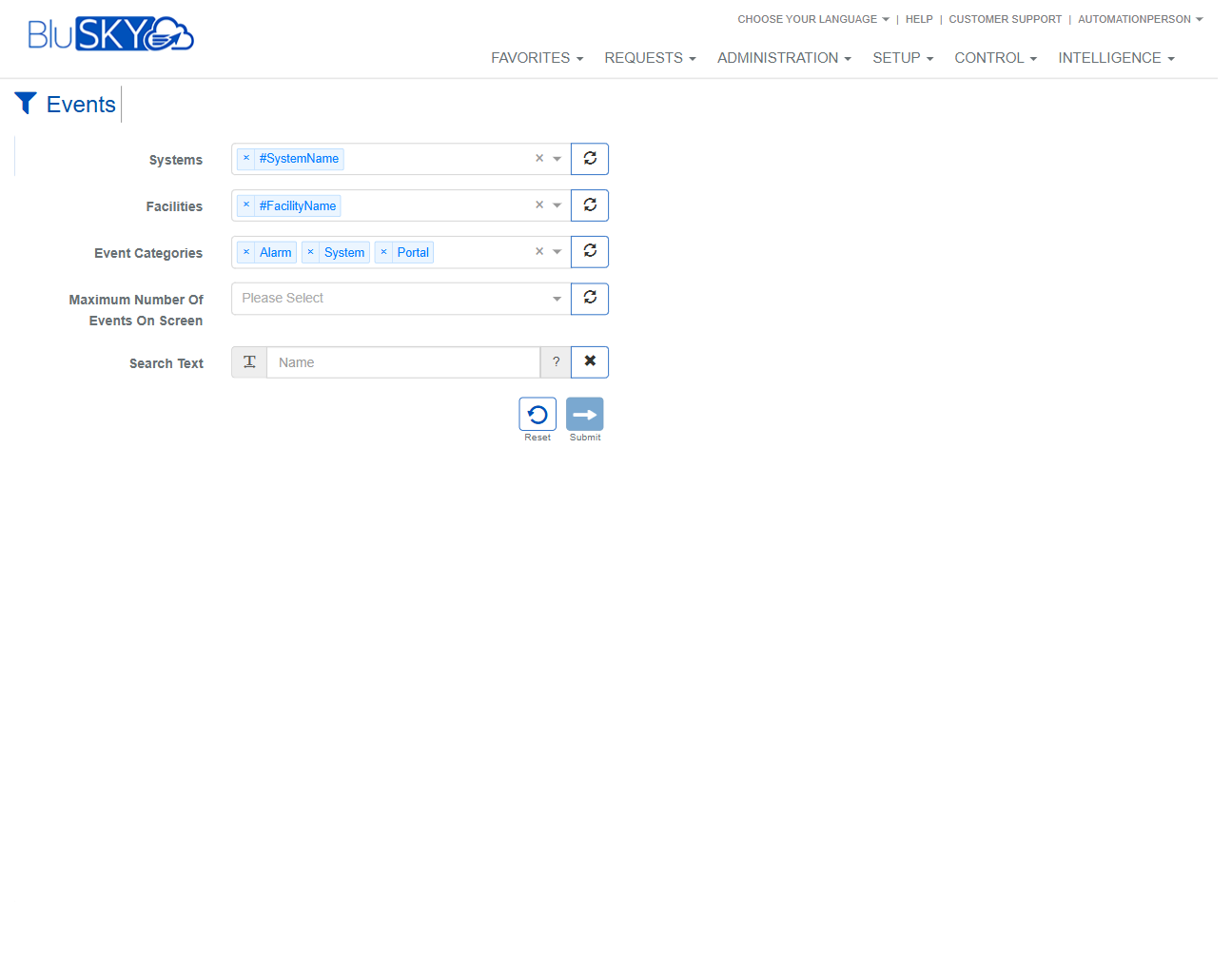
The Events screen provides a live, filterable feed of system activity and alarms across selected systems and facilities. Operators can stream events in real time, pause the feed, search, and control audible notifications for alarms. This screen is commonly used for monitoring and triage in security operations.
Field Definitions
| Field Label | Definition | Notes |
|---|---|---|
| Event Date | Timestamp when the event occurred. | Click the column header to sort by newest/oldest. |
| Meta View | High‑level context for the event (source type/device, panel, reader, etc.). | May include quick links or icons to view additional details. Read‑only. |
| Person | Person associated with the event, if applicable. | Blank for device/system events with no person context. |
| Name | Name of the device, portal, or object that generated the event. | Read‑only. |
| Facility | Facility in which the event occurred. | Determined by the event’s source. |
| Event | Description of the event (e.g., Alarm, Access Granted, Door Forced). | Severity may be indicated by color/icon. |
| Systems | Multi‑select filter that limits the feed to chosen systems. | Use the refresh icon to reload available systems. |
| Facilities | Multi‑select filter that limits the feed to chosen facilities. | Use the refresh icon to reload available facilities. |
| Event Categories | Multi‑select filter for event types (e.g., Alarm, System, Portal). | Determines which categories appear in the feed. |
| Maximum Number Of Events On Screen | Limits how many event rows are displayed at once. | Older rows roll off the list as new ones arrive. |
| Search Text | Free‑text search across event columns. | Use X to clear. ? opens field help. |
| Event Count Indicator (0/0) | Unread/total event count for the current view. | Appears in the Event Date header; values update as events stream. |
Screen Actions and Functions
- Submit – Applies the selected filters and loads the event stream.
- Reset – Clears filters back to page defaults.
- Refresh (circular arrow next to a filter) – Reloads available values for that filter from the server.
- Pause – Temporarily halts live updates to the event list.
- Enabled (speaker icon) – Toggles audible notifications for new alarm events.
- Silence Alarm – Mutes the audible alert for the currently selected alarm.
- Silence All Alarms – Mutes audible alerts for all active alarms in this session.
- Raise Events – Opens a dialog to generate or simulate events for testing/training (permission‑controlled).
- Row Select – Click an event row to open its detail view (when available).
Usage Instructions & Examples
-
Monitor live events
- Open Events.
- Confirm Systems, Facilities, and Event Categories are set as needed.
- Click Submit to start streaming. Events appear in the grid in real time.
-
Narrow the feed to alarms at a specific facility
- In Facilities, select the desired facility.
- In Event Categories, keep Alarm selected (deselect others if needed).
- Optionally set Maximum Number Of Events On Screen (e.g., 100).
- Click Submit.
-
Search within current results
- Enter a keyword in Search Text (e.g., a person’s name or device).
- Click Submit.
- Click X to clear the search and Submit again to return to the full feed.
-
Manage audible alerts during an alarm burst
- Click Enabled to turn sound on.
- If noise becomes excessive, click Silence All Alarms to mute.
- Re‑enable sound by clicking Enabled again when ready.
-
Pause to review a fast stream
- Click Pause to stop auto‑scroll/updates.
- Review and, if needed, open event details.
- Click Pause again to resume live streaming.
System Behaviors and Edge Cases
- When Pause is active, new events are queued and display after resuming; the Event Count Indicator can increase while paused.
- If no Systems or Facilities are selected, the result set may be empty after Submit.
- Maximum Number Of Events On Screen enforces a rolling window; the oldest rows drop off as new events arrive.
- Audible controls (Enabled, Silence Alarm, Silence All Alarms) affect only the current user session/browser.
- Some events may not have a Person value; this is normal for device or system health events.
- Sorting by a column while streaming can re‑order results; the list continues to inject new rows at the top when sorted by Event Date descending.
- If permission is missing for Raise Events, the button is hidden or disabled.
- Network interruptions temporarily stop live updates; the feed resumes automatically when the connection is restored.
Permissions
- View Events: Operators, Tenant Administrators, and Global Administrators with event viewing rights for the selected systems/facilities.
- Manage Audible Notifications (Enabled, Silence Alarm, Silence All Alarms): Operator or higher with alarm management rights.
- Raise Events: Explicit “Raise/Simulate Events” permission required; typically restricted to administrators or testers.
- Access scope is limited by the user’s assigned systems, facilities, and roles.
Linked Workflows
- Event Detail and Timeline – Click a row to open full event details, related activity, and metadata.
- Alarm Acknowledgment/Incident Handling – Launch alarm handling procedures from an alarm event (if configured).
- Device/Portal Diagnostics – Jump from an event’s Meta View or Name to the associated device or portal record.
- Reporting and Export – Use Intelligence/Reports to analyze historical events matching the same filters.
Reference Image Links