BluREMOTE
BluREMOTE – Access Points
Screen Overview
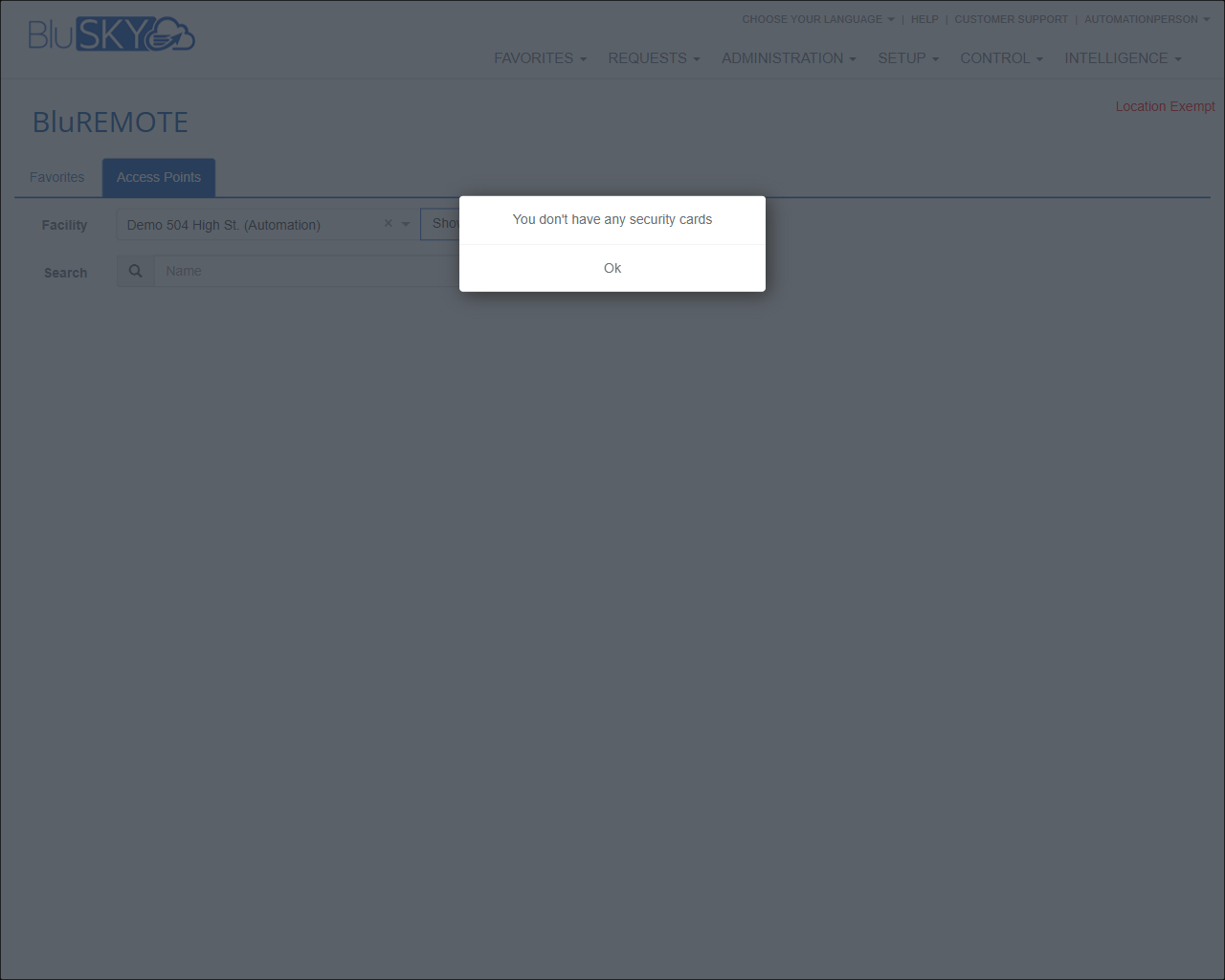
The BluREMOTE – Access Points screen allows authorized users to find and operate access points (e.g., doors) within a selected facility. It provides facility-level filtering, quick search by name, and a Favorites tab for frequently used access points. If the signed-in person does not have any active security cards, the system displays a blocking alert and disables interaction until acknowledged.
Field Definitions
| Field Label | Definition | Notes |
|---|---|---|
| Favorites (tab) | Switches the view to show only access points saved as favorites. | Read-only list; actions depend on user permissions. |
| Access Points (tab) | Primary view listing all access points available to the user. | Default tab on load. |
| Facility | Dropdown to choose the facility whose access points are displayed. | Required to populate results; only facilities within the user’s scope are shown. |
| Show | Filter to limit which access points appear (e.g., All, Favorites, etc.). | Available options may vary by configuration and permissions. |
| Search | Text search field for matching access point Name. | Partial matches supported; clears with browser refresh or when filters are reset. |
| Access Points Grid | Results area listing access points that match current filters. | Empty if no matches or if the user lacks rights to any access points in the chosen facility. |
| Security Card Alert | Modal message: “You don’t have any security cards.” | Appears when the signed-in person has no active security card credentials. |
| Ok (button) | Closes the Security Card Alert modal. | Dismisses the overlay; does not grant access or change permissions. |
| Location Status Banner | Informational banner shown in the page header (e.g., “Location Exempt”). | Read-only; wording depends on system configuration. |
Screen Actions and Functions
- Switch between Favorites and Access Points tabs.
- Select a Facility to scope the list of access points.
- Apply the Show filter to refine visible access points.
- Search by Name using the Search field.
- Acknowledge the Security Card Alert by clicking Ok.
- When results are available and permissions allow, select an access point to perform available remote actions.
Usage Instructions & Examples
How to find an access point
- Open the Access Points tab.
- Select the appropriate Facility.
- Optionally set the Show filter to narrow results.
- Enter part of the access point Name in Search.
- Select the desired access point from the grid to view available actions.
How to use Favorites
- Click the Favorites tab to view saved access points.
- Select a favorite to perform available remote actions.
- Return to Access Points to search the full list as needed.
How to resolve “You don’t have any security cards”
- Click Ok to dismiss the alert.
- Contact your system administrator or tenant administrator and request an active security card be assigned to your person record.
- Ensure the card is active, not expired, and has appropriate access levels for the target facility.
- Refresh the BluREMOTE page, reselect the Facility, and retry your action.
System Behaviors and Edge Cases
- If the signed-in person has no active security cards, a blocking modal appears and remote control features are unavailable until a credential is issued.
- The alert can reappear on subsequent visits until at least one active security card is present.
- Facility selection governs visibility; choosing a facility outside your scope results in an empty list.
- Show filter options and the presence of remote action buttons depend on configuration and user permissions.
- The modal overlay disables all background interaction until Ok is clicked.
- Search returns partial matches on Name; if no matches are found, the grid remains empty.
Permissions
- Access requires a user account with permission to use BluREMOTE for the selected facility.
- Viewing any access points requires visibility rights to that facility’s devices.
- Executing remote actions additionally requires the person to have at least one active security card and the necessary control permissions for the target access point.
- Users without the required rights will see no actionable items; if they also lack a security card, the Security Card Alert is shown.
Linked Workflows
- Issue Security Card to a Person (credential assignment).
- Assign Access Levels to the issued card for the desired facility.
- Manage Favorites for quick access to frequently used access points.
Reference Image Links