Preferences
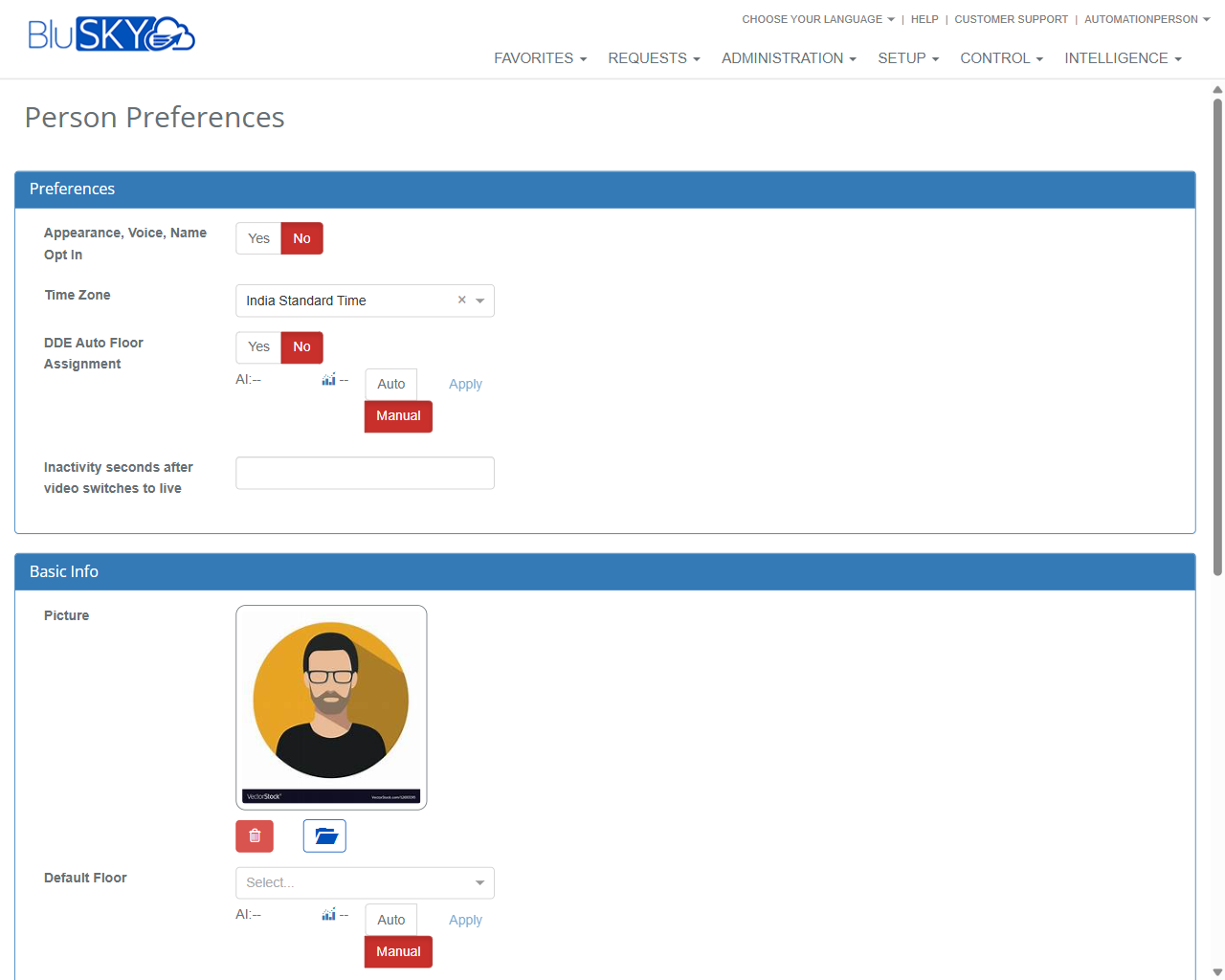
Person Preferences Screen
Screen Overview
The Person Preferences screen lets administrators and users manage individual preferences that affect user experience, notifications, elevator defaults, security, and profile details. From this page you can set time zone, opt-in preferences, default floor/stop, contact information, and two‑factor authentication.
Field Definitions
| Field Label | Definition | Notes |
|---|---|---|
| Appearance, Voice, Name Opt In | Enables consent for displaying a person’s name, appearance, or voice in BluSKY features. | Typically controls usage in kiosks, intercoms, and directories. Default is No in many deployments. |
| Time Zone | Time zone used for timestamps in notifications, logs, and schedules for this person. | If left unchanged, the tenant or system default may apply. |
| DDE Auto Floor Assignment | Allows Destination Dispatch Elevator (DDE) to automatically determine the user’s default floor. | When enabled, system logic may override manual floor selection. May reveal Auto/Manual/Apply controls. |
| Inactivity seconds after video switches to live | Number of seconds of inactivity before video reverts to live view. | Numeric, in seconds. Leave blank to use system default. |
| Picture | The person’s profile photo/avatar. | Supports upload/change and remove. Use clear, front‑facing images (e.g., JPG/PNG). |
| Default Floor | The person’s default building floor. | Can be set manually or by system suggestion (Auto/Manual/Apply controls). Required before selecting Default Floor Stop. |
| Default Floor Stop | The specific elevator stop on the selected default floor. | Disabled until a Default Floor is chosen. Auto/Manual/Apply controls may also apply. |
| Work email | Email used for BluSKY notifications and communications. | May be inherited from the person record and read‑only depending on permissions. Needed to receive email notifications. |
| Mobile phone (Contact Info) | General contact mobile number for the person. | Recommended in E.164 format (e.g., +1XXXXXXXXXX). Used for SMS notifications if enabled. |
| Enabled (Two Factor Authentication) | Turns two‑factor authentication (2FA) on or off for the user’s login. | Requires a valid 2FA mobile number. If disabled, single‑factor login applies. |
| Mobile phone (Two Factor Authentication) | Phone used to receive 2FA codes. | Must be SMS‑capable. Often required before enabling 2FA. Distinct from general contact phone if configured that way. |
Screen Actions and Functions
- Upload/Change Picture – Opens file picker to add or replace the profile photo.
- Remove Picture – Deletes the current profile photo.
- Auto (for Floor/Stop) – Lets the system propose a value based on rules/integration.
- Manual (for Floor/Stop) – Enables direct user selection from the dropdown.
- Apply (for Floor/Stop) – Commits the proposed Auto value to the field.
- Submit – Saves all changes to the person’s preferences.
- Discard – Cancels unsaved edits made since the last save.
- Clear optionals – Clears optional fields on the page without removing required data.
Usage Instructions & Examples
- Set the user’s time zone
- Open Person Preferences.
- In Time Zone, select the appropriate zone from the dropdown.
- Click Submit to save.
- Configure default floor and stop (Manual)
- In Default Floor, click Manual (if needed) and choose the floor.
- In Default Floor Stop, select the stop now enabled by the chosen floor.
- Click Submit.
- Accept a system‑suggested floor (Auto)
- Click Auto next to Default Floor (and/or Default Floor Stop).
- Review the suggestion.
- Click Apply to accept the suggestion, then Submit.
- Enable notifications via contact info
- Enter Work email (if editable) and Mobile phone (Contact Info).
- Click Submit. The user can now receive BluSKY notifications.
- Turn on Two‑Factor Authentication (2FA)
- In Two Factor Authentication, set Enabled to Yes.
- Enter a Mobile phone (Two Factor Authentication).
- Click Submit. On next sign in, the user will be prompted for the 2FA code.
System Behaviors and Edge Cases
- Default Floor Stop is disabled until a Default Floor is selected.
- With DDE Auto Floor Assignment enabled, the system may override manual floor/stop at runtime based on elevator integration.
- Auto mode may lock or prefill floor/stop values; use Manual to override and Apply to accept suggestions.
- Enabling 2FA without a valid mobile number triggers a validation error and blocks submission.
- Non‑numeric or negative values in “Inactivity seconds after video switches to live” are rejected.
- Work email may be read‑only if managed centrally from the person record or by higher‑level admins.
- Submitting with no changes leaves preferences unchanged and shows no update.
- Permissions may limit visibility of some panels (e.g., Two Factor Authentication or DDE options).
Permissions
- Accessible to Global Administrators, Tenant/Property Administrators, and authorized Operators.
- Standard users can view and edit their own Person Preferences via self‑service; editing others requires admin privileges.
- Managing DDE Auto Floor Assignment requires elevator integration permissions.
- Changing 2FA settings may be restricted by security policy to the user themself or security administrators.
Linked Workflows
- People (Person record) – Update core contact details that flow into this screen.
- Elevator/Destination Dispatch setup – Configure DDE rules that impact Auto Floor Assignment.
- Notifications and Subscriptions – Ensures emails/SMS are delivered using Work email and Mobile phone.
- My Information – End‑user self‑service entry point to the same preferences.
- MFA/Authentication Policy – Organization‑wide 2FA requirements that may enforce or lock settings.
Reference Image Links