Visitor Invitation
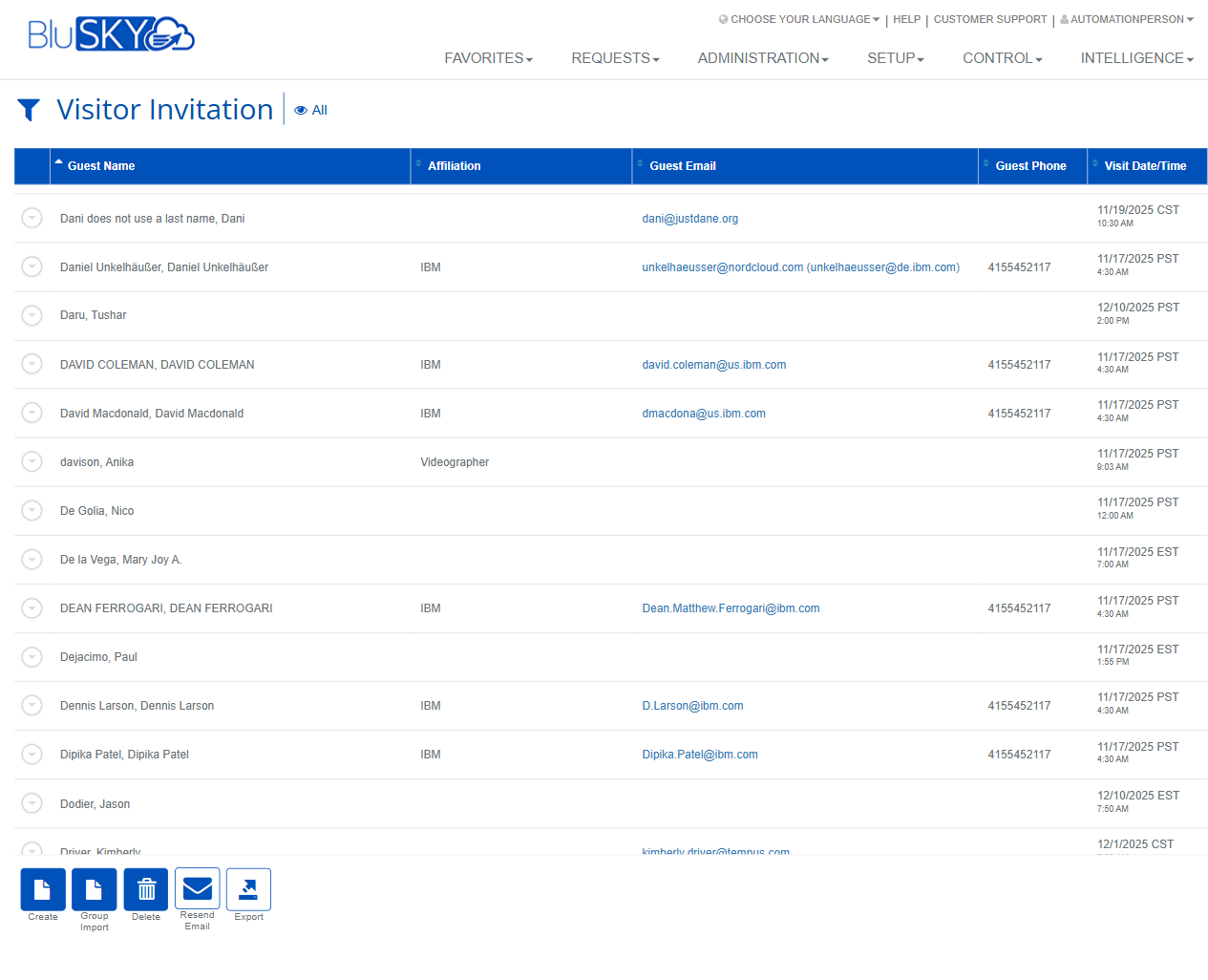
Visitor Invitation Screen
Screen Overview
The Visitor Invitation screen is used to view, create, and manage visitor invitations for facilities and occupancies in BluSKY. It provides filters to narrow results by system, facility, dates, and status, and offers actions for single creation, bulk import, editing, deletion, resending emails, and exporting invitation data.
Field Definitions
| Field Label | Definition | Notes |
|---|---|---|
| Guest Name | Name of the invited visitor. | Appears as entered on the invitation. Click the row to open actions. |
| Affiliation | Organization or relationship associated with the guest. | Examples: company name, vendor, contractor. Optional. |
| Guest Email | Email address used to send the invitation. | Often displayed as a mailto link. Required to send email invitations. |
| Guest Phone | Phone number for the guest. | Format is not enforced in the list; entry formatting is determined at creation. |
| Visit Date/Time | Scheduled date and time of the visit. | Displayed with time zone abbreviation (e.g., CST, PST, EST). |
| Visitation Pattern | Indicates if the visit is single or recurring and the recurrence pattern. | Shown when invitations are created with recurrence rules. |
| Host Name | Name of the employee/host responsible for the visitor. | Typically the person who will receive the guest. |
| Host Company | Company or tenant associated with the host. | Useful in multi-tenant facilities. |
| Last Action | Most recent workflow step taken on the invitation. | Examples include Invitation Sent, Edited, or Deleted. Read-only. |
| Requested By | User who created the invitation request. | System-populated for audit/history. |
| System (filter) | Limits results to invitations within the selected access control system(s). | Multi-select. Leave blank for all systems. |
| Facility (filter) | Filters invitations to the chosen facility or building(s). | Multi-select. |
| Occupancy (filter) | Filters by specific occupancy/tenant within a facility. | Multi-select; defaults to the user’s context when applicable. |
| From (filter) | Start date/time for the search window. | Includes a time zone selector next to the field and a calendar picker. |
| To (filter) | End date/time for the search window. | Includes a time zone selector next to the field and a calendar picker. |
| Search (filter) | Status filter for invitations. | Example values include Active or All (as shown). |
| View (filter) | Scope selector for which invitations to display. | Example value shown: All. Implementations may include My Invitations. |
| Search Text (filter) | Free-text keyword search. | Placeholder shows “Name”; systems may also match email/phone depending on configuration. |
Screen Actions and Functions
- Toggle Filters – Click the filter icon or “All” link near the title to open/close the filter panel.
- Create – Opens the form to create a new, single visitor invitation.
- Group Import – Uploads a spreadsheet to create multiple invitations in bulk.
- View – Opens the selected invitation in read-only mode.
- Edit – Modifies details of the selected invitation.
- Delete – Removes the selected invitation from the active list.
- Resend Email – Sends the invitation email again to the selected guest(s).
- Export – Exports the current result set to a file (e.g., CSV/XLSX).
- Submit (filters) – Applies the selected filters to refresh the list.
- Reset (filters) – Clears filters back to defaults.
Usage Instructions & Examples
How to locate invitations for a specific occupancy and date range
- Click the filter icon to open filters.
- Select the desired System, Facility, and Occupancy.
- Set From and To with the appropriate time zone.
- Leave Search = Active (or change as needed) and View = All.
- Click Submit to display matching invitations. Click a column header to sort.
How to create a single visitor invitation
- Click Create.
- Enter Guest Name, Guest Email (and optionally Guest Phone and Affiliation).
- Select Host Name/Company and set the Visit Date/Time (and Visitation Pattern if recurring).
- Save. The new invitation appears in the list and an email is sent if emailing is enabled.
How to import a group of invitations
- Click Group Import.
- Download or open the provided template if prompted.
- Populate rows with required fields (e.g., Guest Name, Guest Email, Visit Date/Time, Host).
- Upload the completed file and confirm. Review any validation messages.
- Refresh or Submit filters to see the newly created invitations.
How to resend an invitation email
- Select an invitation from the list.
- Click Resend Email.
- Confirm the action. The system reissues the email to the Guest Email address.
How to export the current list
- Apply filters to narrow to the desired set.
- Click Export and choose the file format if prompted.
- Save the file for reporting or sharing.
System Behaviors and Edge Cases
- Loading indicator is shown while invitations are retrieved.
- Date/time filters respect the selected time zone next to From/To; the Visit Date/Time column displays the stored event time with its time zone abbreviation.
- Actions are enabled only when at least one invitation is selected; otherwise they are disabled.
- Resend Email is available only for invitations with a valid Guest Email.
- Sorting can be applied by clicking any visible column header; clicking again reverses the sort order.
- Deleting removes the invitation from active view. Historical audit fields such as Requested By and Last Action remain in system history where applicable.
- If no records match the filters, the list returns empty results after submission.
- Bulk import validates required fields; rows with errors are skipped or flagged for correction.
Permissions
- Screen access typically requires a role with Visitor Invitation read permissions (e.g., Tenant Administrator, Reception/Front Desk, Host with invitation rights, Global Administrator).
- Create, Edit, and Group Import require manage permissions for visitor invitations.
- Delete and Resend Email require elevated permissions; buttons are hidden or disabled for users without them.
- Export may be restricted to roles with reporting or export privileges.
Linked Workflows
- Visitor Check-In and badge issuance at the lobby/reception desk.
- Host notifications and visitor arrival alerts.
- Access provisioning for visitors via temporary access levels linked to the invitation.
- Visitor audit and reporting under Intelligence/Reports using invitation data.
Reference Image Links