Elevator Control
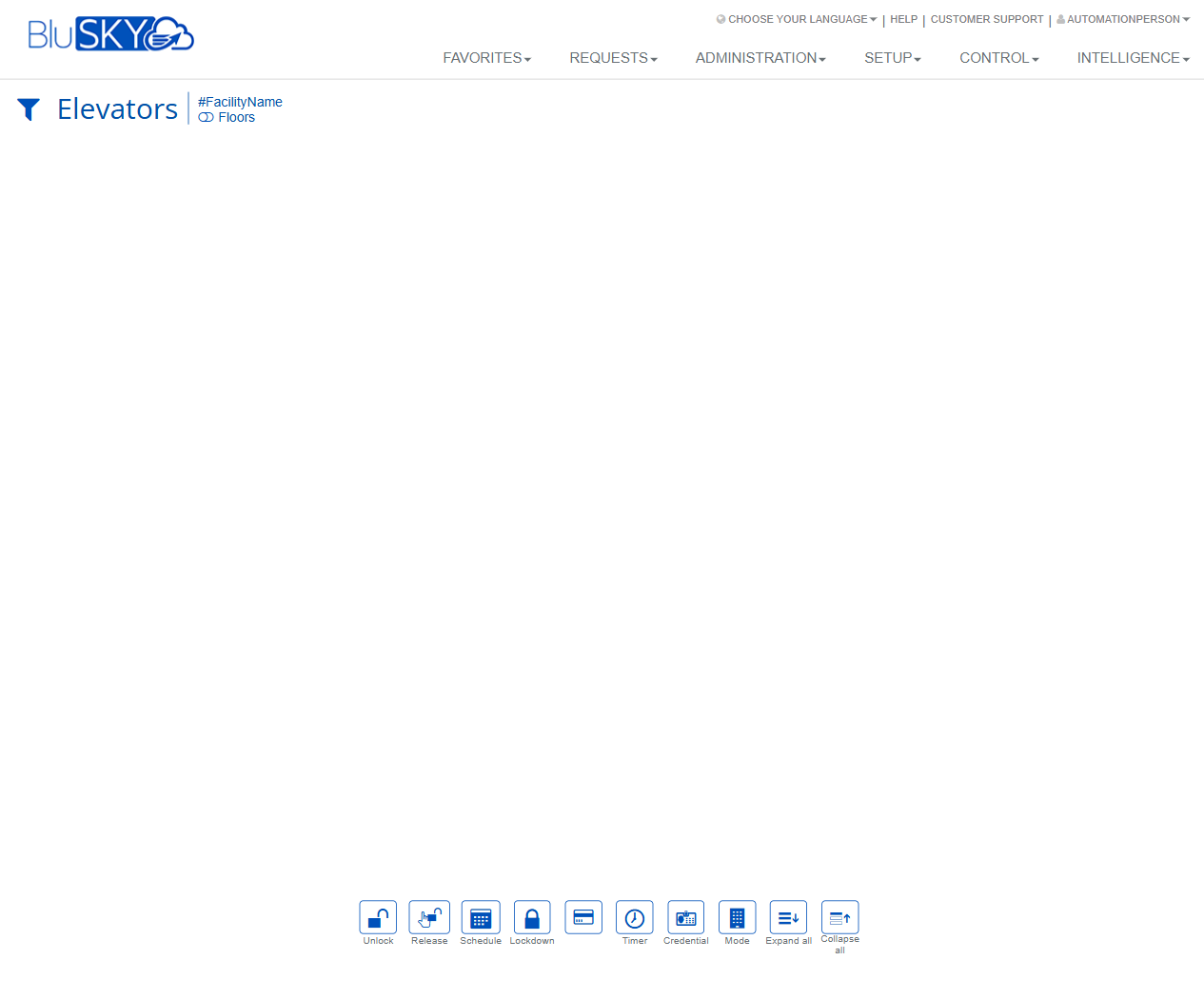
Elevators Screen
Screen Overview
The Elevators screen provides a consolidated workspace to view and control elevator-related objects in BluSKY. Operators can filter by facility, expand or collapse the results tree, and apply operational overrides such as Unlock, Lockdown, Timer, and Mode changes. This screen is commonly used by security and facilities teams for day-to-day elevator control and temporary overrides.
Field Definitions
| Field Label | Definition | Notes |
|---|---|---|
| Elevators (Screen Title) | The page header indicating the current control screen. | Read-only. Helps confirm you are on the elevator control view. |
| Filter (funnel icon) | Opens filtering options to refine which facilities/floors/elevators appear in the results area. | If no filters are applied, the results area may be empty until a scope is selected. |
| Facility Name (chip/tag) | The currently selected facility scope for elevator control. | Click to change facility (if you have access to multiple). Determines what appears in the results. |
| Floors (chip/tag) | Quick scope indicator for floor-level context within the chosen facility. | May toggle the view to show floors under the facility. Availability depends on configuration. |
| Results Area | The main workspace where elevator groups, cars, and/or floors are listed after filters are applied. | Supports multi-select for applying actions. Empty if no matching items are in scope. |
| Action Bar (bottom toolbar) | Row of control buttons used to send overrides or adjust view (Unlock, Release, Schedule, Lockdown, Timer, Credential, Mode, Expand all, Collapse all). | Buttons enable only when applicable items are selected and the user has permission. |
Screen Actions and Functions
- Unlock – Sends an unlock override to the selected elevator object(s) for immediate free access until cleared or expired.
- Release – Clears active overrides on the selected item(s), returning them to their baseline state (e.g., schedule/default mode).
- Schedule – Opens scheduling options to assign or adjust schedules for the selected item(s).
- Lockdown – Applies a lockdown state to the selected item(s), restricting access per site policy until released.
- Timer – Sets a time-bound override (start/end) for the selected item(s) without modifying their underlying schedules.
- Credential – Applies a credential-based exception or test action for the selected context (as enabled by configuration).
- Mode – Changes the operating mode of the selected item(s) (for example, Normal/Secure/Visitor). Actual modes depend on system configuration.
- Expand all – Expands all nodes in the results area to show nested items.
- Collapse all – Collapses all nodes in the results area for a concise view.
Usage Instructions & Examples
How to display elevators for a facility
- Click the Filter icon.
- Select the desired Facility Name and, if needed, the Floors to include.
- Apply filters. The Results Area lists the matching elevator groups/cars/floors.
- Use Expand all to view all nested items.
How to place selected elevators in temporary unlock
- In the Results Area, select the target elevator items.
- Click Unlock.
- If prompted, confirm duration or scope; then confirm the action.
- Verify the state change in the Results Area.
How to schedule elevator behavior
- Select the elevator or floor item(s) to schedule.
- Click Schedule.
- Choose or edit the applicable schedule and save.
- Use Release later to clear any ad-hoc overrides so the schedule takes effect.
How to perform a timed override
- Select item(s) in the Results Area.
- Click Timer.
- Enter the start/end time window and confirm.
- At expiry, the system returns the item(s) to their prior state automatically.
How to initiate and clear lockdown
- Select the affected item(s).
- Click Lockdown and confirm the scope.
- To restore normal operation, select the same items and click Release.
System Behaviors and Edge Cases
- Action availability is context-sensitive; buttons remain disabled if no eligible items are selected or the user lacks permission.
- If a controller or device is offline, commands may queue or fail based on site settings; an error or warning is shown when applicable.
- Timed overrides end automatically at the specified time and revert to the prior baseline (schedule or mode).
- Applying Release clears active overrides only; it does not delete underlying schedules.
- Expand all/Collapse all affects display only and does not change device states.
- Concurrent overrides (e.g., Timer plus Unlock) are resolved per the site’s control rules. If conflicts occur, the system will enforce the higher-priority state defined by configuration and show the resulting state in the Results Area.
- Audit logging records who initiated Unlock/Lockdown/Timer/Mode/Schedule changes, with timestamps.
Permissions
- Accessible to authorized roles such as Global Administrators, Tenant Administrators, and Security/Operations users with elevator control rights.
- Specific entitlements may be required for each action:
- Unlock/Lockdown/Timer/Mode changes require corresponding control permissions.
- Schedule management requires schedule-edit permissions.
- Users without appropriate rights can view scope indicators but cannot execute control actions.
Linked Workflows
- Device and elevator configuration is managed under Setup (e.g., Elevator groups, cars, and floors).
- Schedules referenced here are created and maintained in the Schedules module.
- Use Intelligence/Reports or live monitoring tools to review elevator events and audit trails after actions are taken.
Reference Image Links