Add A Person
Create Person
Screen Overview
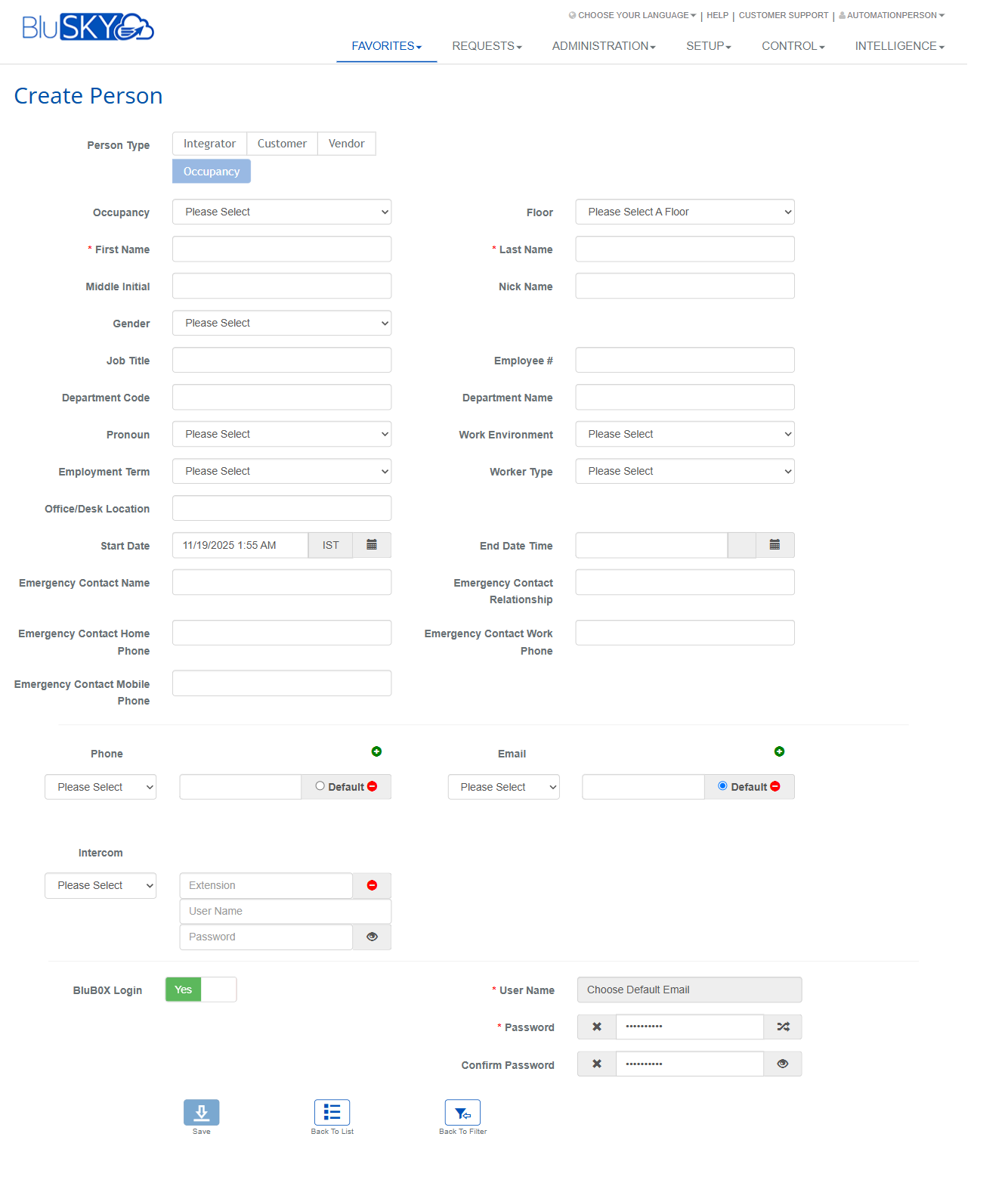
The Create Person screen is used to add a new person record to BluSKY. It captures identity details, organizational attributes, emergency contacts, communication methods, optional intercom credentials, and (if enabled) BluSKY login credentials. Administrators use this screen to onboard employees, customers, vendors, or integrators and to associate them with an occupancy and floor.
Field Definitions
| Field Label | Definition | Notes |
|---|---|---|
| Person Type | Classifies the person as Integrator, Customer, or Vendor. | Drives reporting and may influence downstream defaults/visibility. |
| Occupancy | The tenant/space the person belongs to. | Typically determines available Floors and access context. |
| Floor | The physical floor associated with the selected occupancy. | List is filtered by the chosen Occupancy. |
| First Name | Person’s given name. | Required. |
| Last Name | Person’s family name. | Required. |
| Middle Initial | Person’s middle initial. | Optional. |
| Nick Name | Preferred name used informally. | Optional; can appear on badges depending on configuration. |
| Gender | Person’s gender selection. | Optional, dropdown. |
| Job Title | Person’s job/role title. | Optional. |
| Employee # | Internal employee or HR identifier. | Optional; useful for imports and integrations. |
| Department Code | Short code for department. | Optional; pairs with Department Name. |
| Department Name | Full department name. | Optional. |
| Pronoun | Person’s preferred pronouns. | Optional, dropdown. |
| Work Environment | Primary work setting (e.g., Onsite/Hybrid/Remote). | Optional, dropdown. |
| Employment Term | Employment duration/type. | Optional, dropdown. |
| Worker Type | Classification such as Employee/Contractor/Visitor. | Optional, dropdown. |
| Office/Desk Location | Assigned office, cube, or desk identifier. | Optional; free text. |
| Start Date | Person’s start/activation date and time. | Accepts date/time; timezone shown next to control. |
| End Date Time | Person’s end/expiration date and time. | Must be after Start Date if provided. |
| Emergency Contact Name | Name of the person’s emergency contact. | Optional but recommended. |
| Emergency Contact Relationship | Relationship to the person (e.g., Spouse). | Optional. |
| Emergency Contact Home Phone | Home phone for emergency contact. | Optional; numeric/phone format. |
| Emergency Contact Work Phone | Work phone for emergency contact. | Optional; numeric/phone format. |
| Emergency Contact Mobile Phone | Mobile phone for emergency contact. | Optional; numeric/phone format. |
| Phone (Type) | The type/category of phone number being added. | Dropdown (e.g., Mobile, Work, Home). |
| Phone Number | The phone number associated with the selected type. | Optional; format validated where configured. |
| Default Phone | Marks the entered phone as the default contact number. | Radio selector; one default allowed. |
| Email (Type) | The type/category of email being added. | Dropdown (e.g., Work, Personal). |
| Email Address | The email address for the person. | Required if creating a BluSKY login or sending notifications. |
| Default Email | Marks the entered email as the default address. | Radio selector; one default allowed. |
| Intercom | Selects an intercom/device profile to associate with the person. | Optional; enables intercom credentials below. |
| Extension (Intercom) | Intercom extension number. | Required if Intercom is used. |
| User Name (Intercom) | Username used for intercom authentication. | Required if Intercom is used. |
| Password (Intercom) | Password used for intercom authentication. | Required if Intercom is used; eye icon toggles visibility. |
| BluB0X Login | Enables creation of a BluSKY user account for this person. | Toggle Yes/No. When Yes, login fields are required. |
| User Name (Login) | Username for BluSKY sign-in. | “Choose Default Email” sets this to the Default Email if present. Required when BluB0X Login = Yes. |
| Password (Login) | Password for BluSKY sign-in. | Required when BluB0X Login = Yes; eye icon toggles visibility. |
| Confirm Password | Re-enter the BluSKY password to confirm. | Must match Password (Login). |
Screen Actions and Functions
- Save – Creates the person record and any selected credentials.
- Back to List – Returns to the People list without saving changes.
- Back to Filter – Returns to the previous filtered results page.
- Choose Default Email (button beside User Name) – Copies the Default Email into the User Name (Login) field.
- Password visibility toggle – Shows/hides password values where available.
- Default selectors – Set the primary phone and email for the person.
Usage Instructions & Examples
- Create a basic employee record
- Select Person Type = Customer (or as appropriate).
- Choose the Occupancy and Floor.
- Enter First Name and Last Name.
- Optionally fill Job Title, Department, and Office/Desk Location.
- Set Start Date; leave End Date Time blank if unknown.
- Add an Email (Type = Work), enter Email Address, and set as Default Email.
- Click Save.
- Create a BluSKY login for the person
- Complete the steps above to populate core details and a Default Email.
- Set BluB0X Login = Yes.
- Click Choose Default Email to populate User Name (Login), or enter a username manually.
- Enter Password (Login) and Confirm Password.
- Click Save. The person can now sign in per system policy.
- Add emergency contact and phone details
- Enter Emergency Contact Name and Relationship.
- Provide Emergency Contact Mobile Phone (or Home/Work).
- Under Phone, choose Type (e.g., Mobile), enter the Phone Number, and set Default Phone if desired.
- Click Save.
System Behaviors and Edge Cases
- Required fields are indicated by a red asterisk; the record cannot be saved until these are completed.
- Floor options are filtered by the selected Occupancy.
- End Date Time cannot be earlier than Start Date; validation will prevent saving.
- When BluB0X Login = Yes, User Name (Login), Password (Login), and Confirm Password become required.
- Choose Default Email is disabled or ineffective if no Default Email is defined.
- User Name (Login) and Email Address must be unique where configured; duplicates are blocked.
- Only one Default Phone and one Default Email can be set.
- Password fields enforce the site’s password policy; mismatches block saving.
- Intercom credential fields become required only when an Intercom is selected.
- Time zone displayed next to date/time fields reflects the user/session time zone.
Permissions
- Available to users with permissions to create or manage people (e.g., Global Administrator, Tenant/Facility Administrator, or users granted Manage People/Create Person).
- Ability to create BluSKY logins may require an additional security role (e.g., Manage Users).
- Intercom assignment requires permissions to the relevant intercom/device resources.
Linked Workflows
- After saving a person, assign Access Levels and Credentials (badges/mobile credentials) from the People or Credentials screens.
- Link the person to Schedules, Roles/Groups, and Visitor workflows as needed.
- If BluSKY login is created, optionally enroll the user in MFA and notification preferences.
- Associate the person to specific doors, elevators, or intercom directories via related configuration screens.
Reference Image Links