Customers
Customer List
Screen Overview
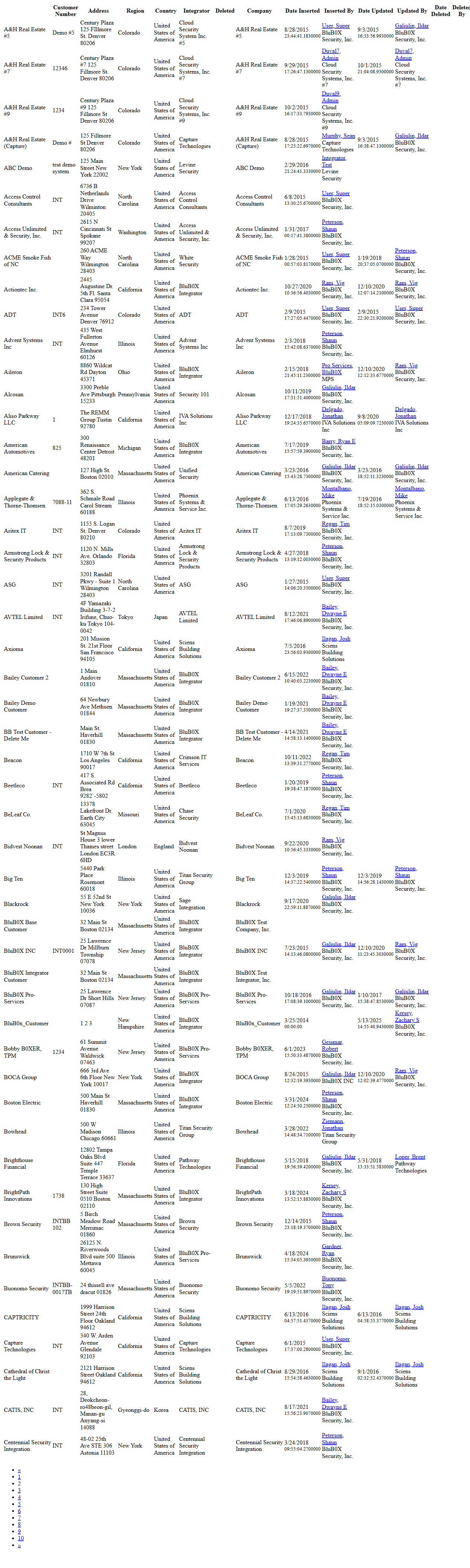
The Customer List screen provides a searchable directory of all Customers in BluSKY. It includes quick filters, a tabular list with key attributes, toolbar actions to create and maintain customer records, and an Expand view that exposes additional audit columns for printing or export. The screen is optimized for day‑to‑day customer lookup and administration.
Field Definitions
| Field Label | Definition | Notes |
|---|---|---|
| Search Text | Free‑text input to find customers by name. | Case-insensitive; partial matches supported. |
| View | Drop-down status filter for the list. | Example seen: “All Active”. Other options depend on configuration. |
| Submit | Executes the current Search Text and View filter. | Also refreshes Customer Count. |
| Reset | Clears Search Text and resets View to default. | Useful for returning to the full list. |
| Customer Count | Displays the number of customers returned by the current filter. | Updates after each search/refresh. |
| Selection Status | Shows how many rows are selected in the grid. | Example: “(1/50 selected)”. Selection may be required for some actions. |
| Customer | Customer name column in the grid. | Click to select a row. Sorting may be available. |
| Customer Number | Internal or external identifier for the customer. | Often alphanumeric (e.g., INT, 0576). |
| Address | Primary address for the customer. | Street, city, and postal code as entered. |
| Region | Geographic region/state. | Populated from the customer profile. |
| Country | Country for the address. | Typically displayed as full country name. |
| Integrator | The integrator or service provider associated to the customer. | Read-only in the list; editable in the customer record. |
| Deleted | Indicates soft-deleted status in Expanded/Print view. | Checkbox/flag column visible in Expand. |
| Company | Parent/related company name in Expanded/Print view. | Read-only in the report. |
| Date Inserted | Timestamp the customer record was created. | Shown in Expanded/Print view only. |
| Inserted By | User who created the record. | Hyperlinked to the user/person in Expanded view. |
| Date Updated | Timestamp of the most recent update. | Shown in Expanded/Print view only. |
| Updated By | User who last updated the record. | Hyperlinked in Expanded view. |
| Date Deleted | Timestamp when the record was deleted (soft delete). | Empty for active customers. |
| Deleted By | User who performed the delete action. | Visible only when Deleted is set. |
| Pagination | Page number links at the bottom of Expanded/Print view. | Used to navigate multipage results. |
Screen Actions and Functions
- Create – Opens the new customer form.
- View – Opens the selected customer’s details in read-only mode.
- Edit – Opens the selected customer’s record for modification.
- Delete – Soft-deletes the selected customer record.
- Expand – Opens a printable, read-only report with additional columns (audit fields) and pagination.
- Submit – Runs the current search and filter.
- Reset – Clears filters and restores the default view.
Usage Instructions & Examples
How to find a customer
- Enter all or part of the customer name in Search Text.
- Choose a View option (e.g., All Active).
- Click Submit. Review results and select the desired row.
How to create a new customer
- Click Create.
- Complete the required fields in the customer form.
- Save. The new customer appears in the list and the Customer Count increases.
How to edit an existing customer
- Select a single customer row.
- Click Edit.
- Update the necessary fields and Save.
How to print or review audit details
- Apply any filters and click Submit.
- Click Expand to open the printable report with full columns (including Deleted, Company, Inserted/Updated/Deleted audit fields).
- Use the page links at the bottom to navigate and print from your browser if needed.
How to remove a customer
- Select the customer row.
- Click Delete and confirm.
- The record is soft-deleted and appears with Deleted flagged in Expanded view.
System Behaviors and Edge Cases
- The toolbar actions (View, Edit, Delete) require exactly one selected row; they remain disabled or have no effect if no selection is made.
- Delete performs a soft delete; the record is retained for audit and appears with Deleted flagged in the Expanded report.
- Expand shows additional audit columns and pagination; it is read-only and optimized for printing or exporting via the browser.
- Customer Count reflects the active filter and search; it updates after Submit and Reset.
- If filters return no results, the grid shows an empty list and Customer Count is 0.
- Selection status (e.g., “1/50 selected”) appears when rows are selected; list pages may cap selection to the current page.
- If a user lacks permission for Create/Edit/Delete, the corresponding buttons are hidden or disabled.
Permissions
- Read access: Global Administrators, Integrator Administrators, and Tenant Administrators (as configured).
- Create and Edit: Users with CustomerManage permissions.
- Delete: Users with CustomerDelete or equivalent elevated permission.
- Expand/print is available to any role that can view the Customer List.
Linked Workflows
- From Customer List, use View or Edit to open the Customer record for full maintenance (sites, people, and other related entities).
- From user/person references in Expanded view (Inserted By, Updated By, Deleted By), follow links to the Person View screen for audit review.
Reference Image Links