Occupants
Occupancy Screen
Screen Overview
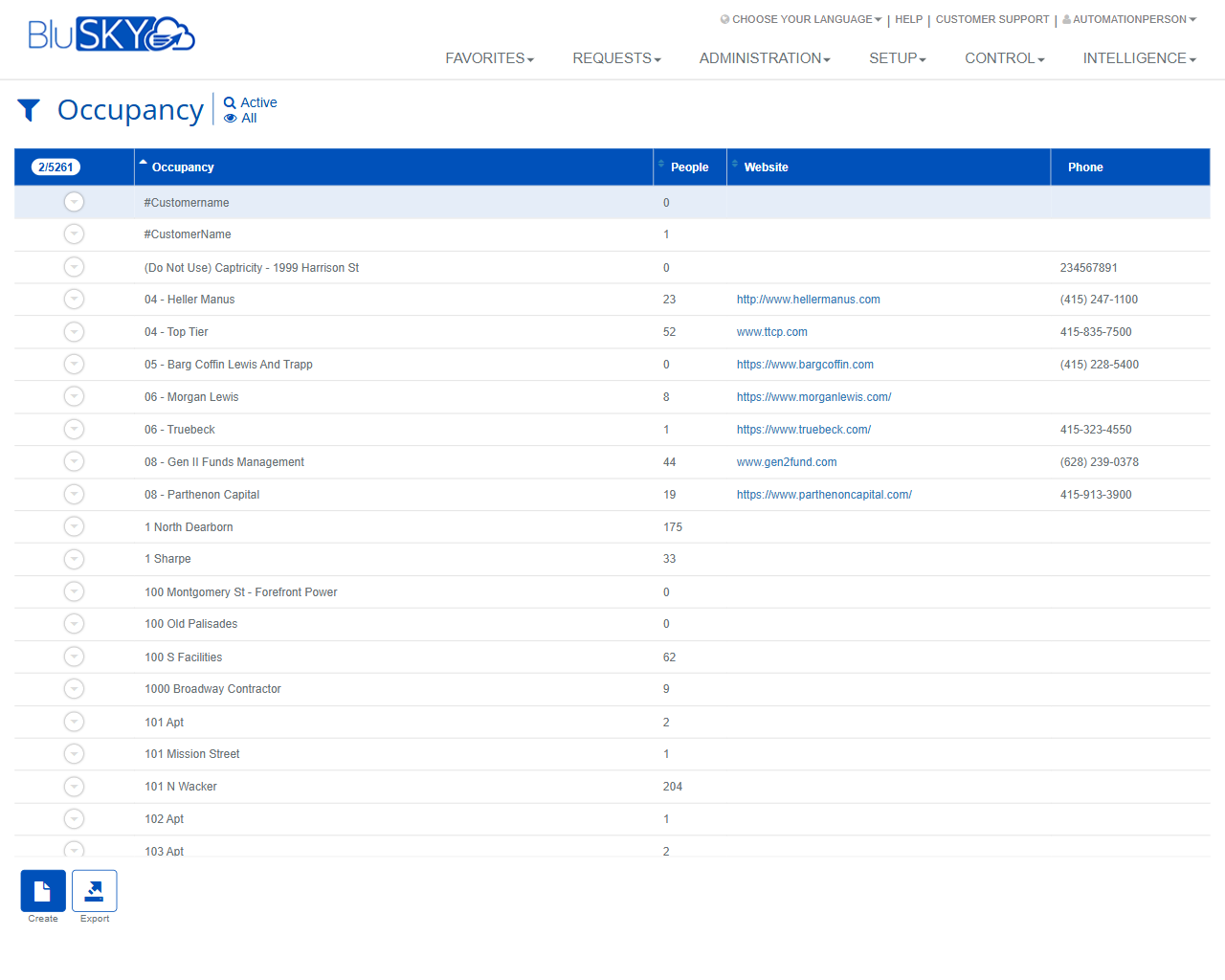
The Occupancy screen is used to manage organizations or tenant entities that occupy space within a facility. It provides filtering to find occupancies and a results grid with key details (People, Website, Phone). From this screen you can create new occupancies, view or edit existing ones, synchronize status (if integrated), and export results.
Field Definitions
| Field Label | Definition | Notes |
|---|---|---|
| System | Filters results to a specific BluSKY system. | Optional. Default is -- All --. |
| Facility | Filters results to a specific facility within the selected system. | Optional. Default is -- All --. |
| Search | Status filter applied to results. | Default is Active. Choose All to include inactive records. Mirrors the “Active |
| View | Scope filter determining which records are shown. | Default is All. Options depend on role/tenant context. |
| Search Text | Free-text filter for occupancy name. | Supports partial matches. Leave blank to return all matches for other filters. |
| Active (quick link) | One-click shortcut to filter by active occupancies. | Located next to the page title. Equivalent to setting Search = Active. |
| All (quick link) | One-click shortcut to show all occupancies regardless of status. | Equivalent to setting Search = All. |
| Occupancy | Name of the occupancy (tenant/company) in the results grid. | Click a row to enable record actions. |
| People | Count of people linked to the occupancy. | Read-only. May be 0 if none assigned. |
| Website | Website associated with the occupancy. | Hyperlink opens in a new browser tab/window (if provided). |
| Phone | Primary phone number for the occupancy. | Formatting may vary; may be blank. |
Screen Actions and Functions
- Create – Opens the occupancy create form. Available both above the filter area and in the grid action bar.
- Submit – Applies the selected filters and loads matching results.
- Reset – Clears filters back to their defaults.
- View – Opens a read-only view of the selected occupancy record.
- Edit – Opens the selected occupancy for modification.
- Delete – Removes or deactivates the selected occupancy, depending on configuration and permissions.
- Sync Status – Initiates a synchronization of the selected occupancy’s status with connected systems, if integrations are configured.
- Export – Exports the current results to a file (honors applied filters).
Usage Instructions & Examples
How to Find an Occupancy
- Set System and Facility (optional).
- Choose Search = Active or All, and set View as needed.
- Enter all or part of the occupancy name in Search Text.
- Click Submit. Review the results grid.
How to Create a New Occupancy
- Click Create.
- Complete required details in the create form (e.g., name, contact info).
- Save. The new occupancy appears in the results after you click Submit or refresh.
How to Edit an Existing Occupancy
- Locate the record using the filters and click Submit.
- Click once to select the row.
- Click Edit, make changes, and Save.
How to Export the Occupancy List
- Apply filters and click Submit to display the desired results.
- Click Export to download a file containing the filtered results.
How to Sync Status (if available)
- Select the occupancy row.
- Click Sync Status. Monitor for completion or confirmation message.
System Behaviors and Edge Cases
- Changing filters does not refresh the grid until you click Submit.
- With no row selected, only Create and Export are shown in the grid action bar. Selecting a row enables View, Edit, Delete, and Sync Status.
- The Active | All quick links instantly set the Search filter to the matching status.
- Website values open in a new browser tab/window when clicked. Blank values are displayed as empty cells.
- Phone and Website fields are optional and may be blank.
- Export respects the filters currently applied on the screen.
- If you lack the necessary permissions, certain action buttons (Edit, Delete, Sync Status) may be hidden or disabled.
- Large result sets may load in pages; a counter near the grid header shows the current record index/total.
Permissions
- Screen access is typically granted to Global Administrators, Tenant/Facility Administrators, and Property Managers.
- Edit, Delete, and Sync Status require a manage-occupancy privilege (e.g., ManageOccupancy or equivalent).
- Export may require an export/reporting privilege.
- Users without edit privileges have read-only access (Create/Edit/Delete hidden or disabled).
Linked Workflows
- People: After creating an occupancy, add or associate People who belong to that occupancy.
- Access Management: Assign access levels/permissions to people within the occupancy from the Access Levels and Credentials workflows.
- Visitor Management: Use the occupancy when scheduling visitor invites and lobby check-ins.
- Facility Setup: Associate the occupancy with suites/floors or space assignments (if configured in your environment).
Reference Image Links