Qr Code
Global Navigation Header
Screen Overview
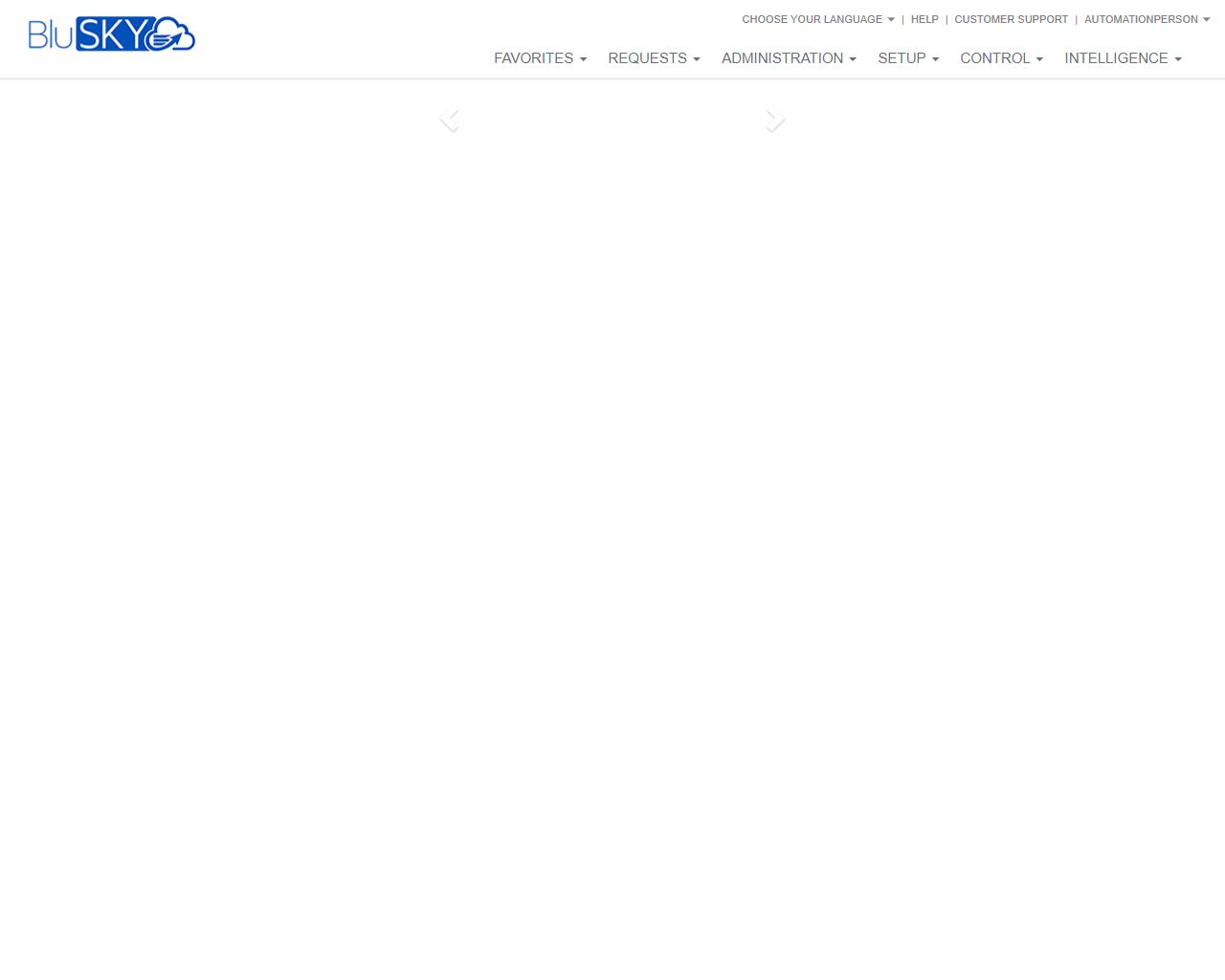
The Global Navigation Header provides access to all major BluSKY modules and utilities from anywhere in the application. It includes top-level menus (Favorites, Requests, Administration, Setup, Control, Intelligence) as well as quick utilities for language selection, help, customer support, and the user menu. The BluSKY logo functions as a home link.
Field Definitions
| Field Label | Definition | Notes |
|---|---|---|
| BluSKY Logo | Clickable logo that returns the user to the BluSKY home/landing page. | Read-only control; available on all pages. |
| Favorites | Opens a dropdown of user-saved pages for quick access. | Content varies per user; may be empty for new users. |
| Requests | Opens the Requests menu for creating and managing service or access requests. | Visibility and options depend on role permissions. |
| Administration | Opens administration tools for managing organizations, people, and policies. | Typically available to administrators only. |
| Setup | Opens configuration tools for hardware, access levels, and system settings. | High-privilege area; changes may affect system-wide behavior. |
| Control | Opens operational controls such as live monitoring and daily operations. | Real-time functions may require specific operator permissions. |
| Intelligence | Opens reporting and analytics features. | Access to reports depends on data permissions. |
| Choose Your Language | Expands a selector to change the application display language. | Language preference is usually stored per user profile. |
| Help | Opens BluSKY help resources and documentation. | May open in a new tab or overlay depending on configuration. |
| Customer Support | Provides links to contact support or open/view support tickets. | Requires network access to support portal; may prompt for login. |
| User Menu | Opens profile-related actions such as My Profile, Sign Out, and settings. | Menu contents vary by tenant and role configuration. |
Screen Actions and Functions
- Open a module menu (Favorites, Requests, Administration, Setup, Control, Intelligence).
- Return to the home page by clicking the BluSKY logo.
- Change interface language via Choose Your Language.
- Open Help resources for context-sensitive guidance.
- Contact Customer Support or open a support ticket.
- Access the User Menu to view profile details or sign out.
Usage Instructions & Examples
-
Navigate to a Module
- Locate the desired menu (e.g., Administration) in the top header.
- Click the menu to open its dropdown.
- Select the target page (e.g., People, Access Levels, or Reports).
-
Return to Home
- Click the BluSKY logo in the upper-left corner.
- The system navigates to the home/landing page.
-
Change Display Language
- Click Choose Your Language in the upper-right.
- Select the desired language from the list.
- Wait for the interface to refresh in the selected language.
-
Get Help or Contact Support
- Click Help to open product documentation.
- Click Customer Support to access the support portal or contact options.
-
Sign Out
- Click the User Menu in the upper-right.
- Select Sign Out to end your session safely.
System Behaviors and Edge Cases
- Menu visibility is role- and permission-based; users only see modules they are authorized to access.
- Language changes typically persist per user profile and apply after a brief interface refresh.
- If Favorites is empty, the dropdown may show no entries until the user saves favorites elsewhere in the app.
- Session timeout logs the user out after inactivity; unsaved work may be lost.
- Help and Support links may open in a new browser tab or require access to external portals depending on tenant configuration.
- During maintenance windows or network interruptions, some menus may load slowly or temporarily fail; retry or contact support.
Permissions
- Access to Administration, Setup, Control, and Intelligence menus is restricted to users with corresponding administrative or operator roles.
- Requests menu availability depends on the user’s ability to create/view requests.
- Help is generally available to all users; Customer Support portal access may require separate credentials.
- User Menu options (e.g., profile editing) are governed by tenant-level policies.
Linked Workflows
- From Administration: manage people, companies, and policies before assigning access.
- From Setup: configure hardware and access levels used by operational modules.
- From Control: perform daily monitoring and issue temporary overrides as permitted.
- From Intelligence: run reports to audit activity and validate configuration changes.
- From Requests: submit access or service requests that route for approval.
Reference Image Links