BluREMOTE
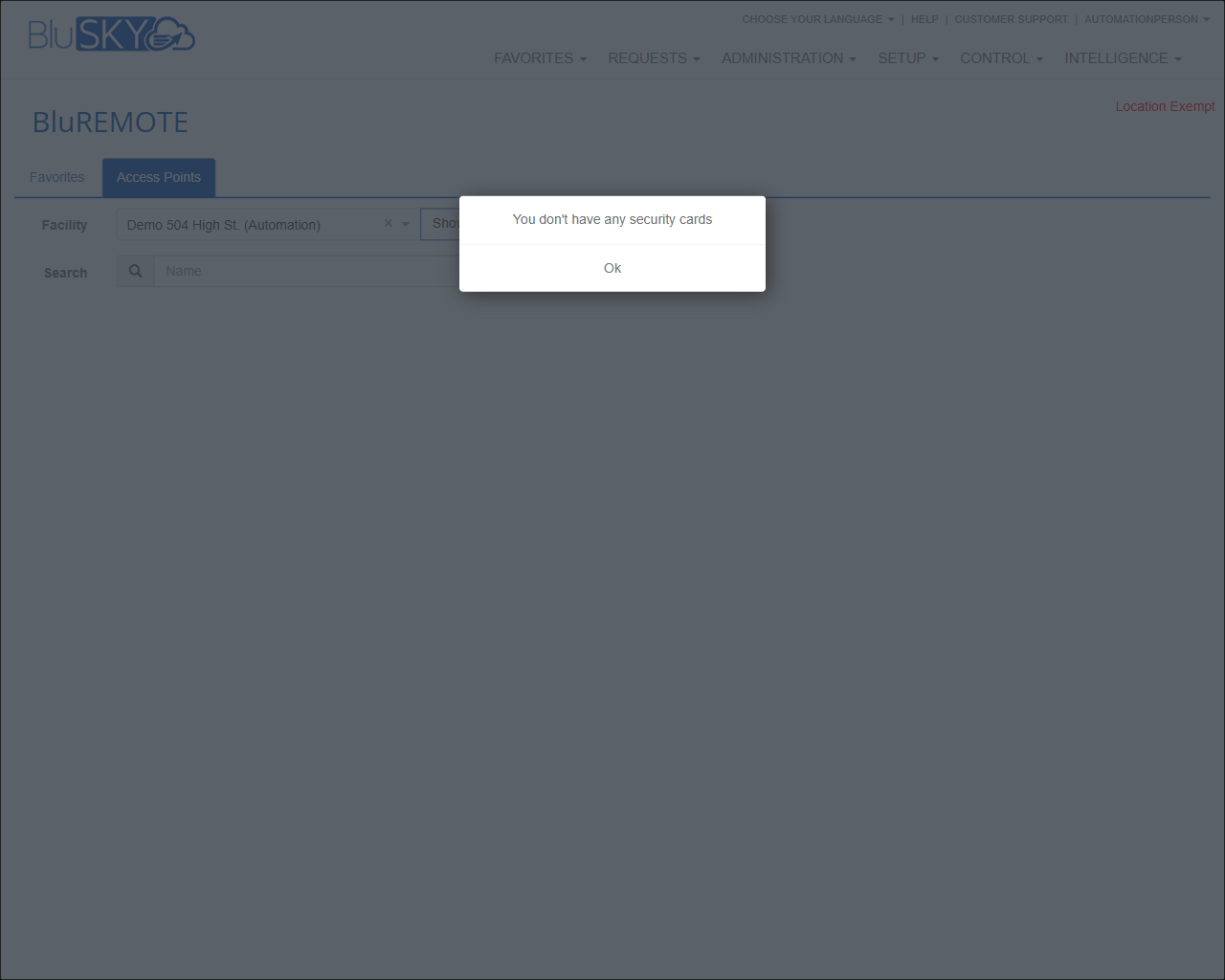
BluREMOTE – Access Points Screen
Screen Overview
The BluREMOTE – Access Points screen lets users find and interact with access points they are authorized to control. It provides facility-level filtering and quick search. If the user does not have an assigned security card/credential, the screen displays a blocking message: “You don’t have any security cards.”
Field Definitions
| Field Label | Definition | Notes |
|---|---|---|
| Favorites (tab) | Switches the view to show only access points the user has marked as favorites. | Read-only list. Appears empty until favorites are defined. |
| Access Points (tab) | Displays the full list of available access points for the selected facility and the user’s permissions. | This tab is active in the screenshot. |
| Facility | Dropdown to select the facility whose access points should be listed. | The “X” clears the selection. Options are limited to facilities the user can access. |
| Show | A context filter that narrows what is displayed within the selected facility. | Available options vary by deployment (e.g., all, door-only, elevator, etc.). |
| Search (Name) | Text search to filter access points by name. | Partial and case-insensitive matches are supported. |
| Location Exempt | Status indicator showing that location-based restrictions are waived for the current session. | Appears when enabled by administrators; read-only. |
| “You don’t have any security cards” (dialog) | Modal alert indicating the user has no active security card/credential linked to their person record. | Prevents interaction with access points until resolved. |
| Ok (dialog button) | Dismisses the “You don’t have any security cards” message. | Returns the user to the screen; no changes are made. |
Screen Actions and Functions
- Select a Facility from the Facility dropdown to scope the list of access points.
- Clear the Facility selection using the X icon.
- Use the Search field to filter access points by name.
- Toggle between the Favorites and Access Points tabs.
- Dismiss the no-security-card dialog by clicking Ok.
Usage Instructions & Examples
How to filter to a specific facility
- Open the Facility dropdown.
- Choose the desired facility.
- Confirm the Access Points tab is selected to view the available items.
How to search for an access point by name
- Click in the Search (Name) field.
- Type part or all of the access point name.
- Review the filtered results.
How to recover from “You don’t have any security cards”
- Click Ok to dismiss the dialog.
- Contact your administrator (or open the People > Credentials screen, if permitted) to add an active security card/credential to your person record.
- Return to BluREMOTE; the dialog should no longer appear once a valid credential is active.
How to clear a facility filter
- Click the X in the Facility control.
- Re-run your search or pick another facility.
System Behaviors and Edge Cases
- If the user has no active security cards, the system displays a blocking dialog: “You don’t have any security cards.” No access points are actionable until a credential is assigned.
- The no-security-card dialog may reappear when revisiting the screen until a valid, active credential exists.
- Search is case-insensitive and supports partial matches.
- If the Facility filter is cleared and the user has access to multiple facilities, results may be empty until a facility is selected (behavior depends on tenant configuration).
- The Location Exempt indicator appears only when administrators have enabled a location exemption for the session or user and has no direct user interaction.
Permissions
- Access to this screen requires the BluREMOTE feature to be enabled for the tenant.
- Users must have:
- An active person record and at least one active security card/credential.
- Permission to view access points for the selected facility.
- Any additional permissions required by the tenant to issue remote commands (if available).
- Users without an active credential can open the screen but will be blocked by the no-security-card dialog.
Linked Workflows
- Issue or activate a security card/credential for a person (People > Credentials).
- Assign Access Levels that grant rights to doors/readers at the selected facility.
- Configure Access Points and ensure they are enabled for BluREMOTE use (Setup > Access Points).
- Manage Favorites for quicker access (when available within the access point list).
Reference Image Links