December 2025 - 4
This release strengthens BluSKY’s foundation with major Data Lake organization improvements, deeper Auto-Label and Interactive Maps integration, expanded analytics, and new Logbook insights. It also introduces AI Ticketing (beta) and significant BluB0X AI Web usability enhancements, delivering faster workflows, clearer visibility, and more intelligent system operations across the platform.
Data Lake Enhancements:
**Updated Folder Structure for Floor Plans:**The Datalake folder hierarchy for floor plan assets has been improved for better organization and traceability.
Raw Images:
Floor Plan / {map name} / Floor Plan Raw Files / {Year} / {Month} / {Date} / file

Processed Images:
Floor Plan / {map name} / Floor Plan Images / {Year} / {Month} / {Date} / file

Mask Images:
Floor Plan / {map name} / Mask Image / {Year} / {Month} / {Date} / file
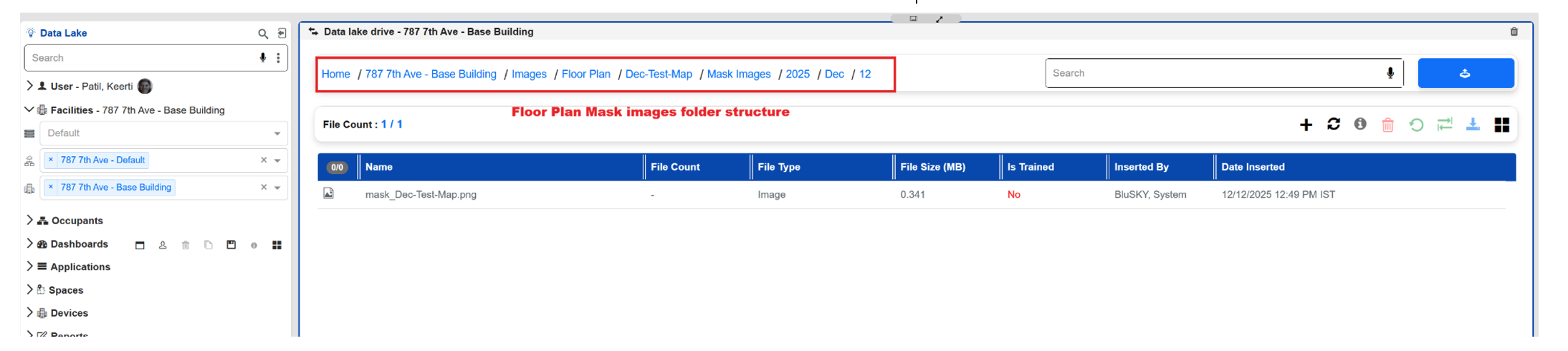
Automatic Mask Image Uploads:
Mask images generated by the Auto-Label pipeline are now automatically uploaded to Datalake under the path:
Floor Plan / {map name} / Mask Image / {Year} / {Month} / {Date} /file
Interactive Maps Enhancements**:**
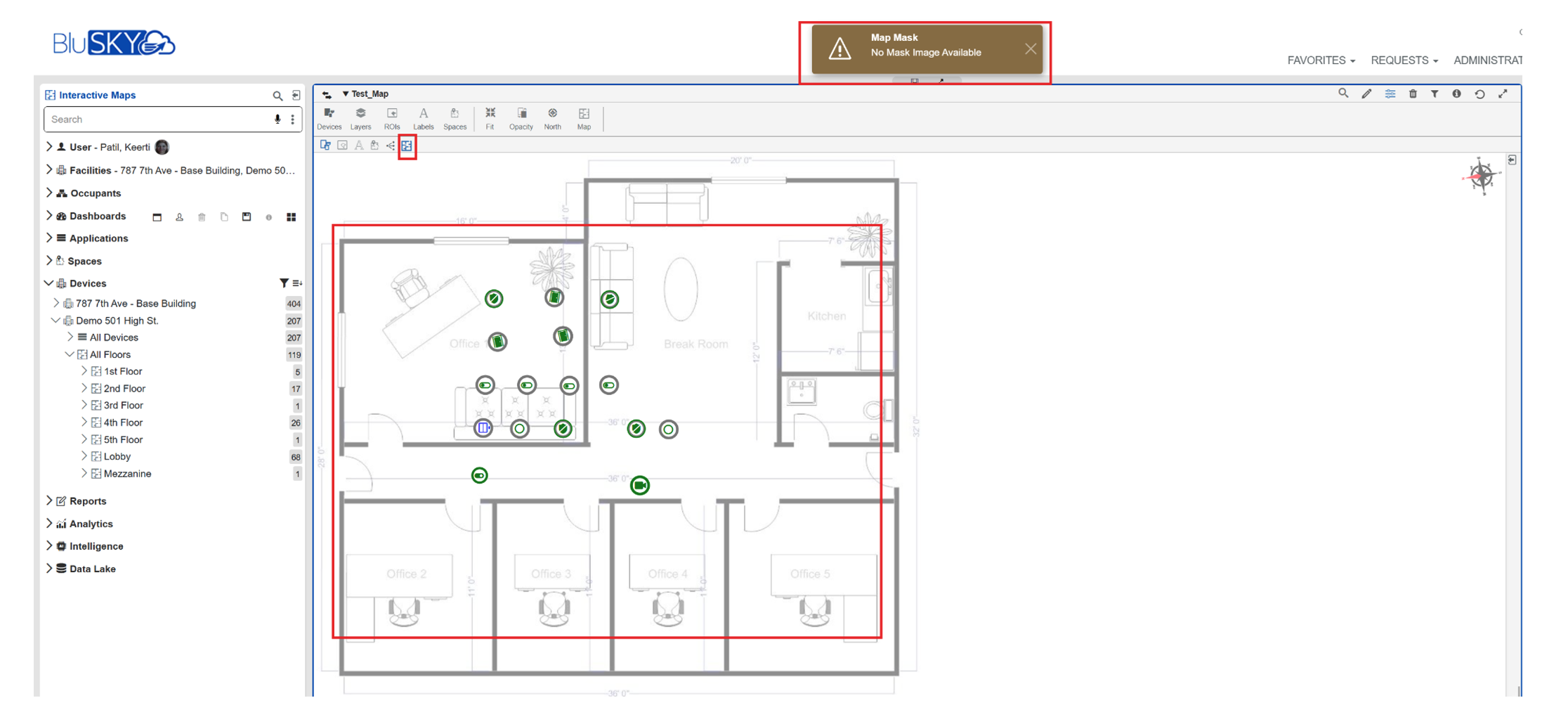
**Mask Image Toggle Option:**A new toggle option has been added to allow users to view the Auto-Label generated mask image directly in Interactive Maps.
- If a mask exists → it is displayed.
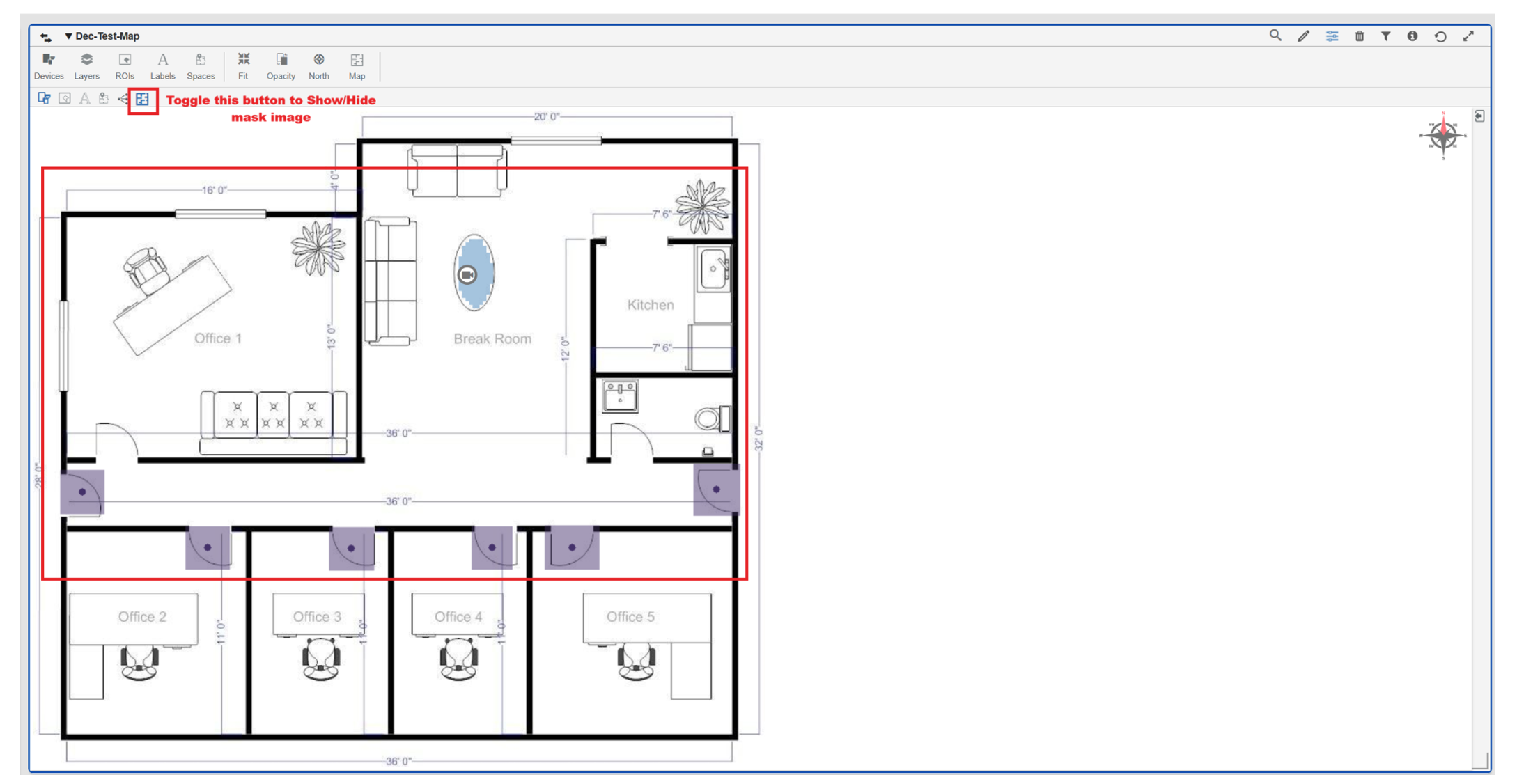
- If no mask is available → the system displays “Mask Files doesn’t exist” and reverts to the original map image.
Auto-Label Pipeline Integration:
The Auto-Label pipeline is now fully integrated with Interactive Maps, enabling automatic creation of region-based mask images using:
- BluSKY device layouts
- DXF floor plan files
- Landmark detection
Pipeline Triggering Behavior:
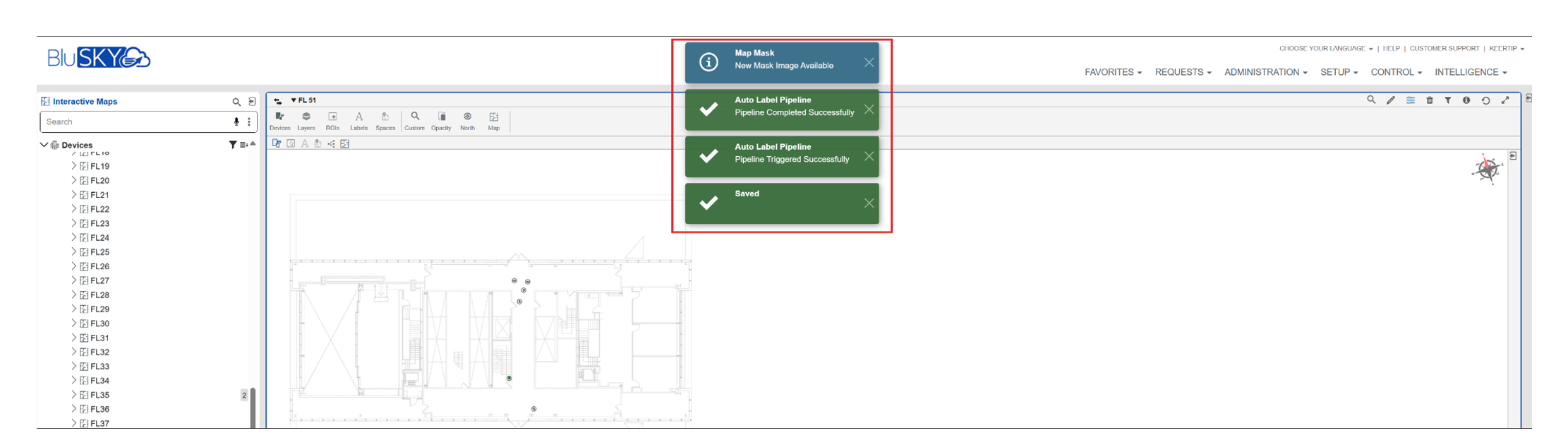
- The pipeline now runs whenever the user clicks Save in Edit Mode, even if no edits were made.
- On success → users receive a notification that the mask image has been generated and can view it using the Mask Image option.
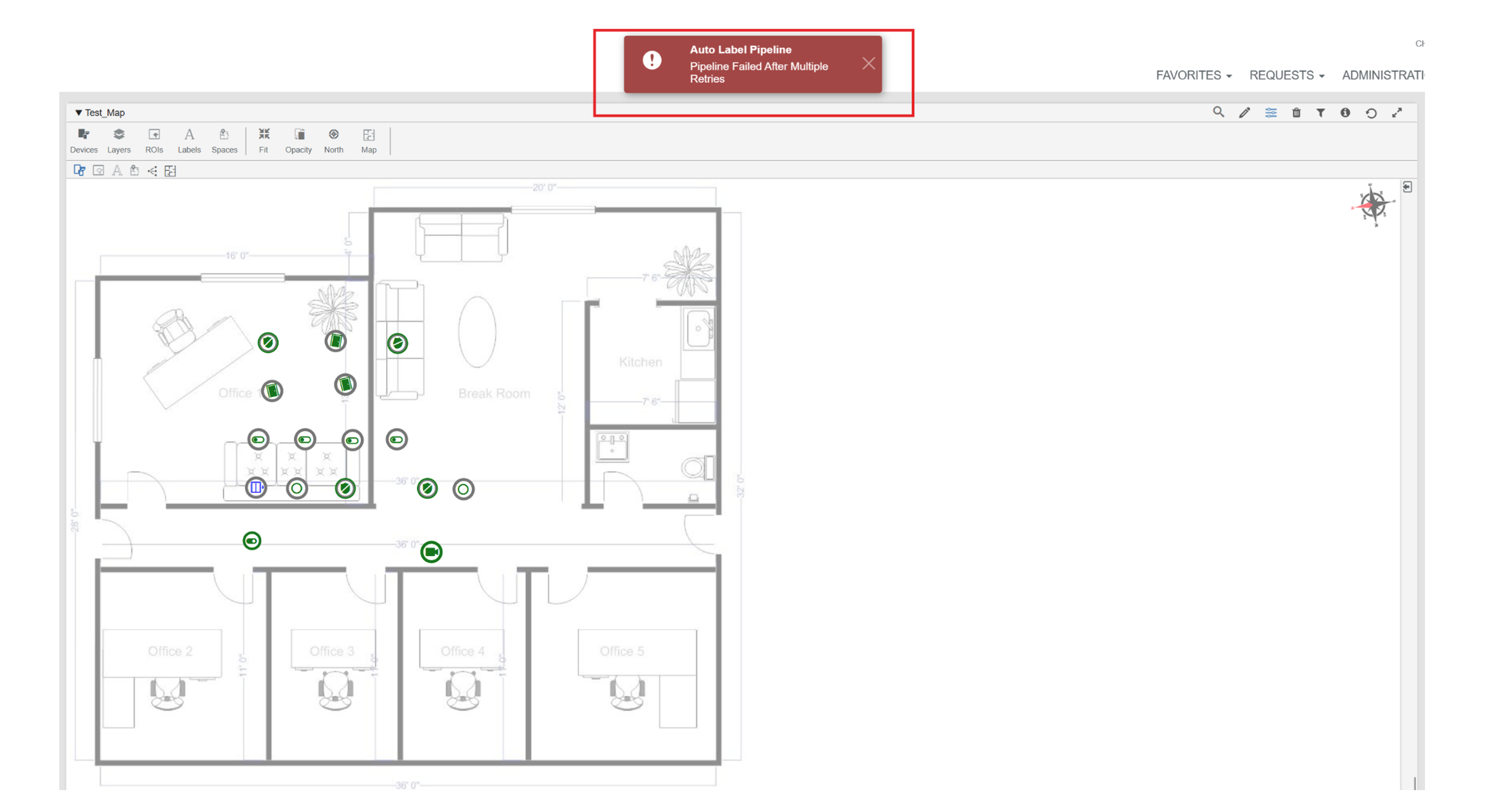
- On failure → an error message is displayed, and the previous mask image remains available.
AI Ticketing beta (BluB0X only):
Features:
- AI Ticketing enables users to create support and service requests.
- The system intelligently assigns priority, system, and responsible teams based on context and historical data.
**Configuration:**Configuration lets the user set up and customize the ticketing system.
Category:
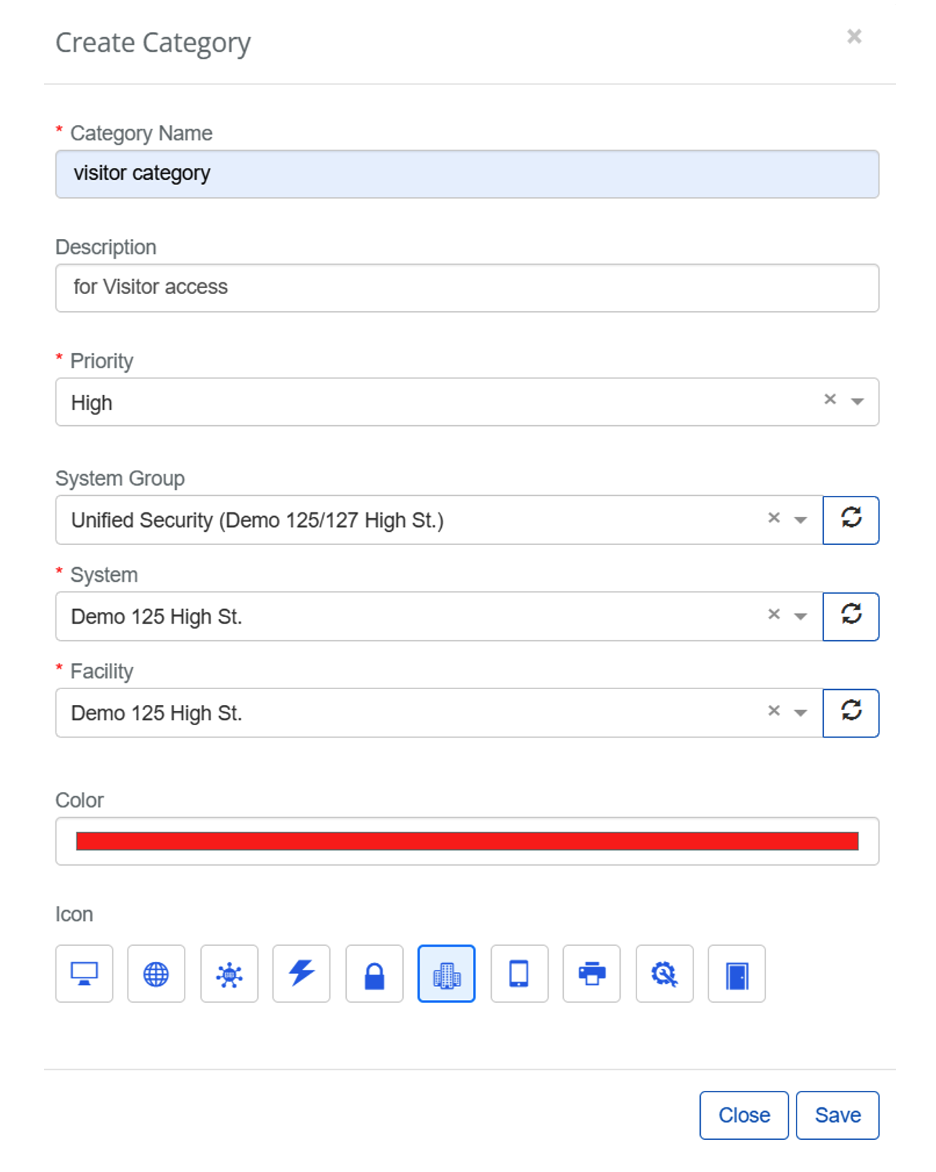
- A category defines what type of issue a ticket represents. It helps apply the correct form and route to the ticket for the appropriate team.
- Administrators can create new ticket categories with name, description, and default priority.
- Categories can be scoped by system group, system, and facility.
- Color and icon selection is available for visual identification across tickets and lists.
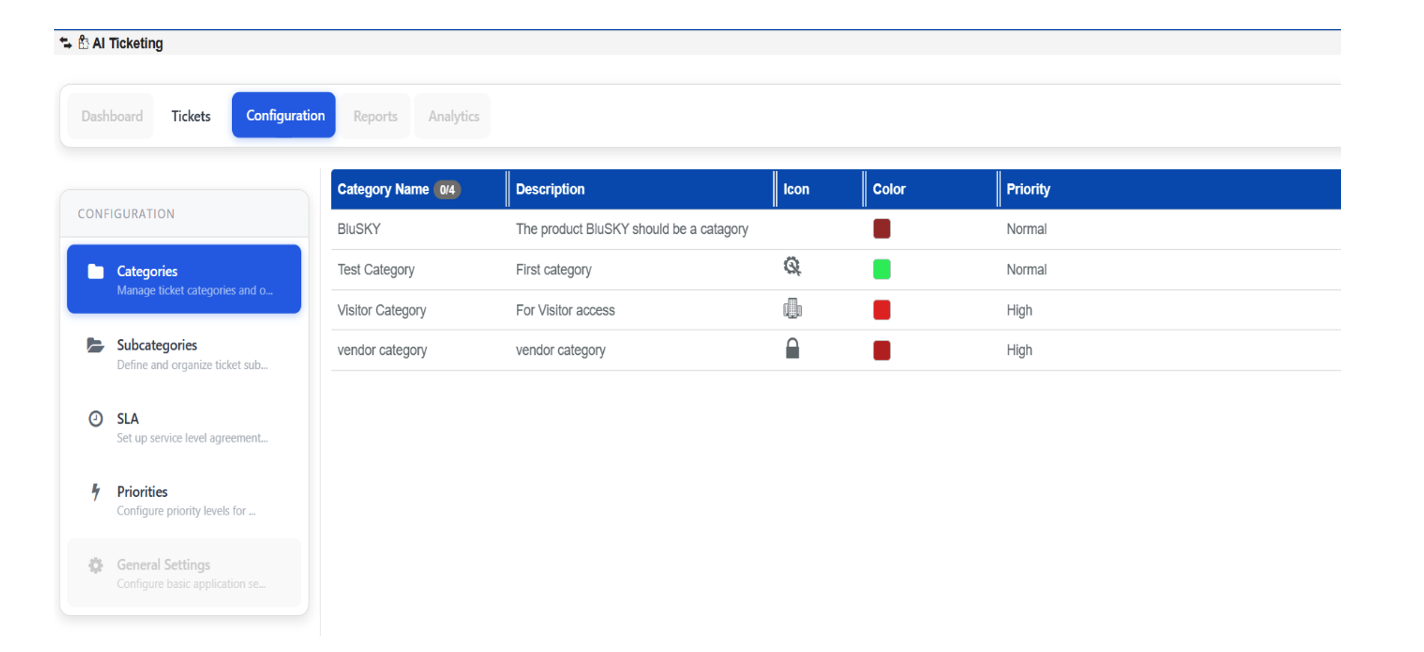
Category list:
- Administrators can view and manage all ticket categories from a centralized configuration page.
- The list displays category name, description, icon, color, and default priority.
- Categories created or updated here are used for ticket classification and routing.
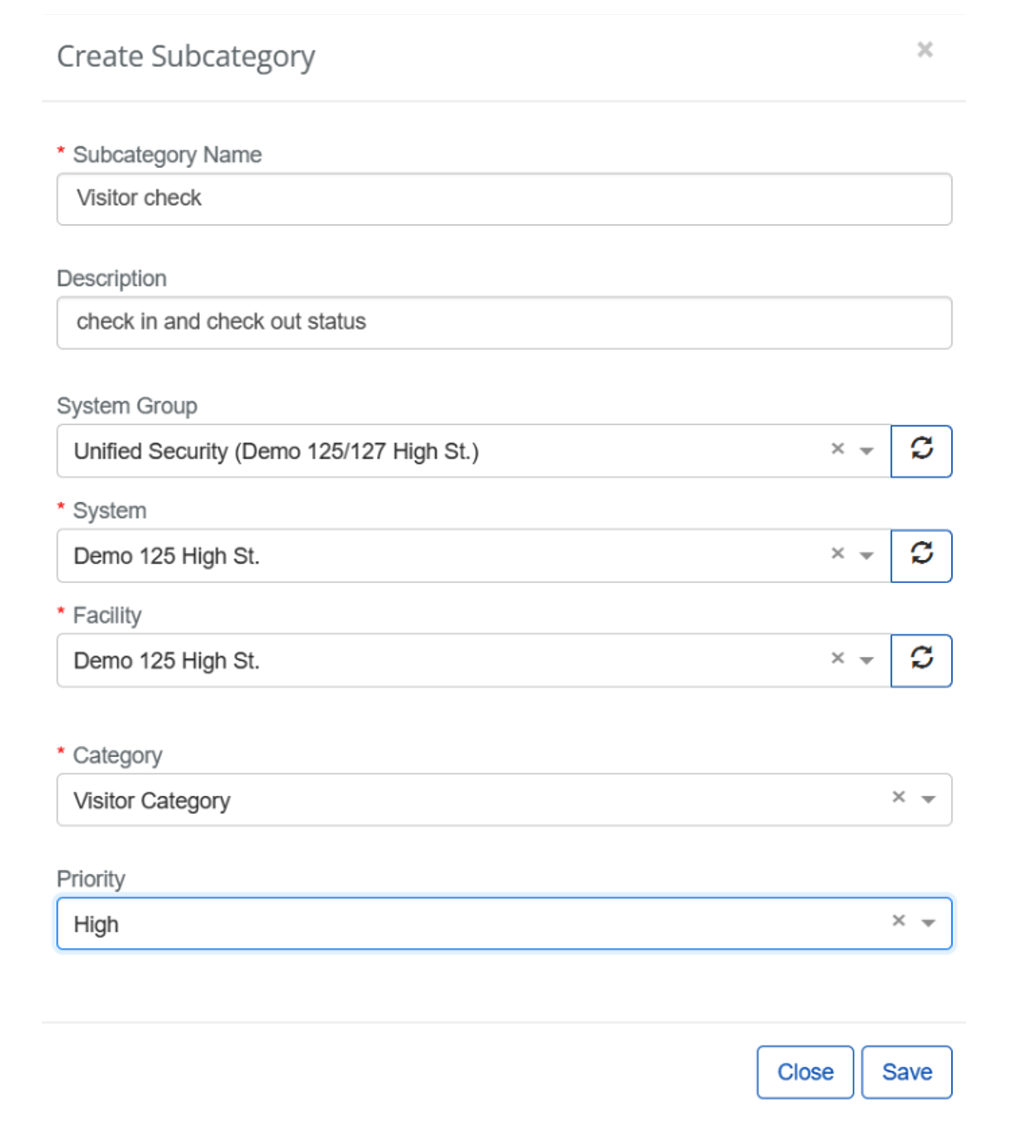
Sub Categories:
- Administrators can create subcategories mapped to a parent category.
- Subcategories can be scoped by system group, system, and facility with an assigned priority.
- Configured subcategories are used for detailed ticket classification and routing.
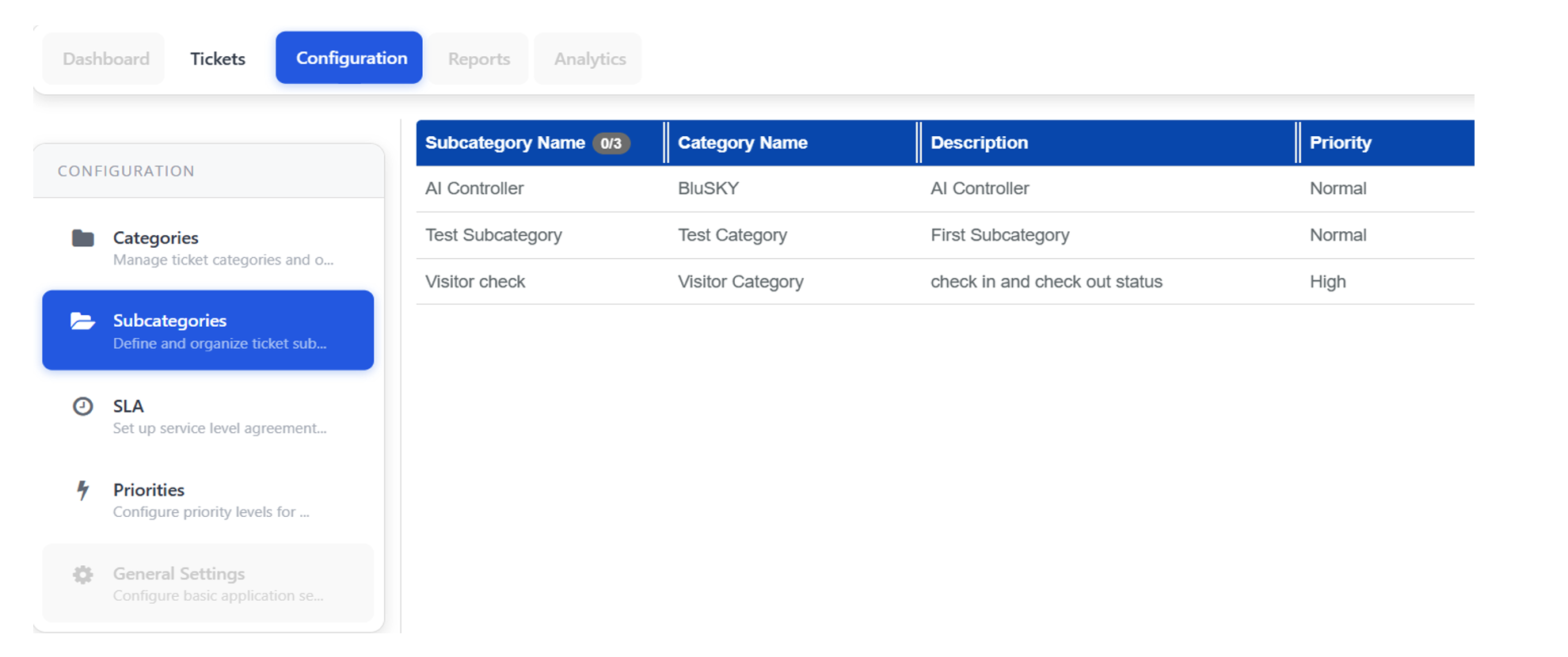
Sub Category List:
- Administrators can view and manage all ticket subcategories from a centralized configuration page.
- The list displays subcategory name, parent category, description, and priority.
- Subcategories configured here are used for detailed ticket classification and routing.
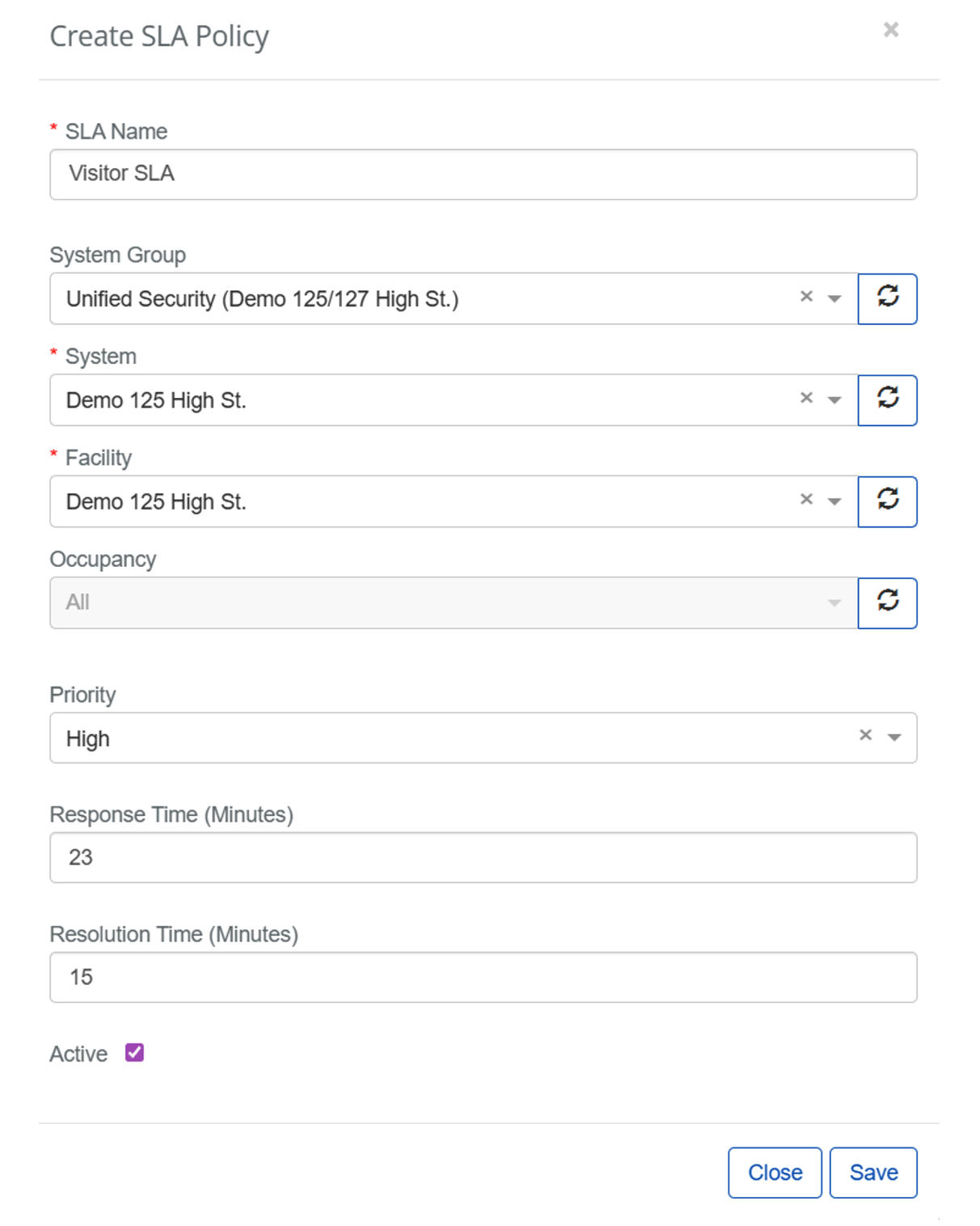
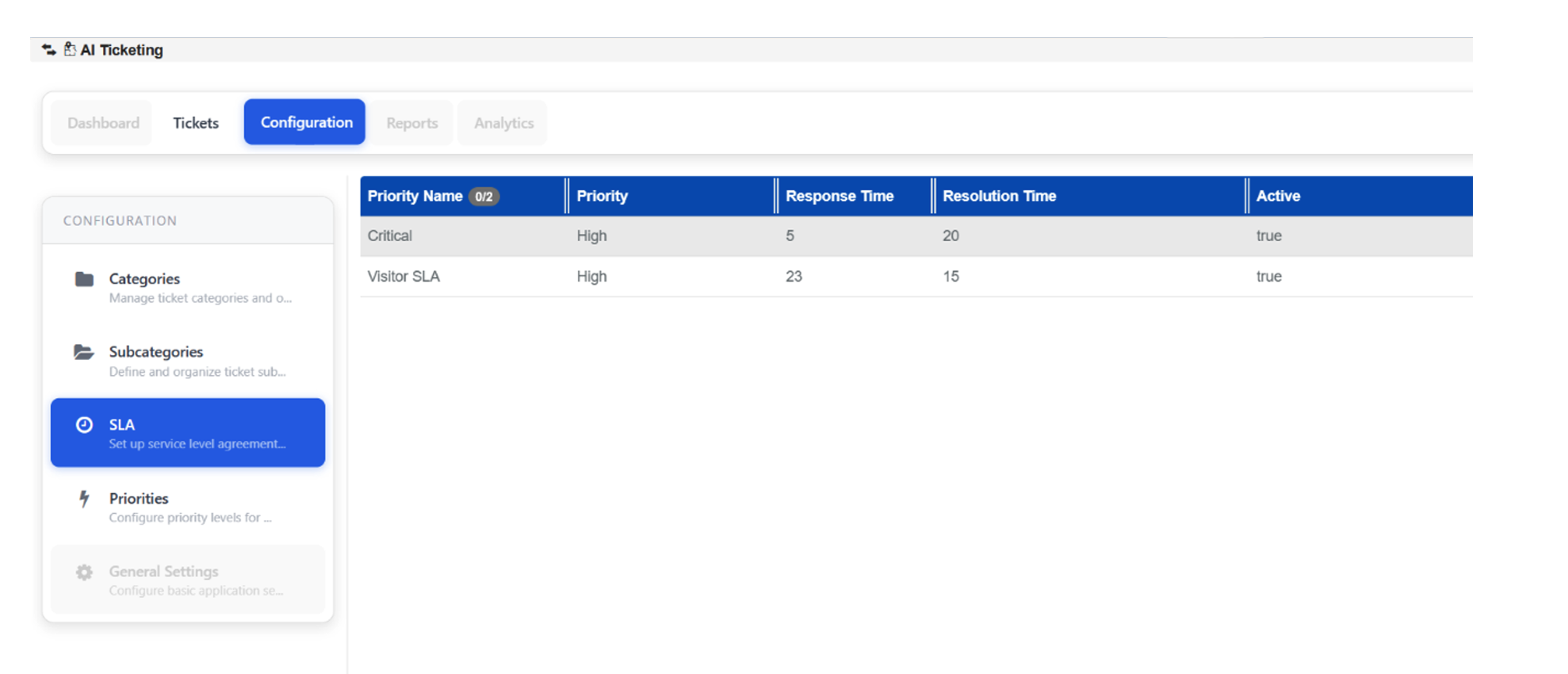
Service Level Agreement:
- Service Level Agreements (SLAs) define the expected response and resolution times for tickets based on priority and type.
- The system tracks each ticket against its SLA and uses visual indicators and escalations to prevent or handle breaches.
- SLA policies can be scoped by system group, system, facility, occupancy, and priority.
- Active SLAs are used to track ticket compliance and drive escalation.
Service Level Agreement List:
- Administrators can view and manage all SLA policies from a centralized configuration page.
- The list displays priority, response time, resolution time, and active status for each SLA.
- Configured SLAs are used to monitor ticket performance and enforce service commitments.
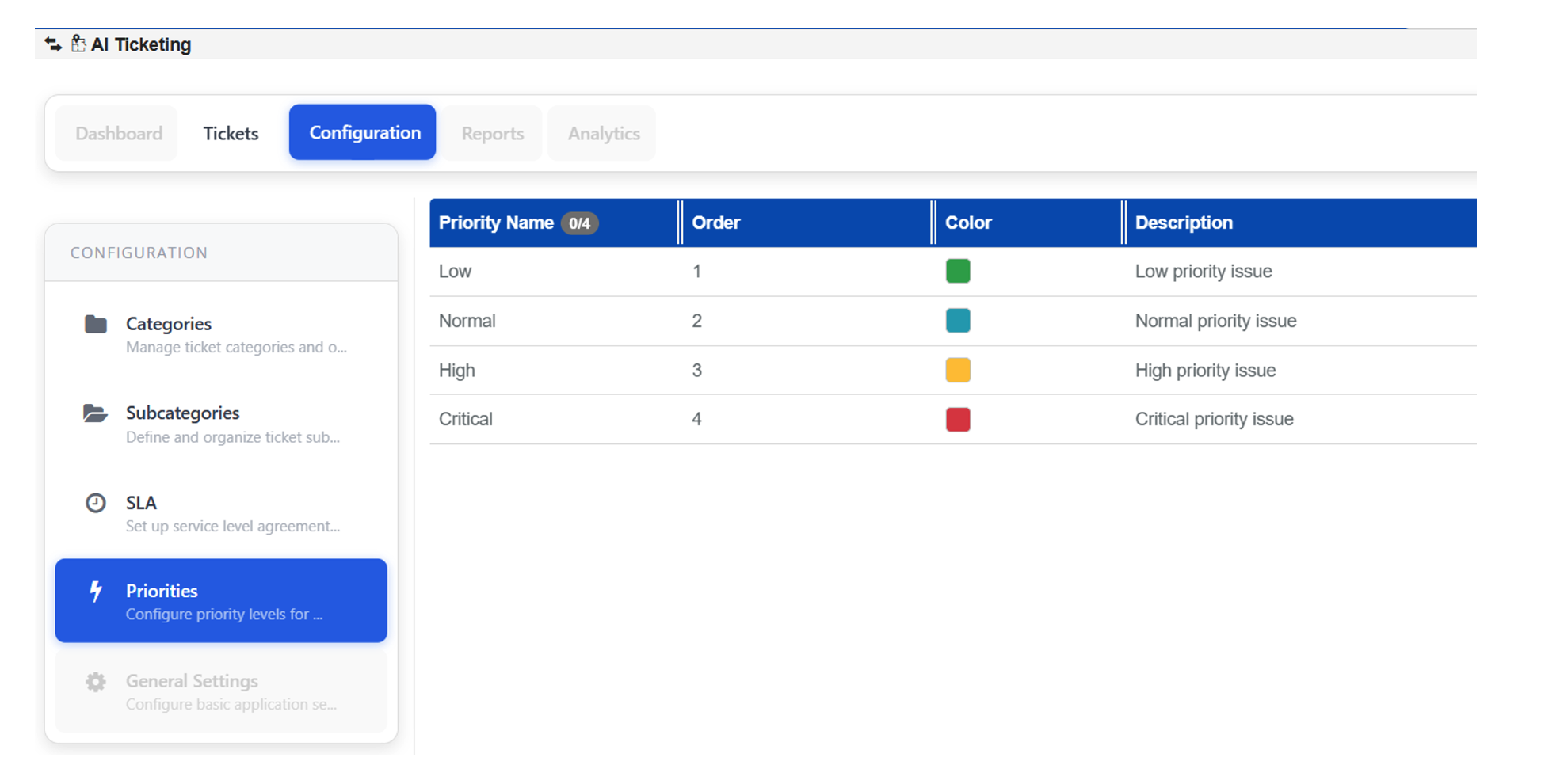
Priorities:
- Administrators can define and manage ticket priority levels from a centralized configuration page.
- Each priority includes an order, color, and description for visual and workflow clarity.
- Configured priorities are used across ticket creation, SLA assignment, and escalation workflows.
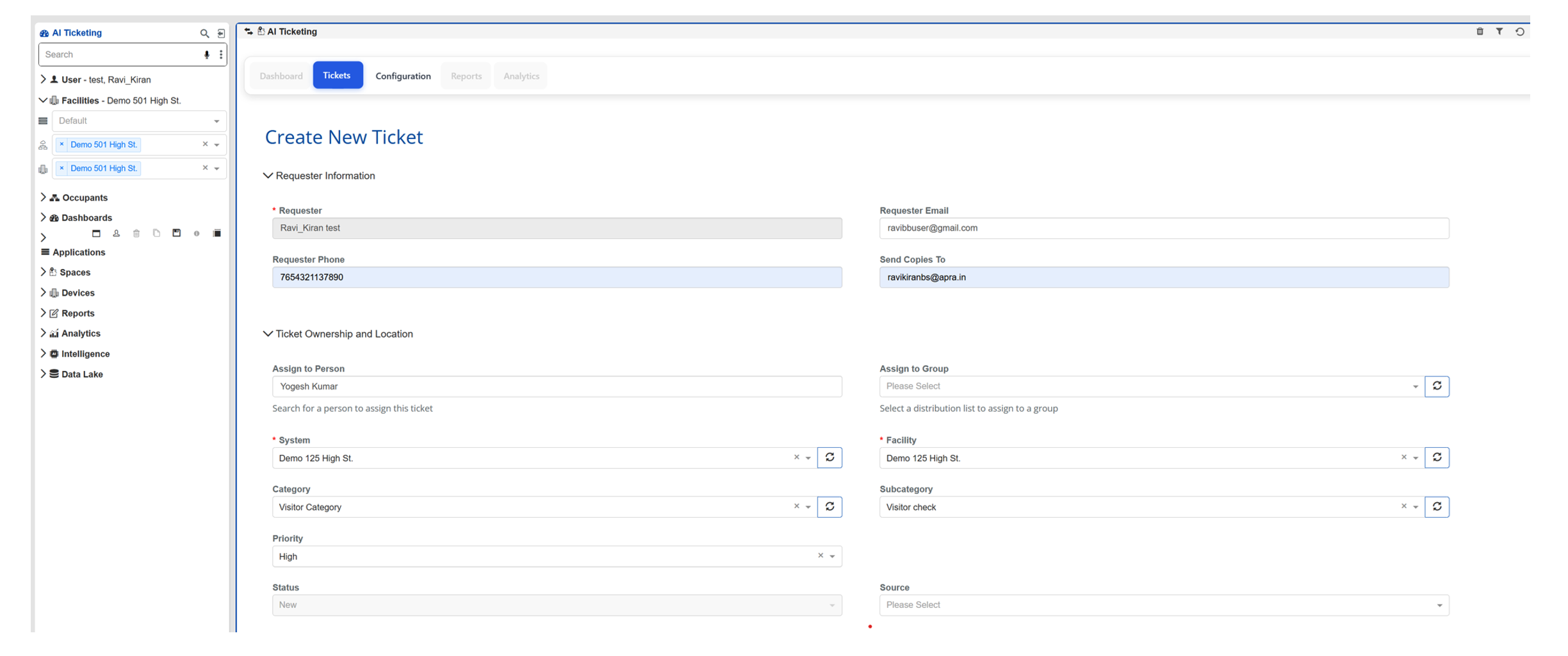
Tickets:
Features:
- Users can create new tickets by entering requester details, ownership, location, priority, and source information.
- The page supports assignment to individuals or groups, along with system, facility, category, and subcategory selection.
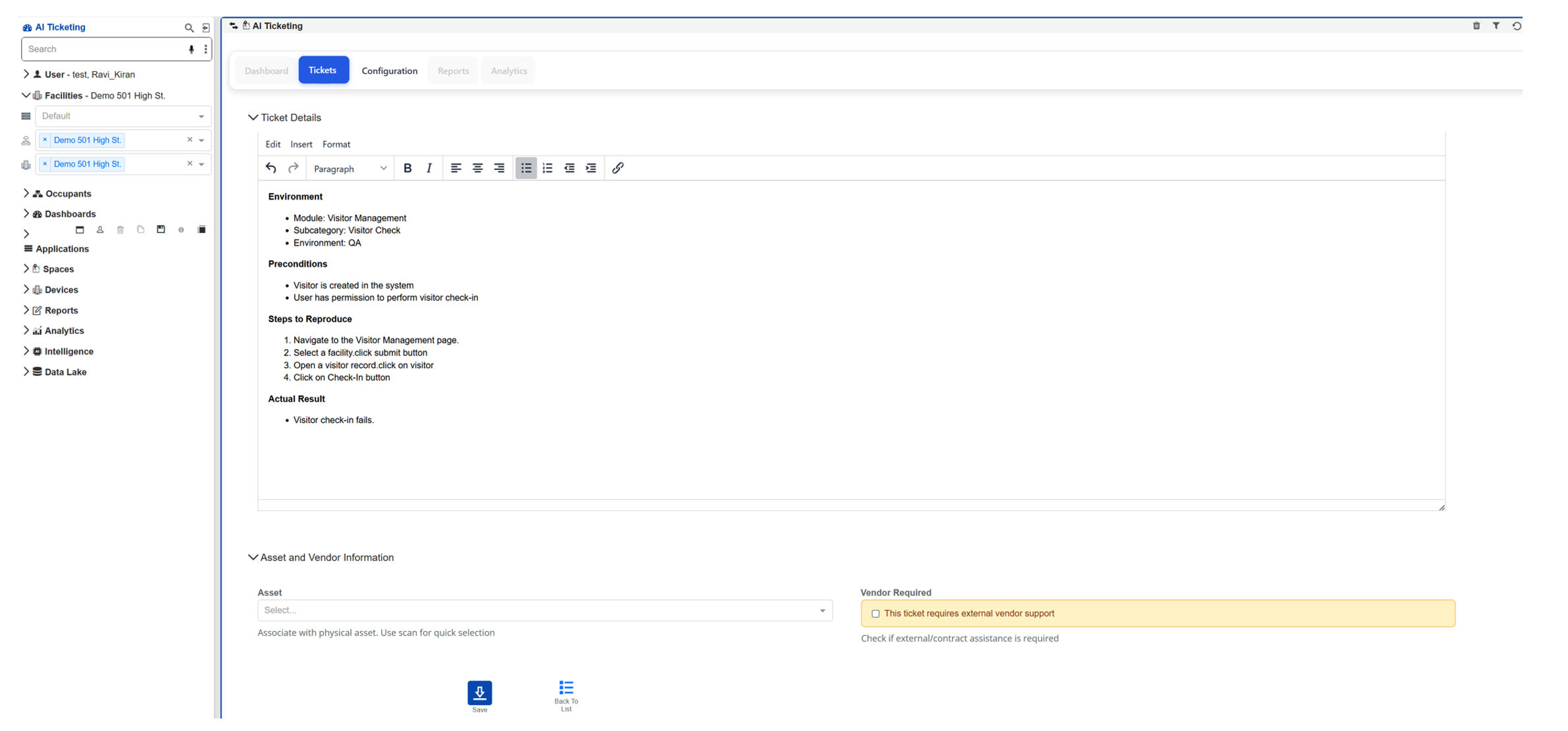
- A rich-text description editor enables detailed issue reporting.
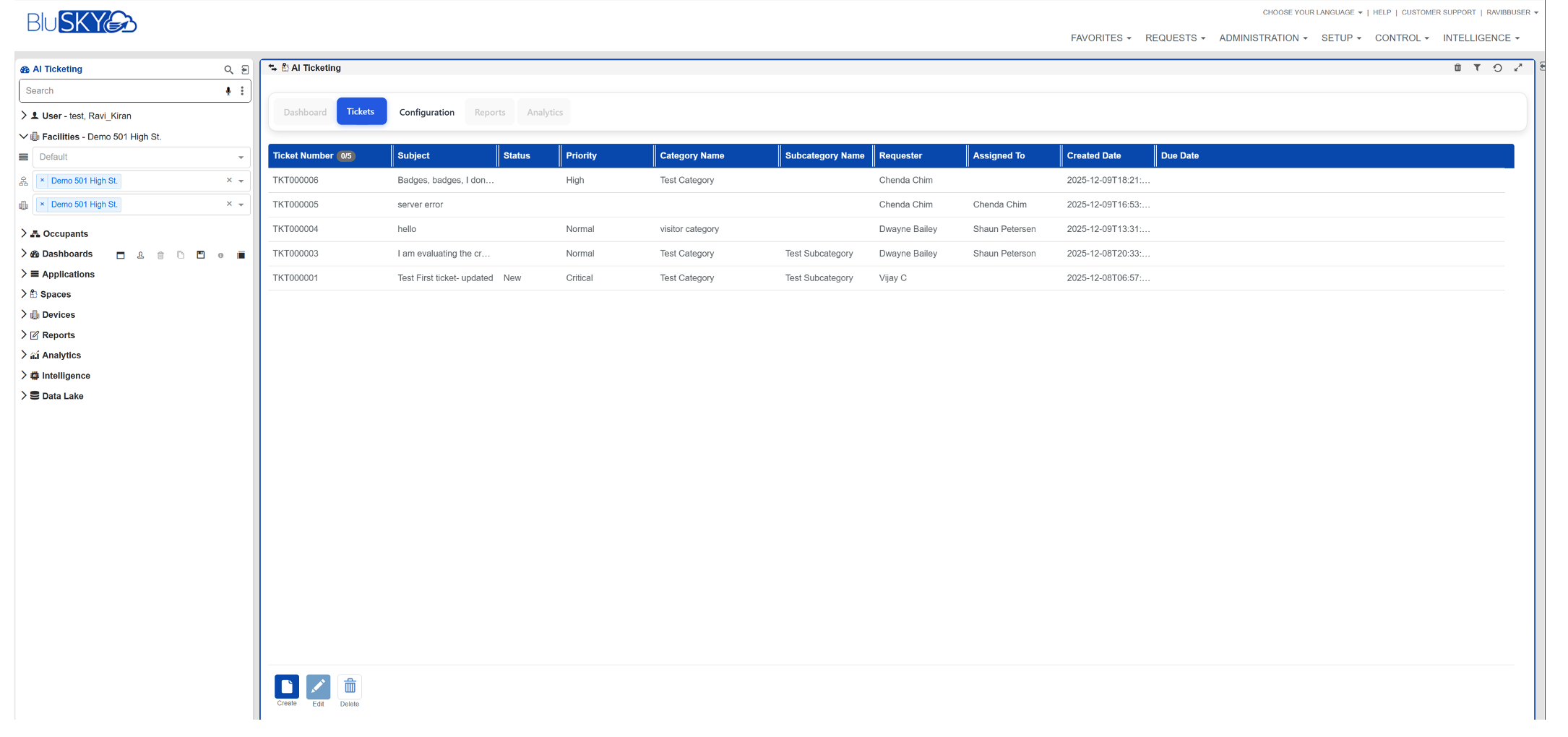
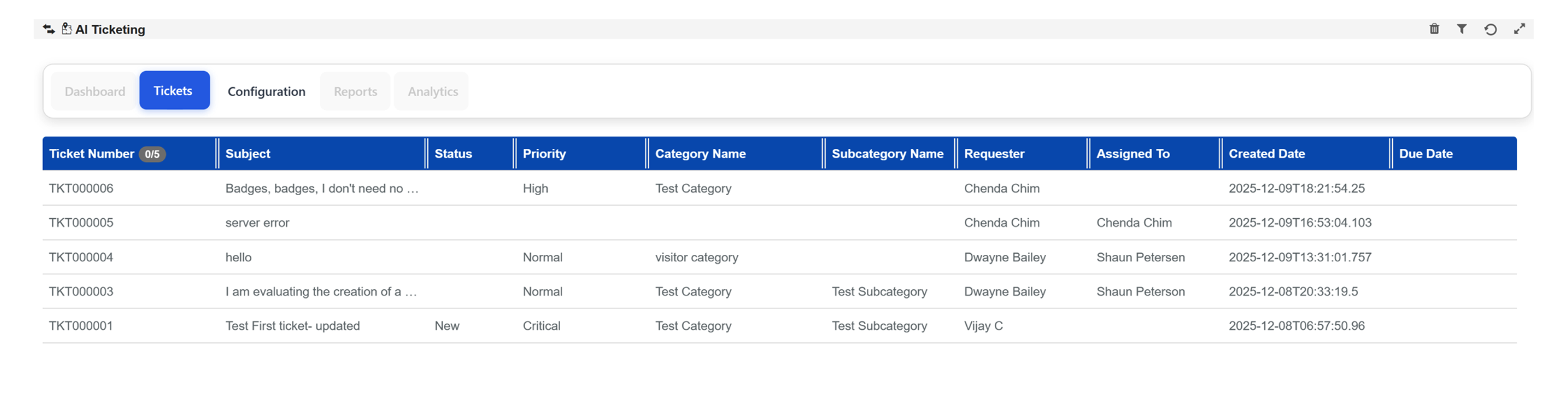
AI Ticket List:
- Users can view all tickets in a centralized list with key details such as ticket number, subject, status, priority, category, and subcategory.
- The list also displays requester, assignee, created date, and due date for better tracking.
- Tickets can be quickly reviewed and selected from the list for further action or updates.
BluBØX AI Web:
Features:
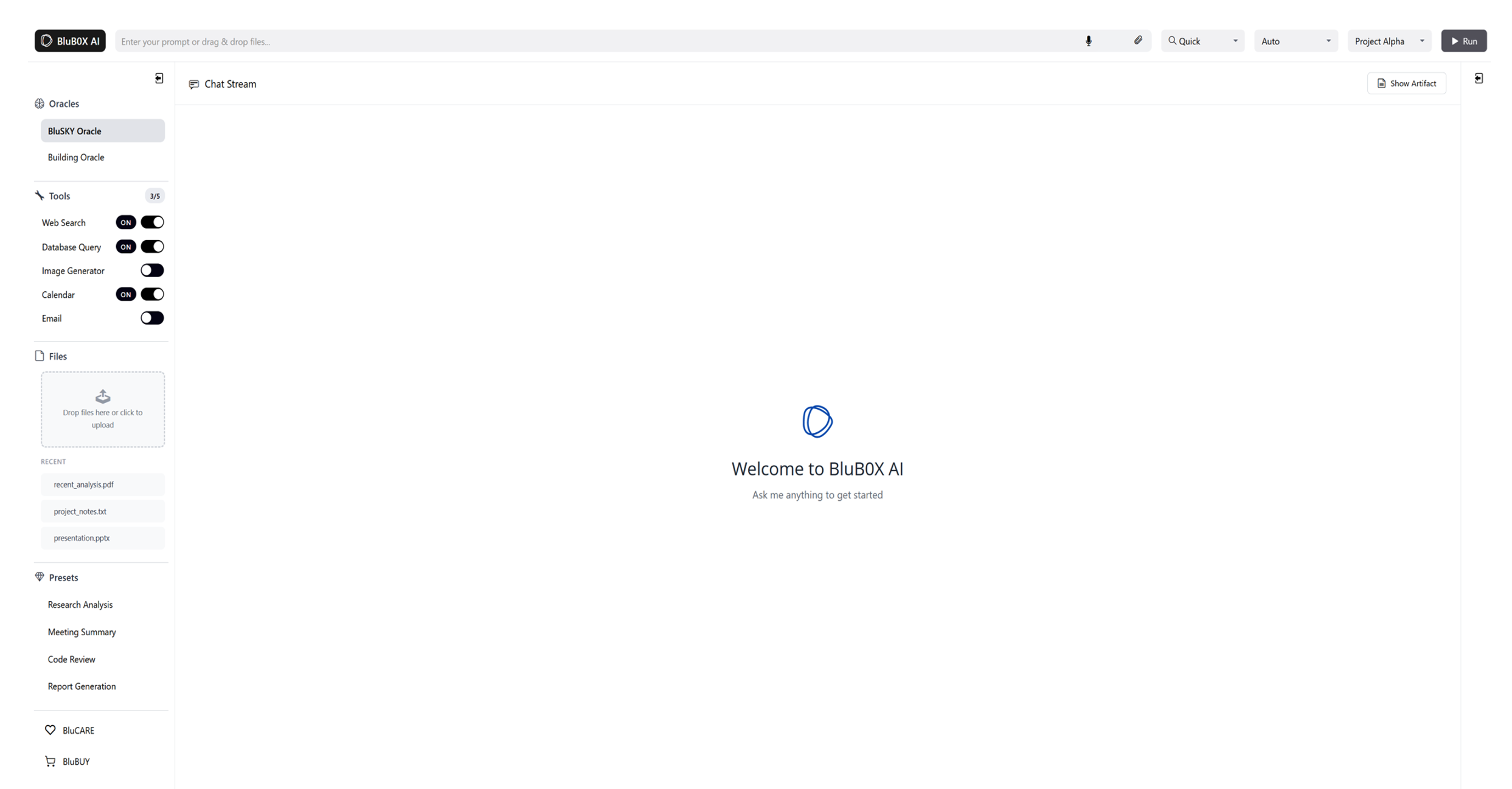
A completely new prompt input bar has been introduced, allowing users to type prompts directly or drag and drop files into the bar for instant processing. The redesigned input area provides a wider, clearer interaction zone and enhances usability for both text-based and file-based workflows.
The prompt bar includes newly added microphone support, enabling users to speak their commands or queries instead of typing. This feature improves accessibility and provides hands-free interaction for faster input.
A new attachment icon has been included to allow users to manually upload files with a single click. This offers an alternative to drag-and-drop and supports all commonly used document and media formats.
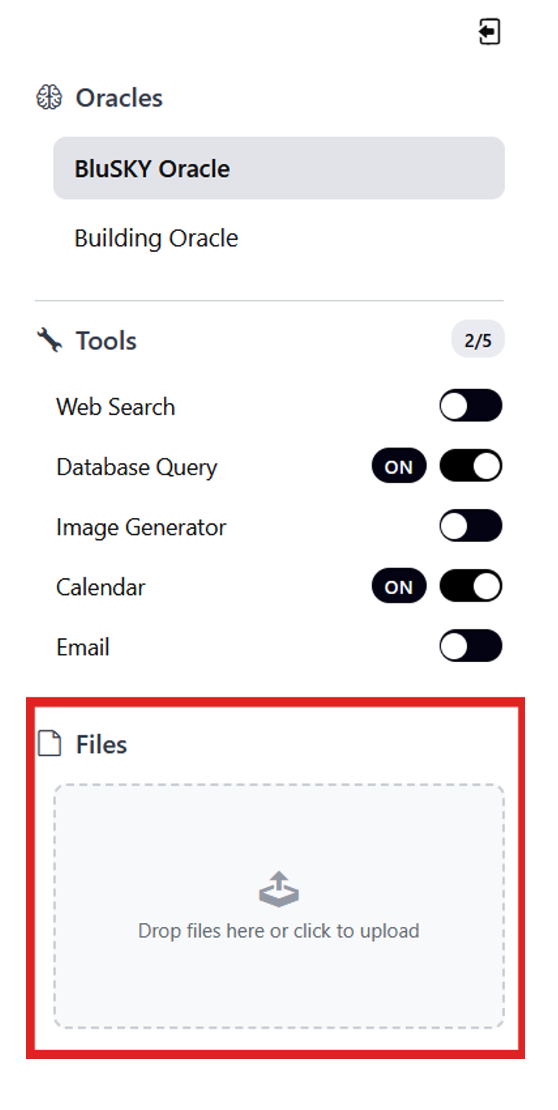
New Oracles selector panel:
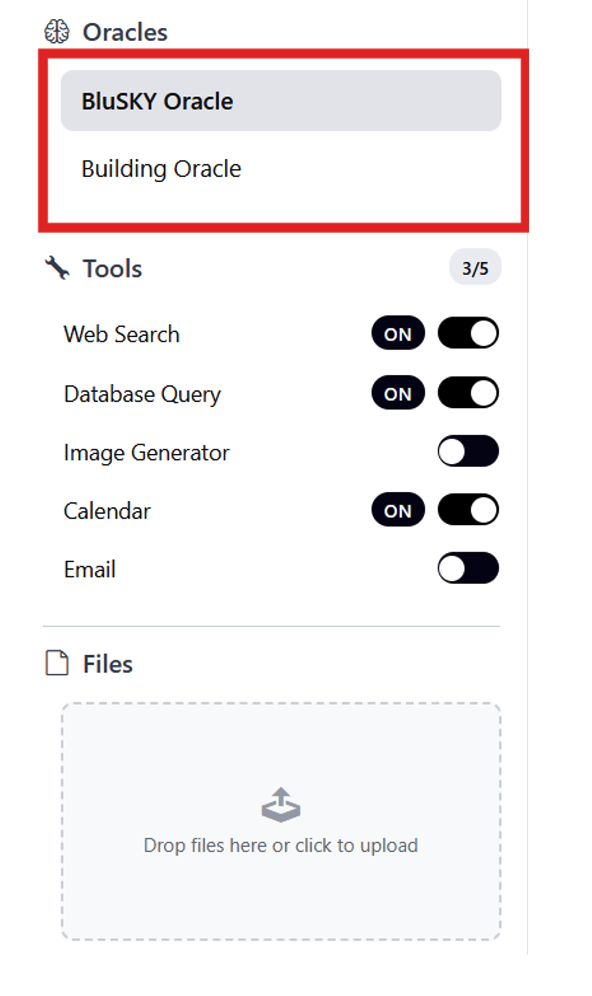
- A new Oracles panel has been added, allowing users to switch between BluSKY Oracle and Building Oracle.
- The active oracle is now clearly highlighted for better visibility.
- A new oracle icon has been introduced to improve quick recognition and navigation.
Tools:
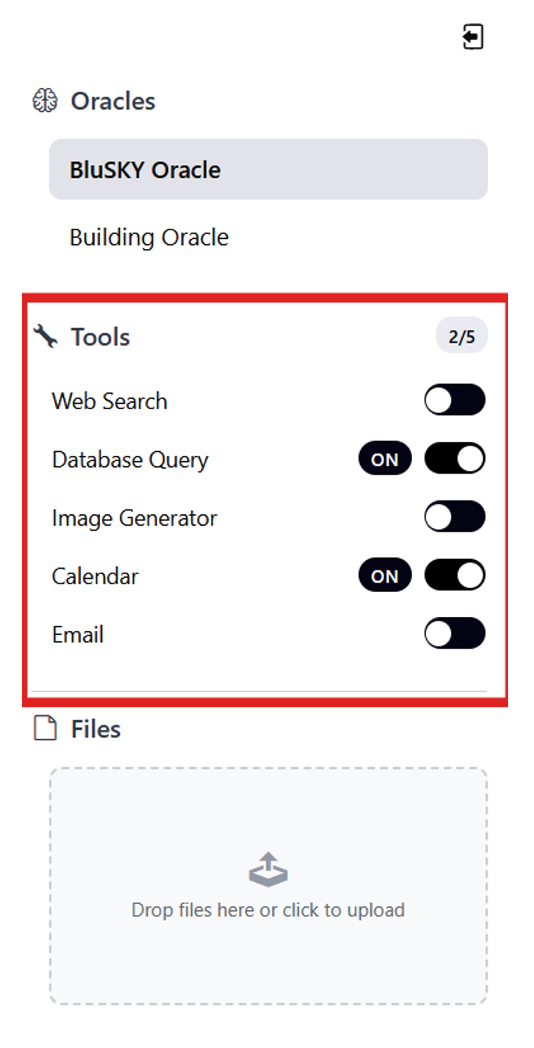
- A new Tools panel has been added, displaying available tools such as Web Search, Database Query, Image Generator, Calendar, and Email.
- Each tool now includes a toggle switch to indicate its on/off state.
Files:
- New files panel has been added with a large drag-and-drop upload area for quick file submission.
- Users can also click the upload zone to manually select documents from their system.
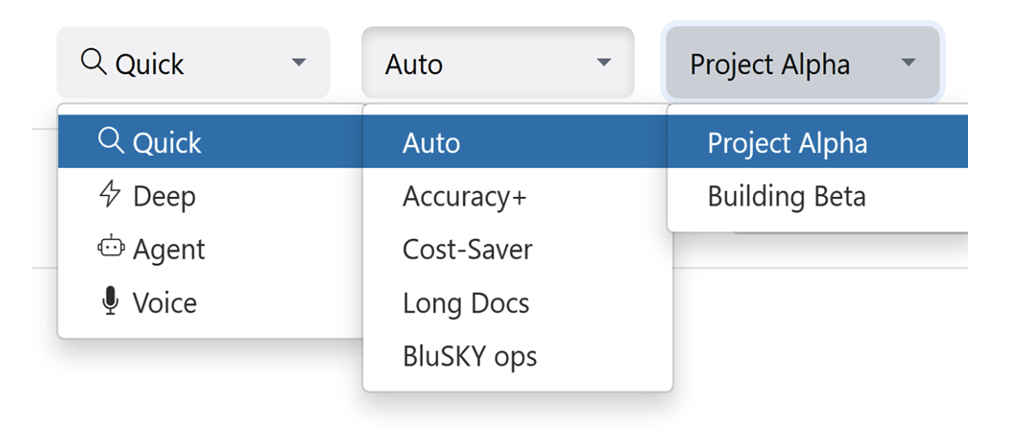
Modes Support:
- A new modes dropdown has been added to display available mode options such as Quick, Deep, Agent, and Voice.
Models Support:
- A new models list has been introduced under the Auto menu to show options like Accuracy+, Cost-Saver, Long Docs, and BluSKY Ops.
WorkSpace Selector:
- A new workspace selector has been added to display available workspaces such as Project Alpha and Building Beta.
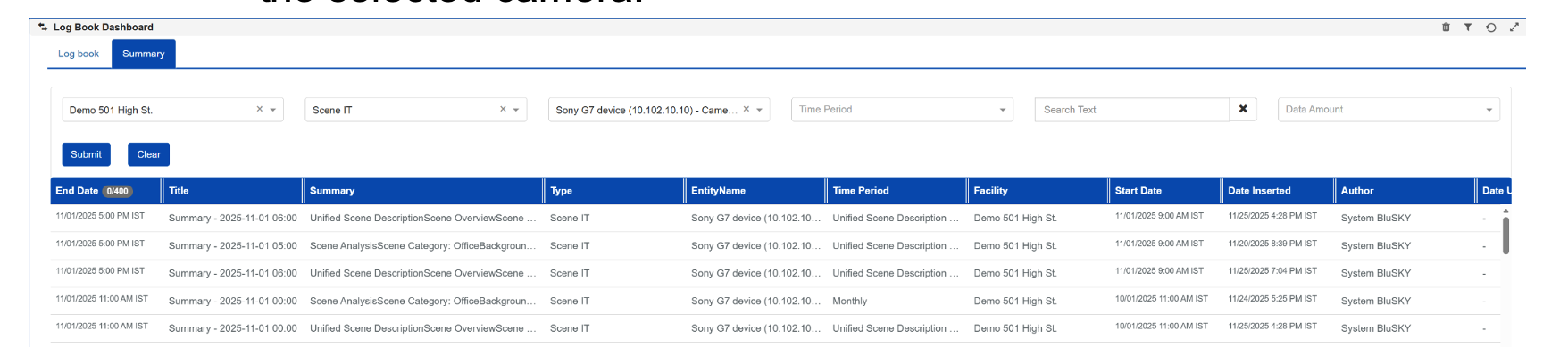
Logbook Enhancements:
- Added a new “Scene IT” summary type to the Logbook Summary list.
- Introduced a Camera filter dropdown to further filter log entries for the selected camera.
Analytics:
Added nine new analytics graphs that provide deeper visibility into alarm activity, trends, and security risks across facilities.
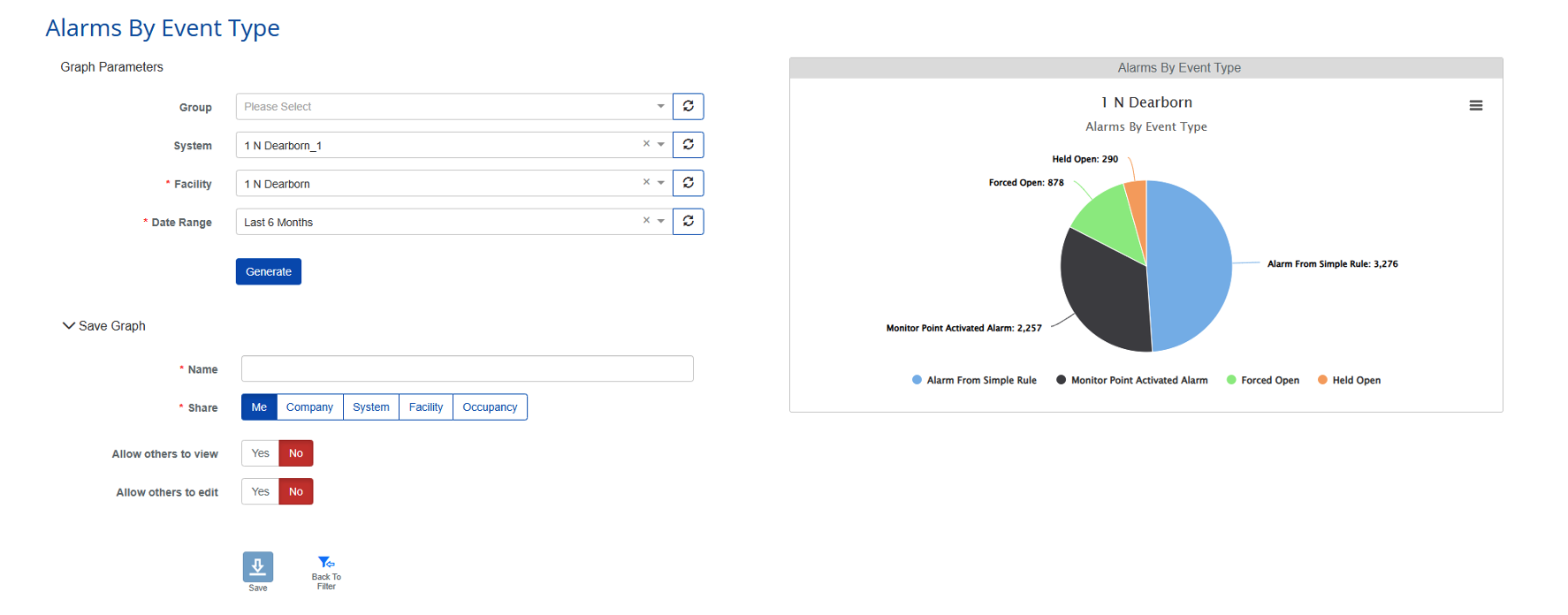
**a.**Alarms By Event Type:
- Displays the distribution of alarms categorized by event type for the selected building and date range, enabling quick identification of the most common alarm events.
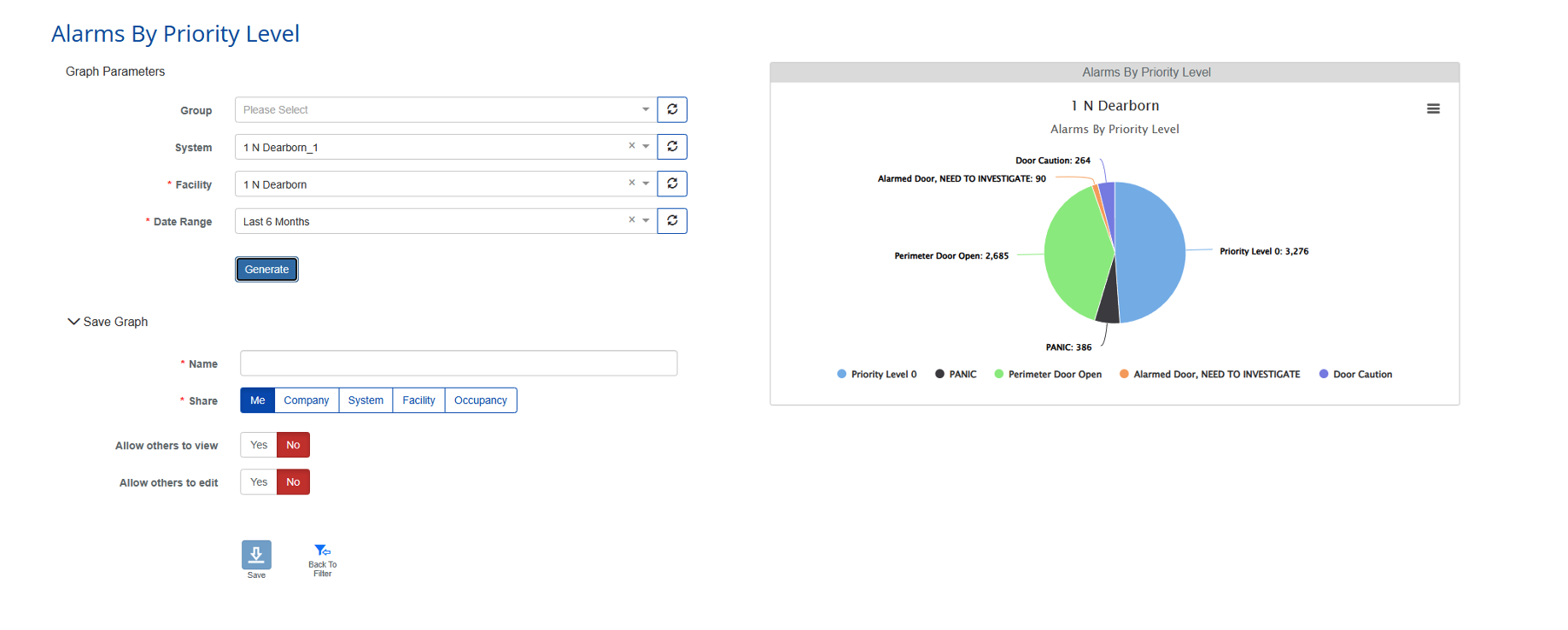
**b.**Alarms By Priority Level:
- Shows alarms grouped by priority level, helping users understand the severity distribution of alarm activity within a facility.
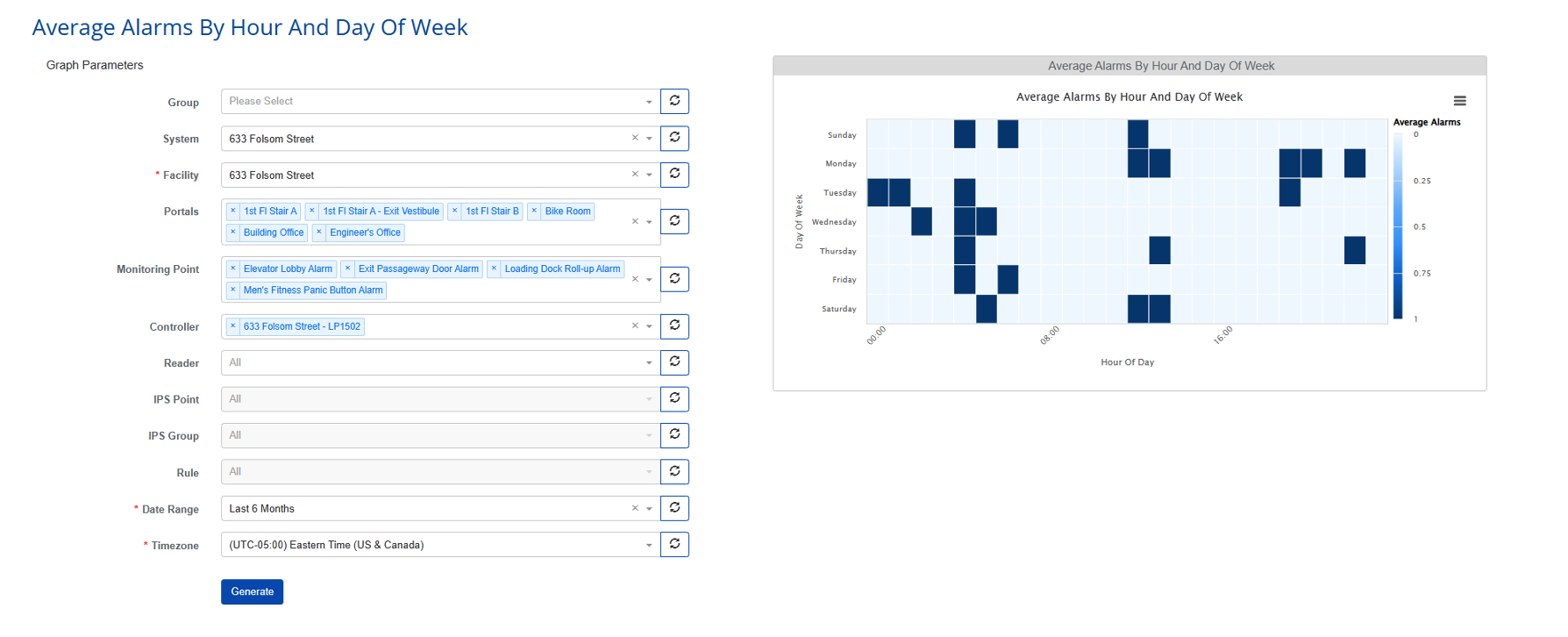
**c.**Average Alarms By Hour And Day Of Week:
- Visualizes average alarm activity by hour across each day of the week, highlighting recurring temporal patterns and peak activity periods.
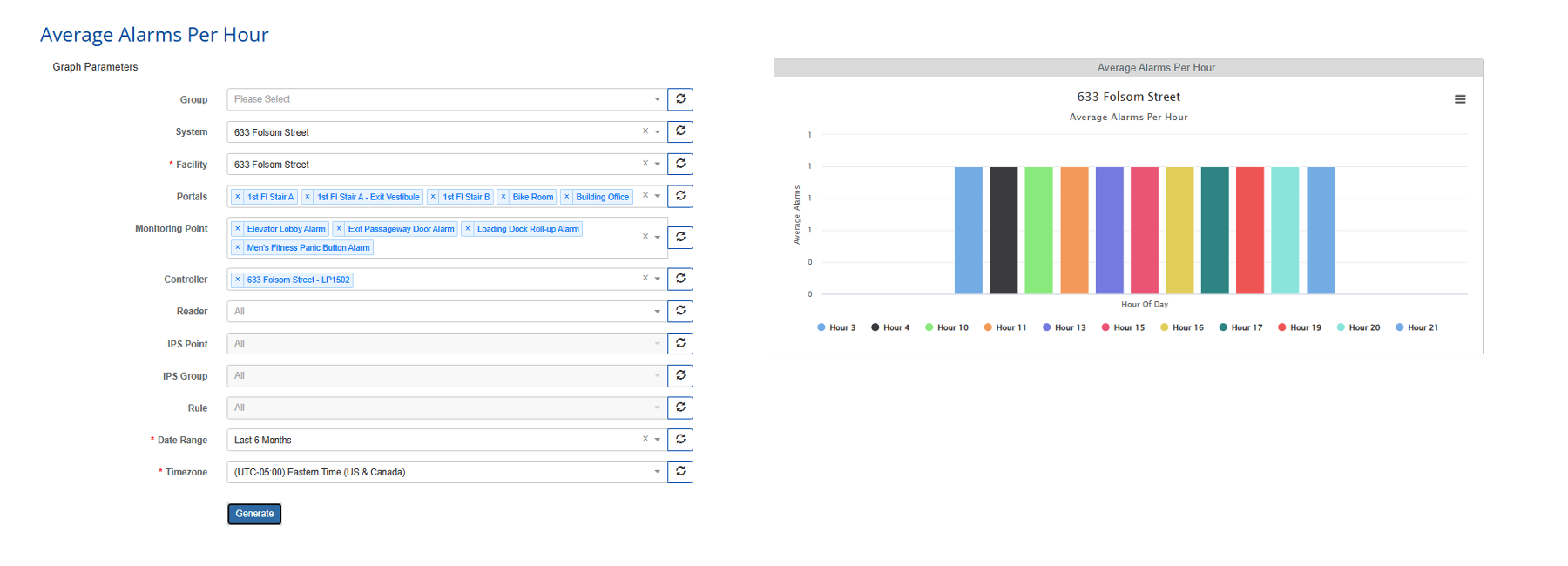
**d.**Average Alarms Per Hour:
- Illustrates the average number of alarms generated during each hour of the day, making it easier to identify high-risk or high-traffic hours.
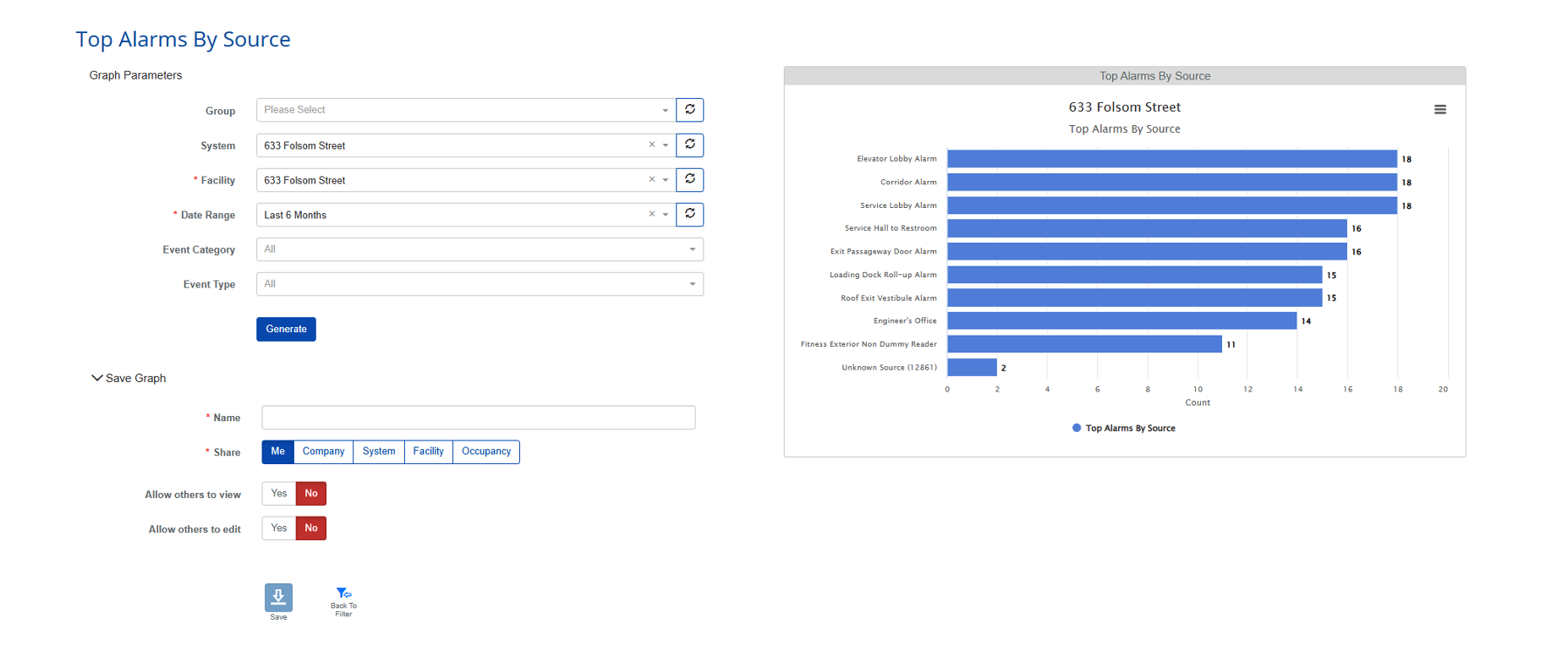
**e.**Top Alarms By Source:
- Ranks the top alarm-generating sources (doors, portals, or points) by count, allowing teams to quickly pinpoint problem locations.
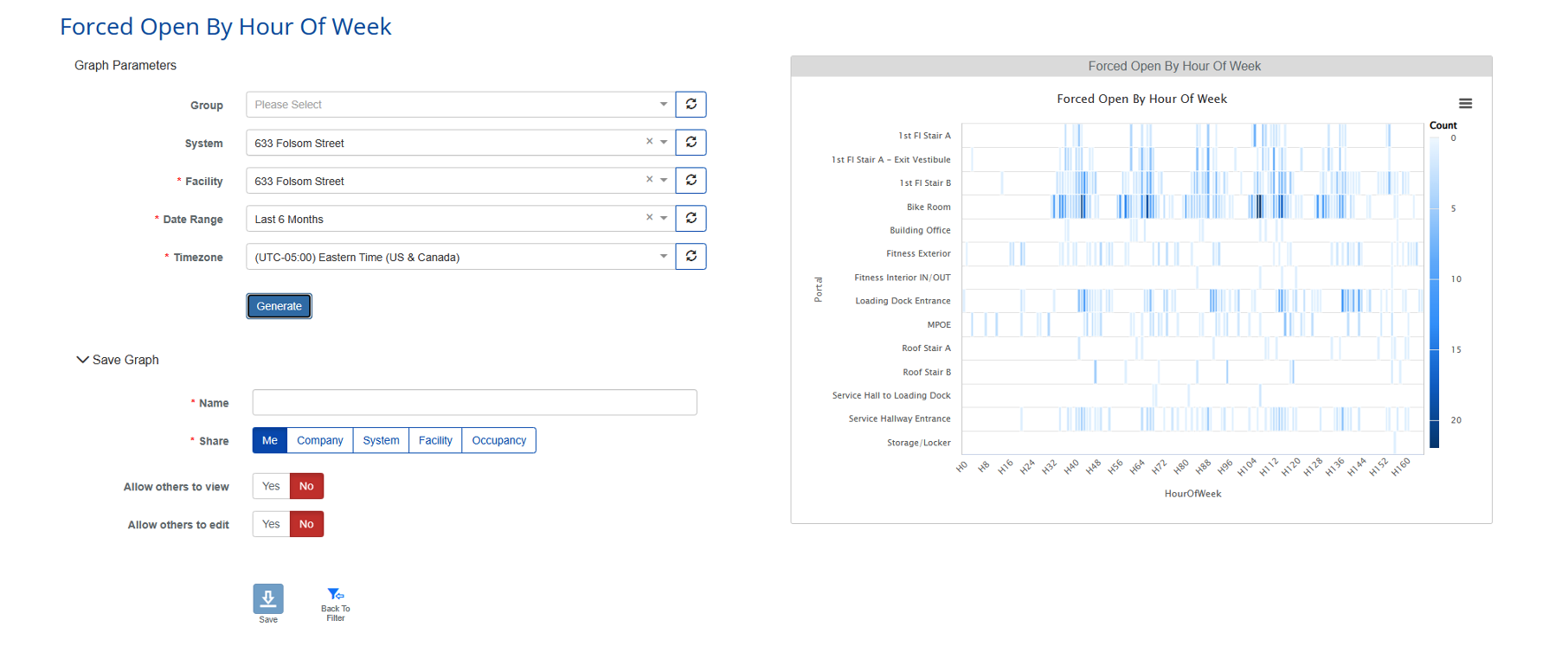
**f.**Forced Open By Hour Of Week:
- Displays forced-open alarm activity by hour across the week, helping identify recurring forced-open incidents tied to specific times or portals.
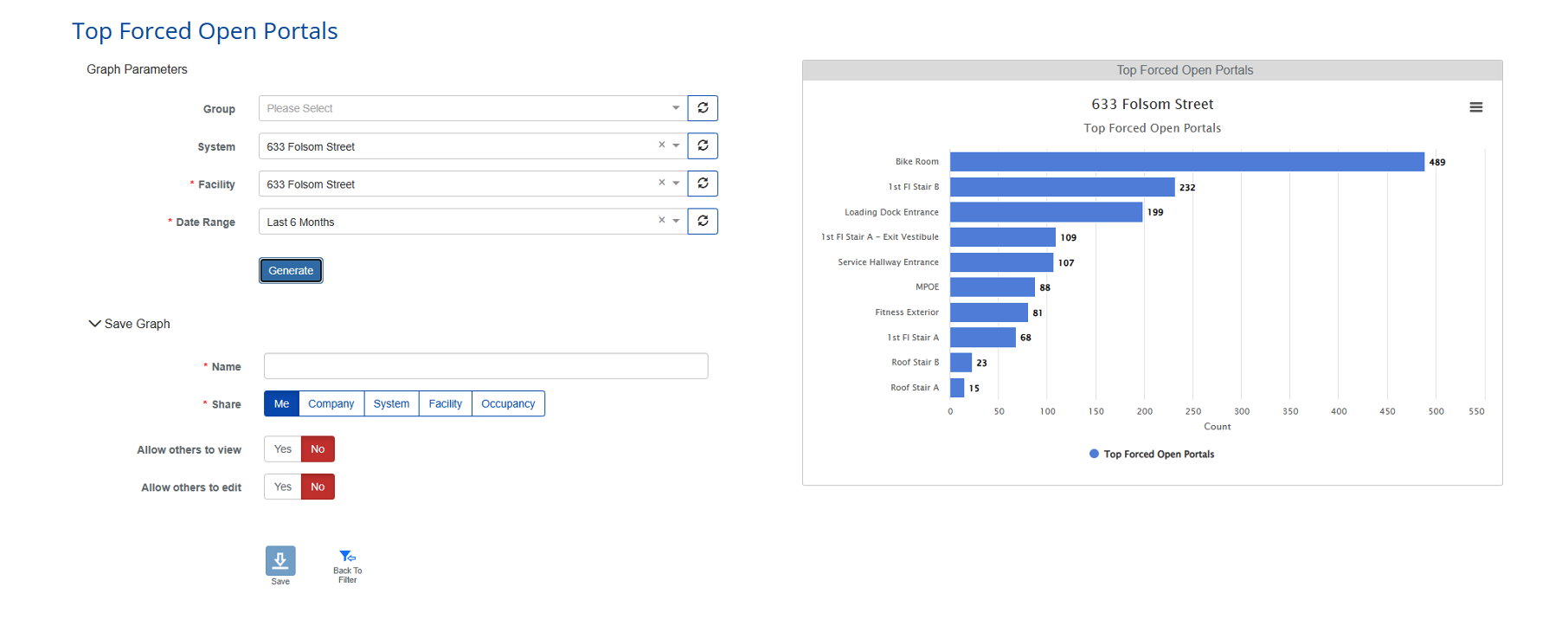
**g.**Top Forced Open Portals:
- Highlights the portals with the highest number of forced-open alarms, enabling targeted investigation and corrective action.
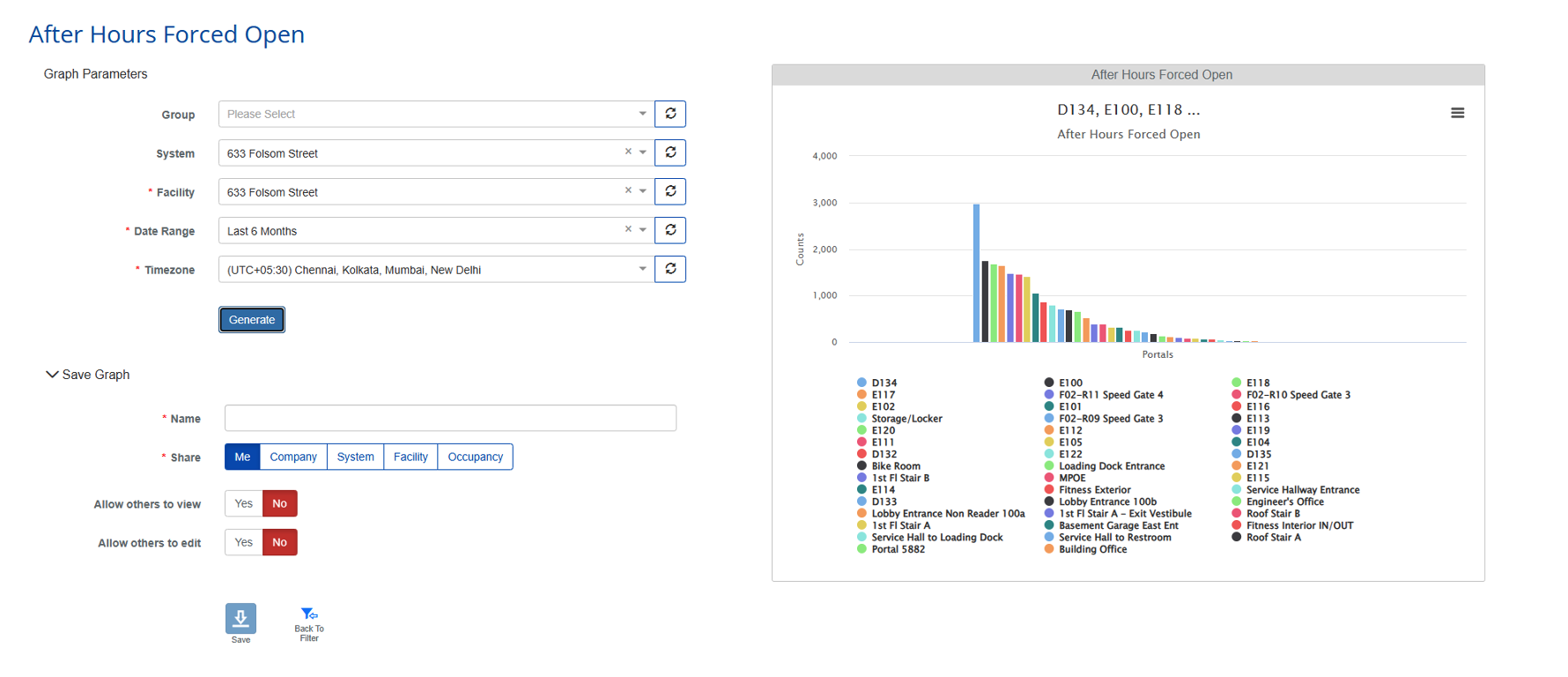
**h.**After Hours Forced Open:
- Shows forced-open alarms occurring outside defined business hours, helping detect potential security violations during off-hours.
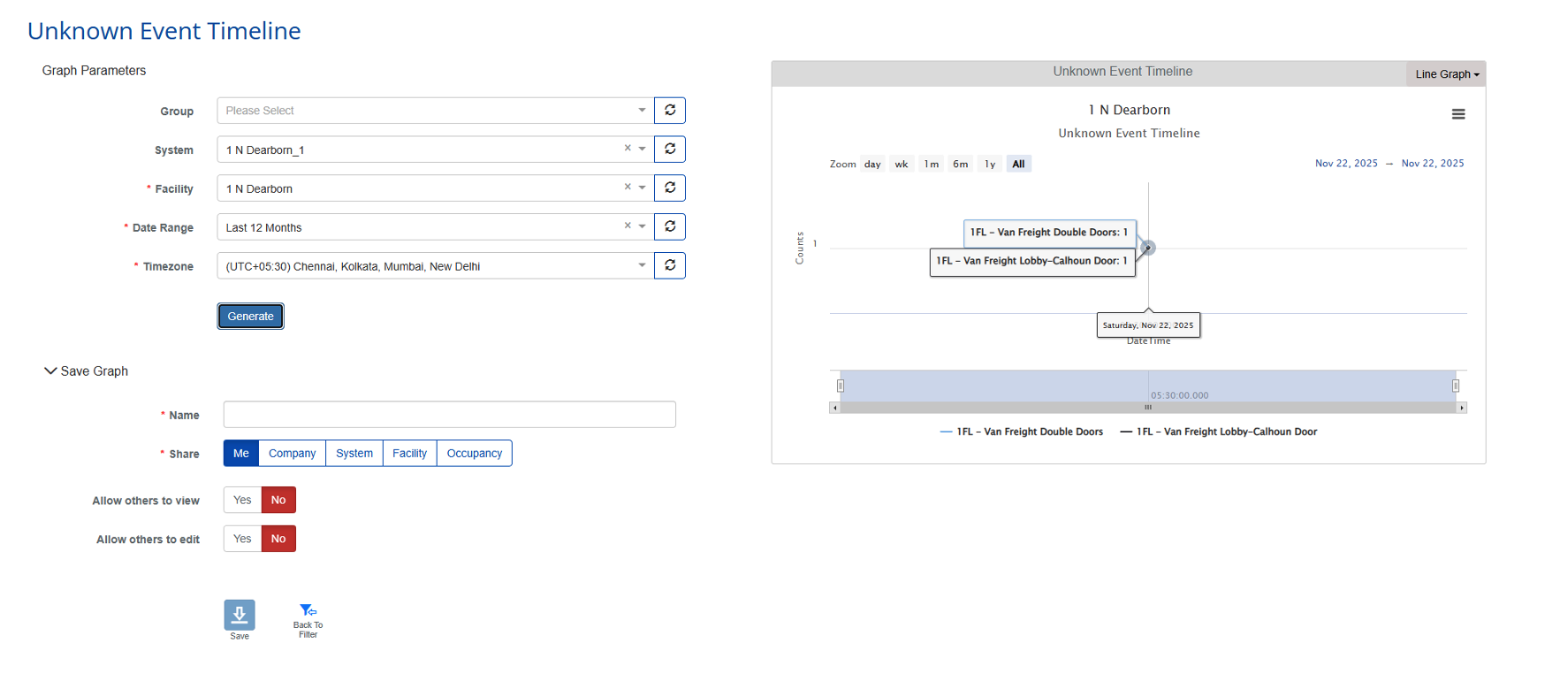
**i.**Unknown Event Timeline:
- Provides a time-based view of unknown or unclassified events, helping identify when and where unexplained activity occurred.